# Schedule

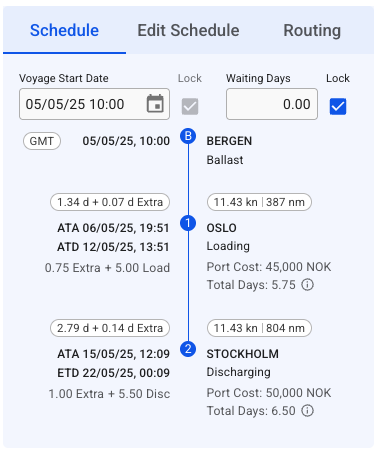
The *Voyage schedule (Figure 1)* visualization may be found on the right-hand side of a voyage drawer.&#x20;

This section is highly customizable: for example, you can change the voyage start date, lock it, update the port call sequence, and edit port calls by hovering over a port call box.

<figure><img src="https://content.gitbook.com/content/C1J8AWiPofqM4X8lYAPJ/blobs/SCsq8l0hVE22BOzHxD8a/image.png" alt=""><figcaption><p>Figure 1. Voyage Schedule</p></figcaption></figure>

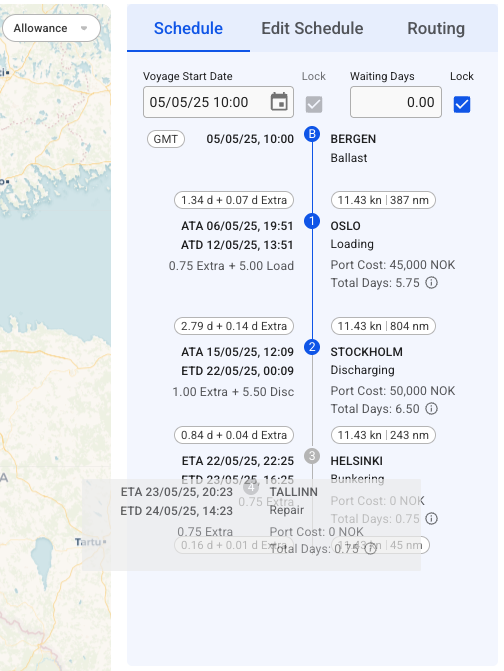
The *Schedule Timeline* is a fully interactive module. Each port represents a draggable block - if you reorder the blocks with not-fixed port calls *(Figure 2)*, you will update the port call sequence on the opened voyage correspondingly:

<figure><img src="https://content.gitbook.com/content/C1J8AWiPofqM4X8lYAPJ/blobs/PQS8DC5mnjXEphrJ29hz/Screenshot%202025-05-21%20at%2011.13.43.png" alt=""><figcaption><p>Figure 2. Schedule Drag'n'Drop</p></figcaption></figure>

Next, each *Port Call* block is clickable, and it brings up a [Port Call](https://docs.dataloy.com/release-8.14/voyage-management-system/step-by-step-guides/port-calls) drawer.

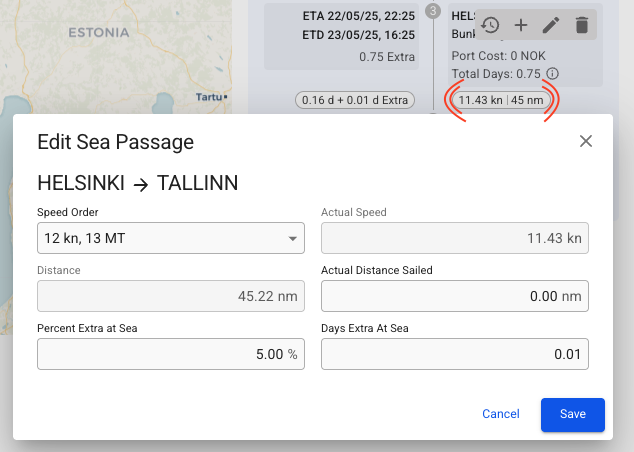
The small ovals inside of each *Port Call* block are called chips and include a piece of related information: *Days at Sea + Extra Days at Sea*, *Actual Speed*, and *Distance between Ports*. Every oval is clickable and allows editing corresponding sea passages *(Figure 3)*.

<figure><img src="https://content.gitbook.com/content/C1J8AWiPofqM4X8lYAPJ/blobs/33ATbEN5Sg08K2uHLSMJ/Screenshot%202025-05-21%20at%2011.16.57.png" alt=""><figcaption><p>Figure 3. Edit Sea Passage</p></figcaption></figure>

Moreover, the Port Call blocks include a small hover actions toolbar that provides the following actions on the voyage schedule sequence: show Port Cost history overview, create new Port Call to the current schedule, edit the selected Port Call, or delete the Port Call.

#### Hover Toolbar

When hovering the mouse over a port call in the schedule, a toolbar in the upper right will appear.

* [View](https://docs.dataloy.com/release-8.14/voyage-management-system/step-by-step-guides/voyages/maintain-voyages/overview/schedule/find-a-port-call) and [maintain](https://docs.dataloy.com/release-8.14/voyage-management-system/step-by-step-guides/voyages/maintain-voyages/overview/schedule/maintain-port-calls) port costs for the selected port.
* To *insert* a port call before or after the port call you are editing, click the **Create** <img src="https://content.gitbook.com/content/C1J8AWiPofqM4X8lYAPJ/blobs/HtL5D4Zv9YmnfP0BpPGO/create-24px.svg" alt="" data-size="original"> button and select **Before** or **After.** A window to create a new port call then pops up.
* To *edit* a port call, click the **Edit** <img src="https://content.gitbook.com/content/C1J8AWiPofqM4X8lYAPJ/blobs/RPXDYbEtkZgiFg2N5M63/edit-24px.svg" alt="" data-size="original"> button.
* To *delete* a port call, click the **Delete** <img src="https://content.gitbook.com/content/C1J8AWiPofqM4X8lYAPJ/blobs/nboJG8fa0SgecbviPr4m/delete.svg" alt="" data-size="original">button.
* To *change* the order of port calls, simply *hover over* a port call to move it into place.
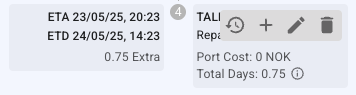
<figure><img src="https://content.gitbook.com/content/C1J8AWiPofqM4X8lYAPJ/blobs/8JGZ7DRDjlXa79IFSll1/image.png" alt=""><figcaption><p>Figure 4. Schedule Port Call action tooltip</p></figcaption></figure>

### Edit Port Call

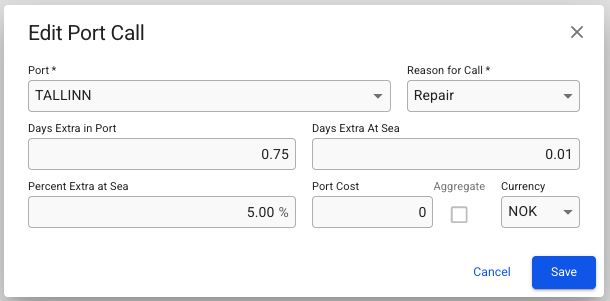
To edit a port call in the schedule, click the pencil icon in the action tooltip. A popup modal then shows with editable essential port call details *(Figure 5)*.

<figure><img src="https://content.gitbook.com/content/C1J8AWiPofqM4X8lYAPJ/blobs/kfXiAqeGTjMPhGJqqCHs/image.png" alt=""><figcaption><p>Figure 5. Edit Port Call action</p></figcaption></figure>

{% hint style="info" %}
Note that the port can only be changed if the Arrival-, Berthed-, and Departure Date are unfixed. If any of these dates are fixed, the port selector will only show available terminals on the currently selected port.
{% endhint %}