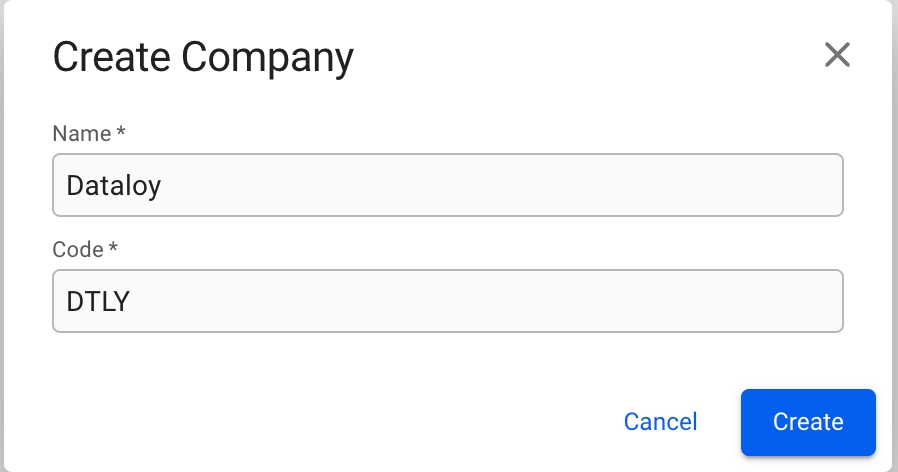
To create a new Company, click the icon in the top right on the Companies list. This will bring up the Create Company modal. Fill in company name and code, and click create.
To add or change details about a company, click on it in the Companies list. This will bring up the Company drawer.
From the overview tab, you can see all the important details of a company such as Name, Code, Company Registration Number, VAT Number, different currencies, Business Units and more:
If the company has a company logo uploaded to the system, it will show up in the Main Details section in the Overview tab.
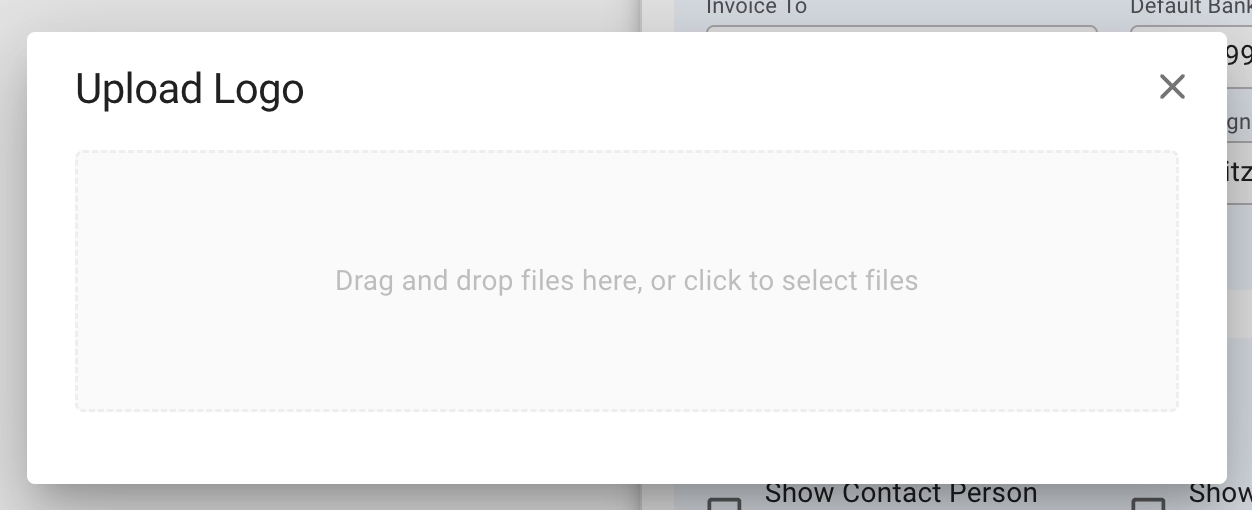
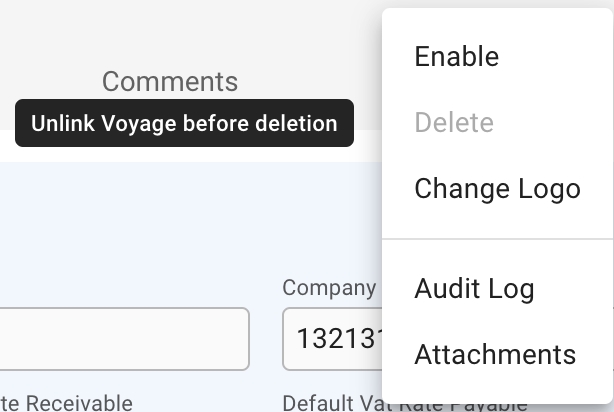
To upload or replace a company logo, click the button in the top right of the Company drawer to bring up the menu. Then click on the "Change Logo" option. This will bring up the modal for uploading a logo:
A Company only has one logo. Uploading a new logo to a Company with an already existing logo, will replace the old logo.
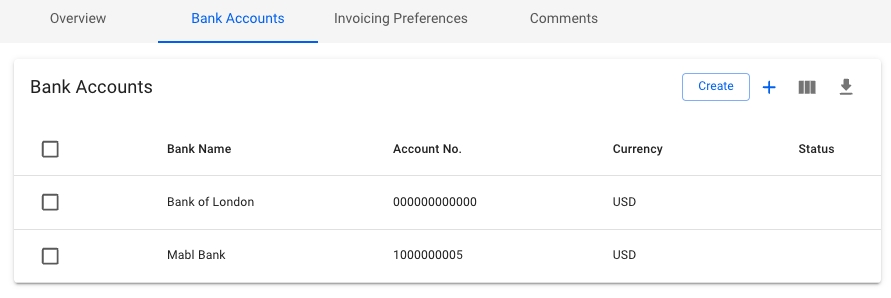
The tab contains a list of all the Bank Accounts belonging to the company. The usual list operations are available, with two minor changes:
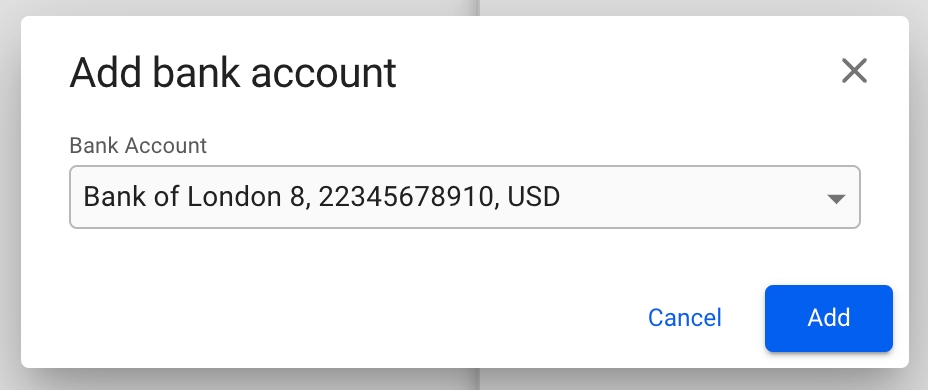
To add an already existing bank account, click on the icon in the top right of the list. This will bring up a dialog box to select the account from a list, showing the Bank Name, Account Number and Bank Currency. Click Add to add the account to the Company:
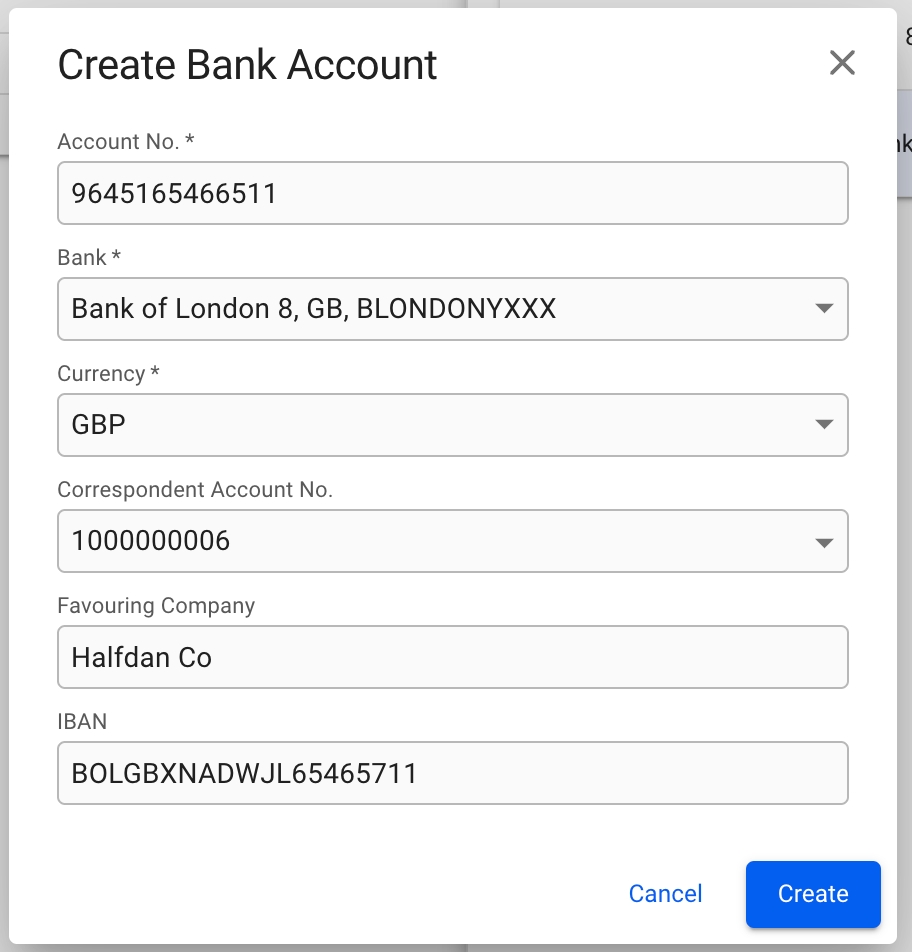
To create a new Bank Account, click on the button in the top right of the list. This will bring up a modal to create a brand new bank account. Fill in the required details, and click Create to add it to the Company:
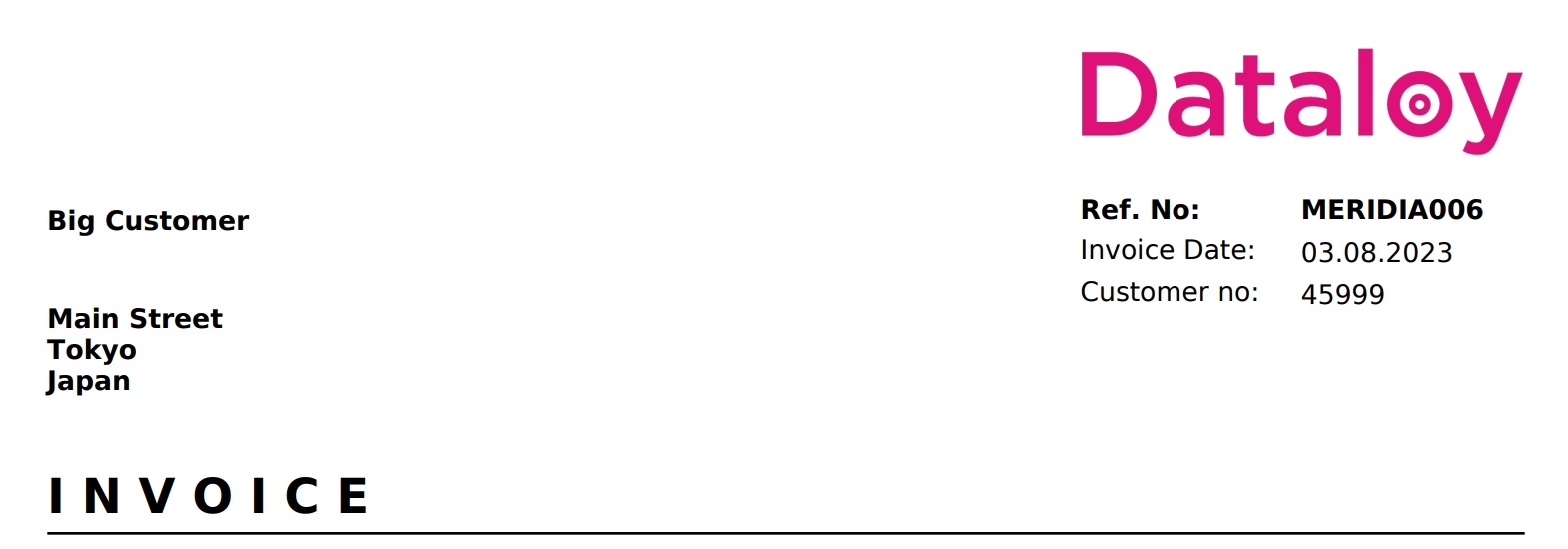
The invoice preferences tab has an overview of all togglable options for printing any invoice issues by the company. Any combination of options may be enabled. Below is a description of each option, as well as a comparison between the invoice with the option turned off, and all options turned off.
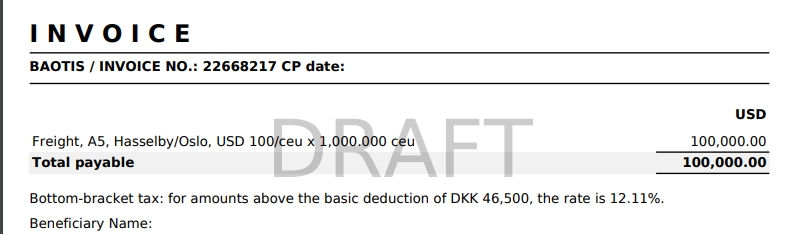
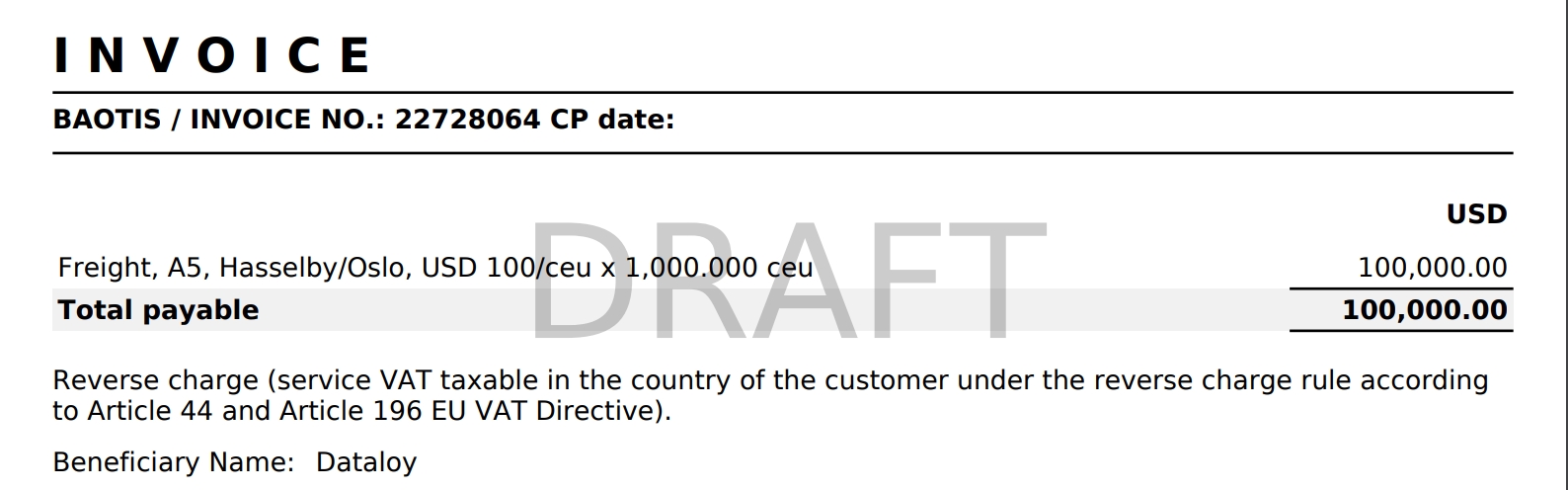
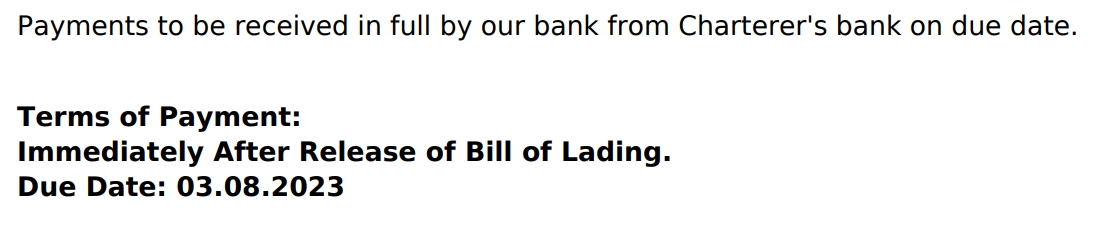
For companies registered in EU, you can now modify the Tax rules for Freight invoices. You can add the Tax rule in the Tax Description field, along with the other specifications, which can be done separately in the module. This Tax then has to be connected to a Company. What is specified in Description will reflect on the invoice, but based on our various set of rules. Scroll through the demo below to see an illustration of each Tax rule, along with how this line will look on the printout. For all scenarios, you firstly have to have the Issuing Company in EU, have a company on the Business Partner, and have at least one Freight invoice (click on the pictures for better view):
If the Business Partner's country and the Issuing Company's country are equal, and there exists a VAT with Rate 0% for that country, then this will be printed out:
Remember that this line is your specified Tax description, which should be linked to the Issuing Company's Vat Rate(s).
If the Business Partner's country and the Issuing Company's country are equal and there does NOT exist a VAT with Rate 0% for that country code, then this will be printed out:
Note that this line is predefined.
If the Business Partner's company is in the EU, but not in the same country as the Issuing Company and if additionally the Business Partners VAT Number has a value, then this will be printed out:
The line(s) is placed below the Total Amount, and above Beneficiary Name.
A Dataloy Property to enable the EU Tax Automation has to be set on your environment first! The developers can help set it up for you.
Deleting a Company requires that the Company is both disabled, and has no link to any Voyage.
Click the button in the top right corner of the Company drawer to bring up the menu. Then click the "Disable" option to first disable the Company. Next, open the menu again, and click "Delete".
Show Business Partner VAT Number
Shows the charterers VAT number underneath the payment details.
Show Issuing Company VAT Number
Shows the issuing company's VAT number underneath the payment details.
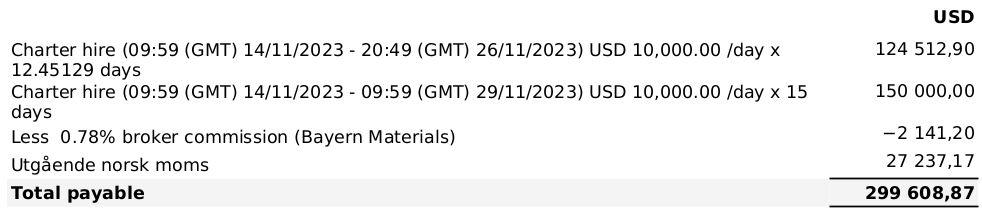
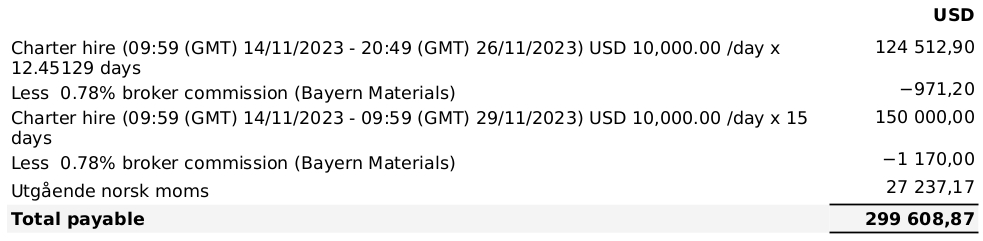
Sum Commission On Hire Invoices
Toggles summing of similar commissions on invoices that contains a charter hire line and the company is listed as issuing company.
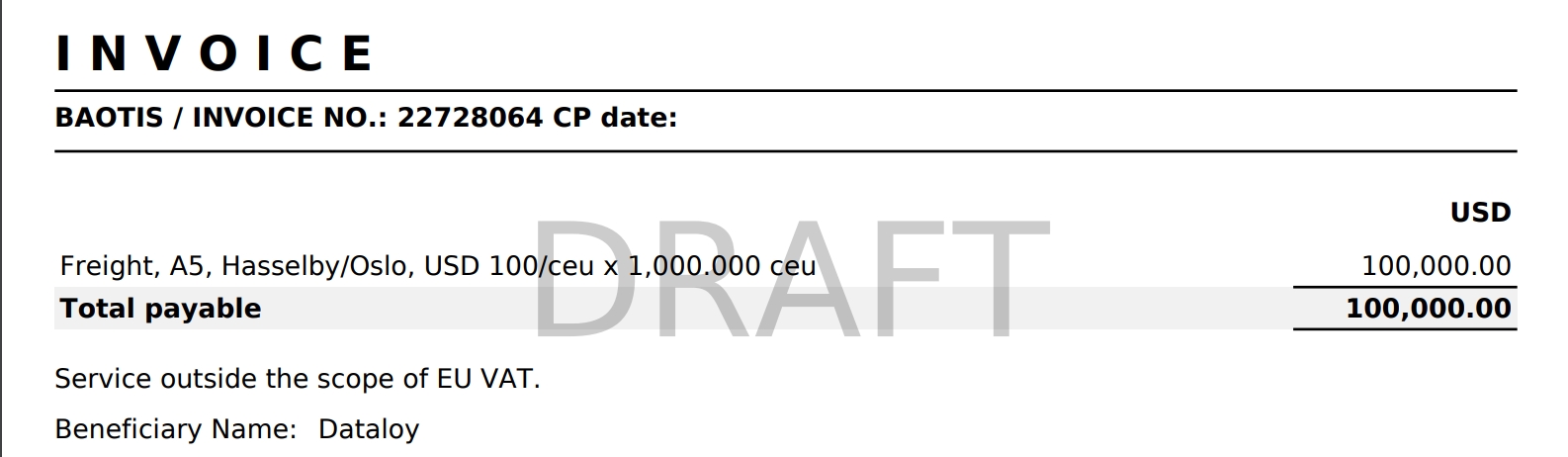
If the Issuing Company is in the EU and you do not meet the criteria of Rule 1, Rule 2 and Rule 3, then this will be printed out:
Note that this line is predefined.
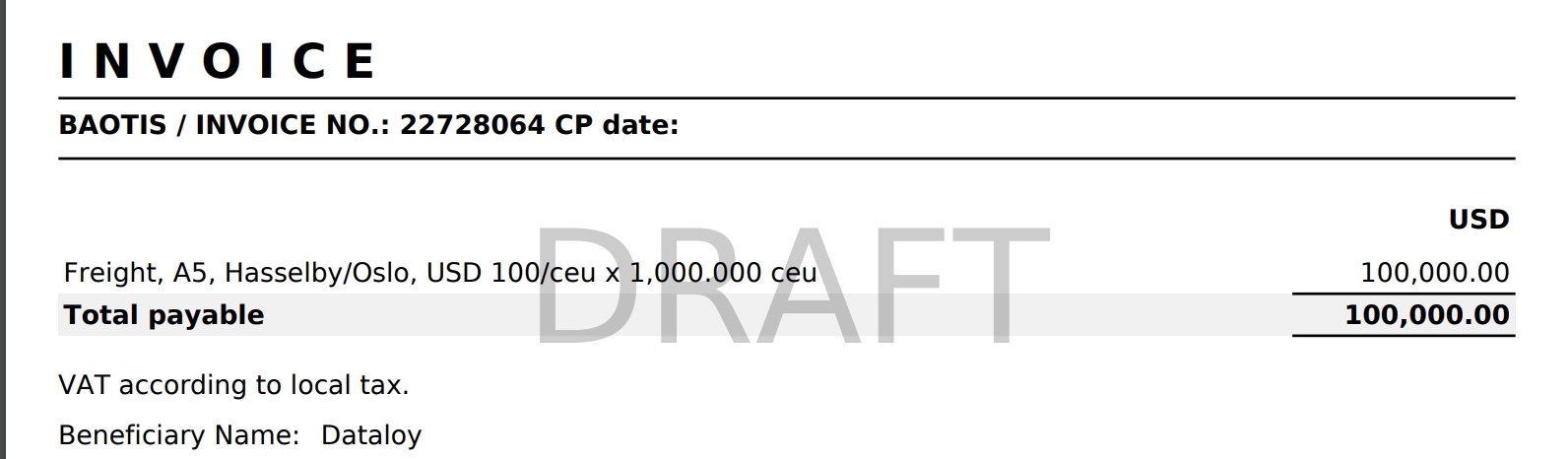
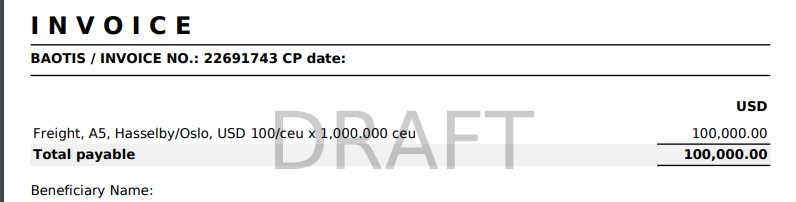
If you don't have the EU Tax Automation property set up (see the warning below), your invoice does not have any document line for the account Freight, or your issuing company is not in the EU (aka you don't meet any of the previous criteria), then the printout will look like before:
Note that this is the default setup.
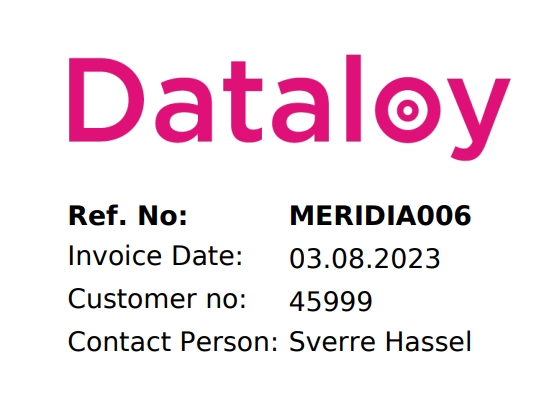
Show Contact Person On Invoices
Shows the responsible contact person in the reference section in the top right of the invoice.
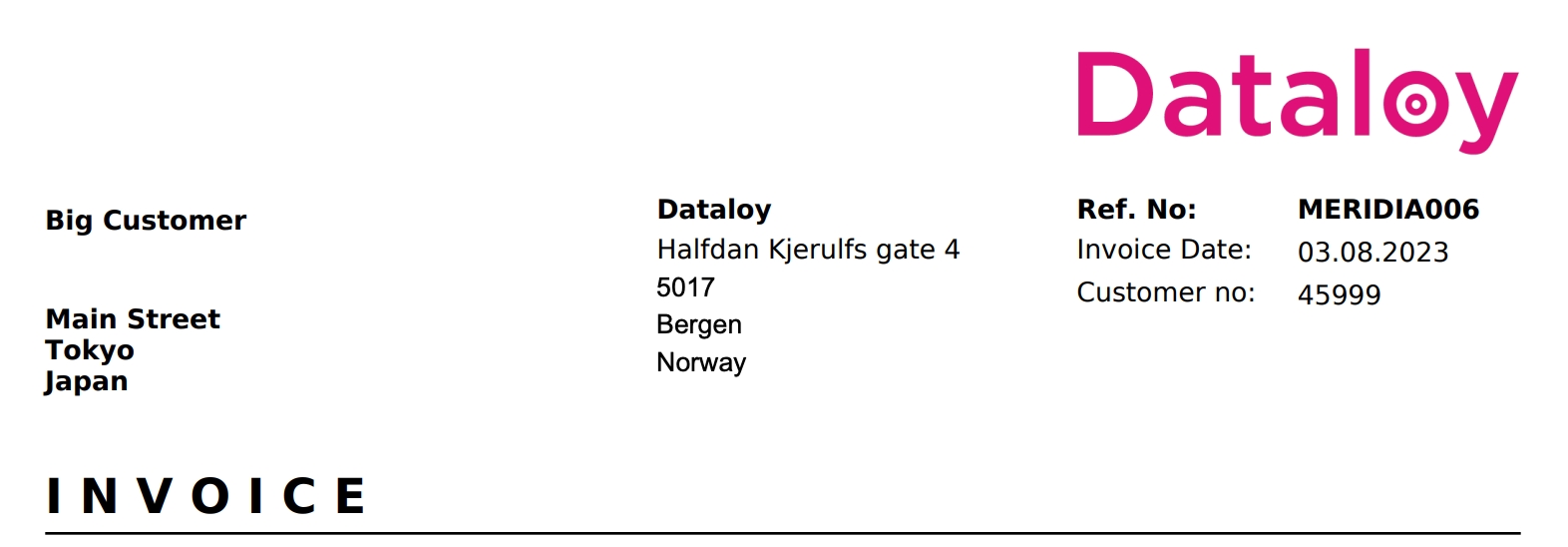
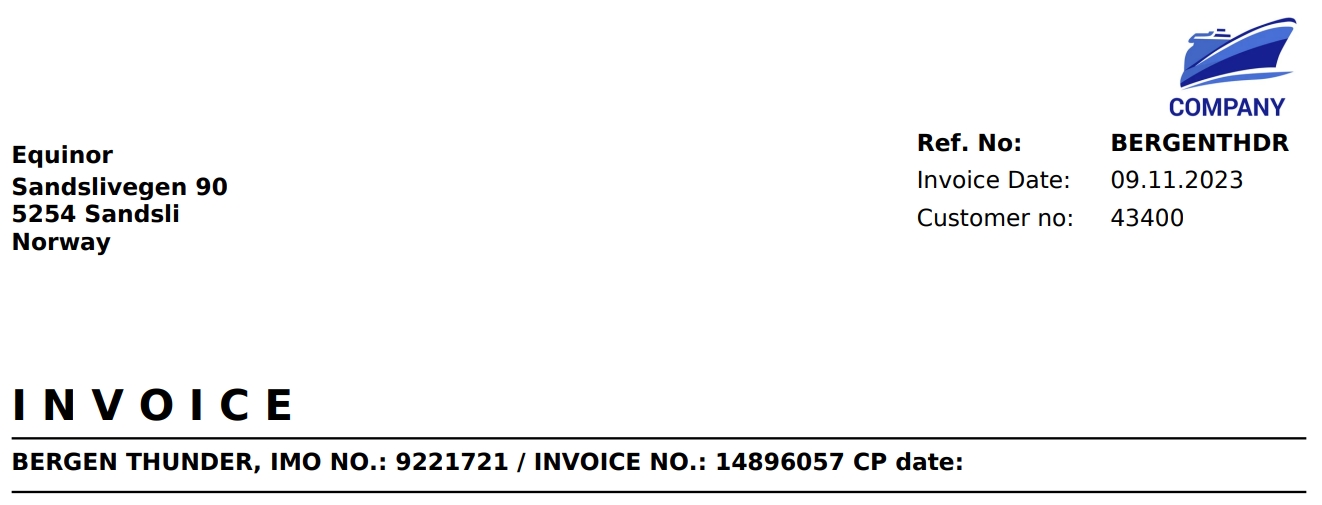
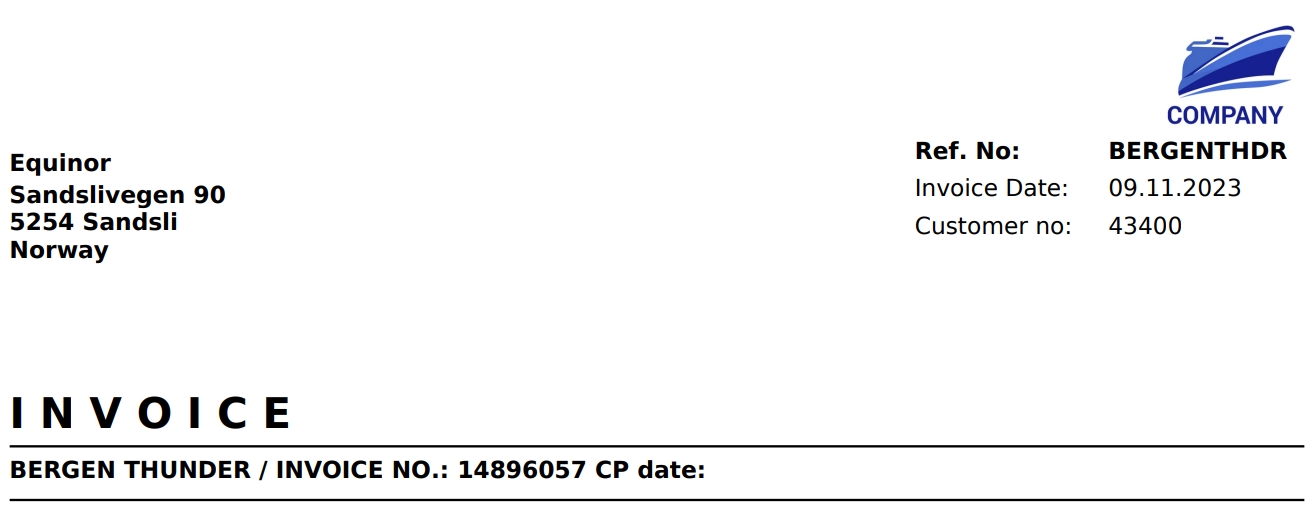
Show Company Address In Header
Displays the issuing company's address in the top of the invoice, instead of the bottom.
Show External Document No
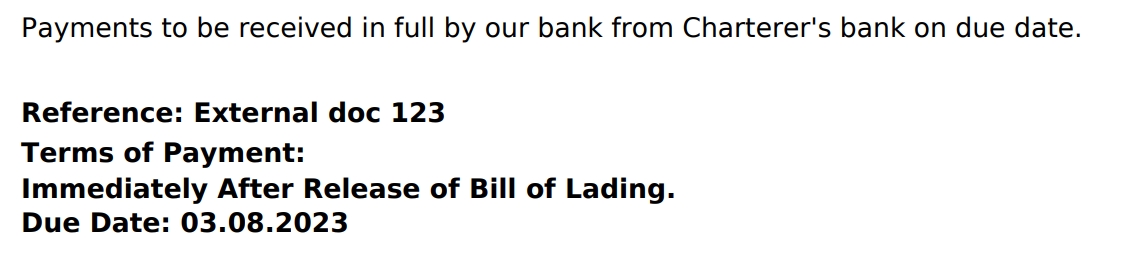
Shows the data entered in the "External Document No" on the document above the payment details in the invoice.
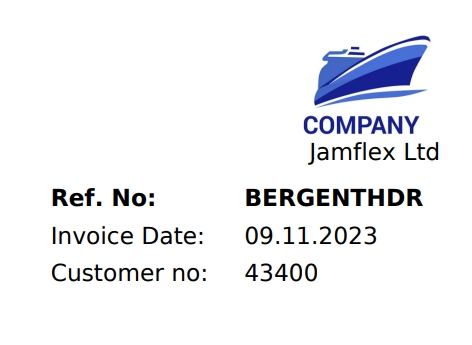
Show Company Name Under Logo
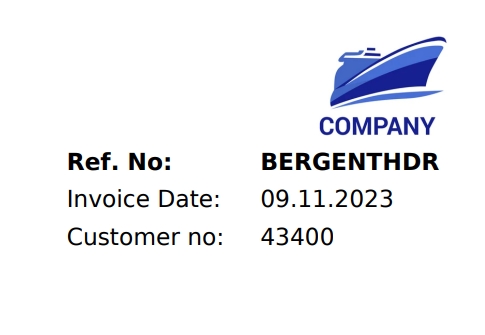
Displays the issuing company's name underneath the logo in the header.
Show IMO On Invoice
Displays the vessels IMO number next to it's name.