Loading...
Loading...
Loading...
Loading...
Loading...
Loading...
Loading...
Loading...
Loading...
Template Voyages Tab in Budgets Module
Template Voyages can be located from the tab in the Budgets module.
Create Template VoyagesFind Template VoyagesMaintain Template VoyagesAt the top of the list with budgeted voyages, if you have the required permission (Voyage Contributor Role), a "Bulk Update" button is available:
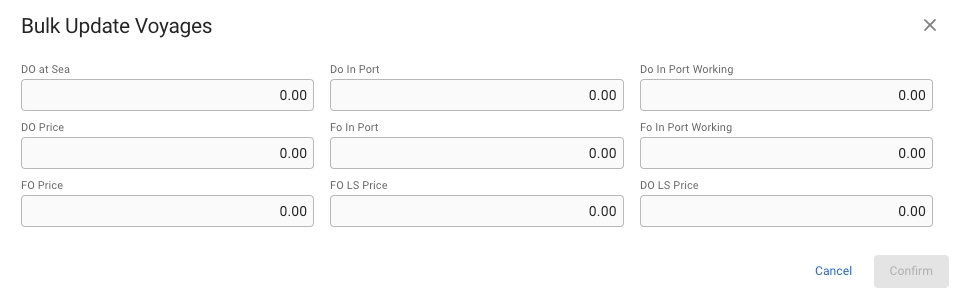
Clicking the button will change the list to be selectable, where the desired voyages can be selected for bulk updating. After selecting, press the update button below the filters to open a modal with available fields to bulk update:
Budgeted Voyages can be located from the tab in the Budgets module.
Budget scenarios are listed in the dropdown in the top center of the Budgets page.
The Budgets page contains two tabs for viewing template voyages and budgeted voyages from the selected budget scenario.
Open the Voyages module
Choose Template Voyage quick filter
Find in the Voyages list
You can use the quick filters to find the template voyage you are looking for.
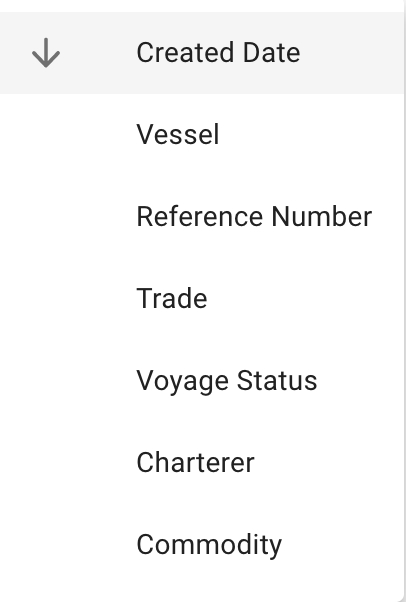
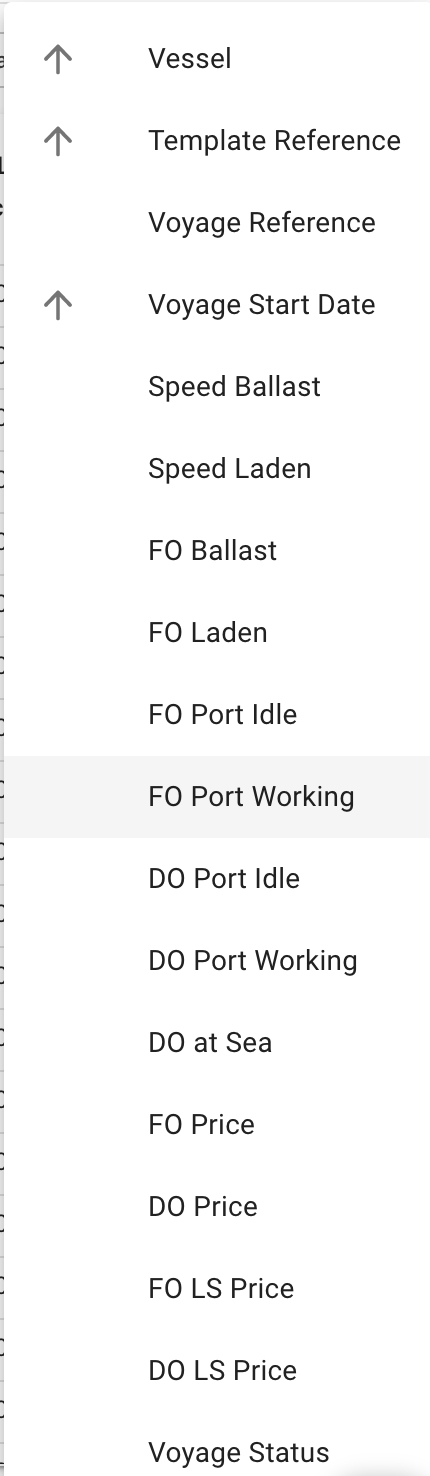
You can also sort in ascending and/or in descending order based on these fields:
Open the Budgets module in the Planning section
Select a budget from the dropdown
Click Create in the top right corner
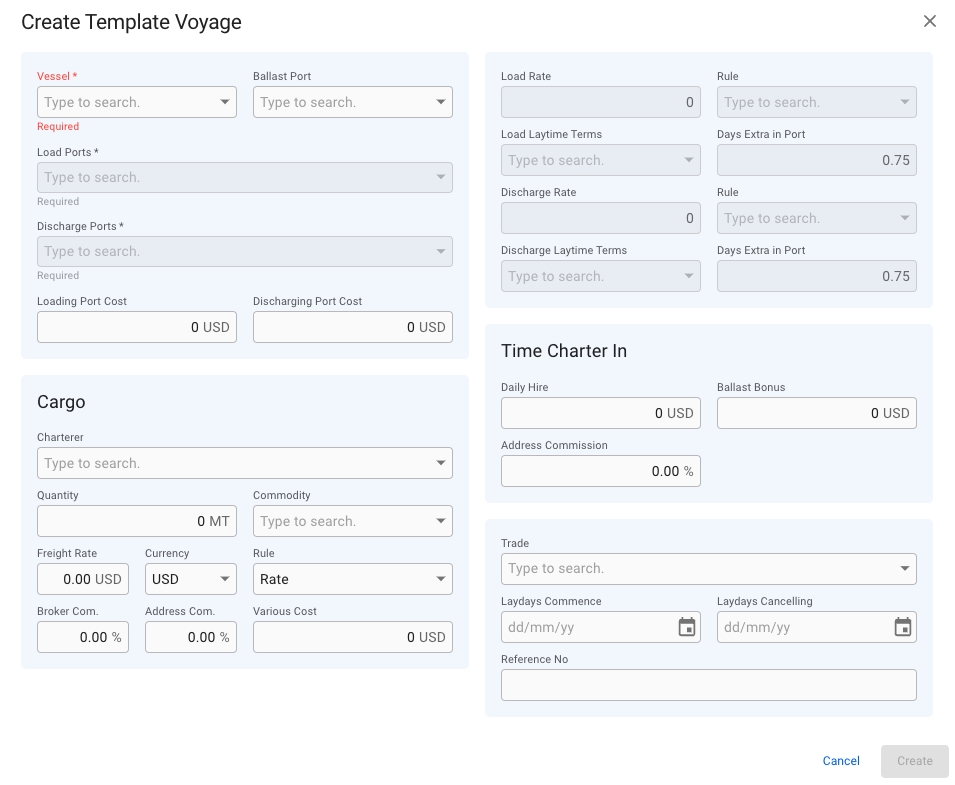
Fill in all required fields listed in the Create Template Voyage window
Click Create
Open the Voyages module
Choose Template Voyage quick filter
Click Create in the top right corner
Fill in all required fields listed in the Create Template Voyage window
Click Create
After the creation of the new template voyage the template Voyage drawer will open and the template voyages list will refresh.
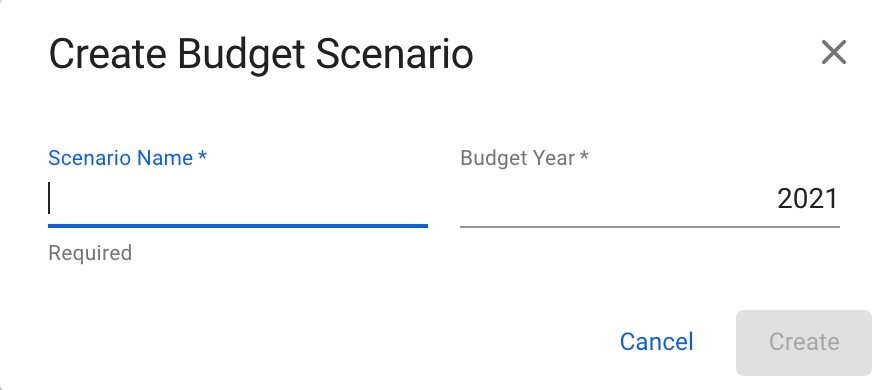
Create Budget Dialog
Open the Budgets module in the Planning section.
By using the list of budget voyages that opens from the Budgeted Voyages tab in the Budgets module, you can use the quick to find the template voyage you are looking for:
By using one of these sorting options
After selecting a template voyage, navigate to the .
When you have located a template voyage, click on it and the details will show in a drawer on the right hand side. The drawer will also open after creating a new template voyage.
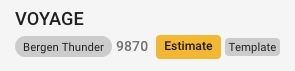
Template voyages have the template label next to the status selector to indicate that it is a template voyage.
Click Create
Field
Description
Vessel
Vessel the voyage will be using
Load Port
First loading port
Discharge Port
Last discharge port
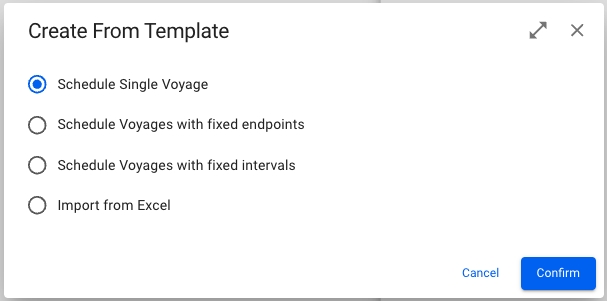
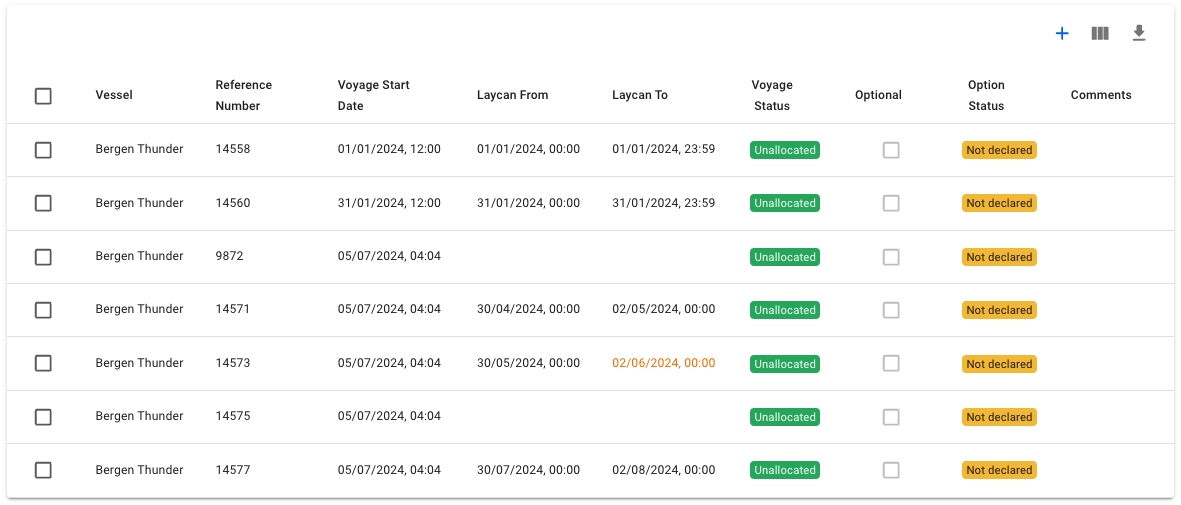
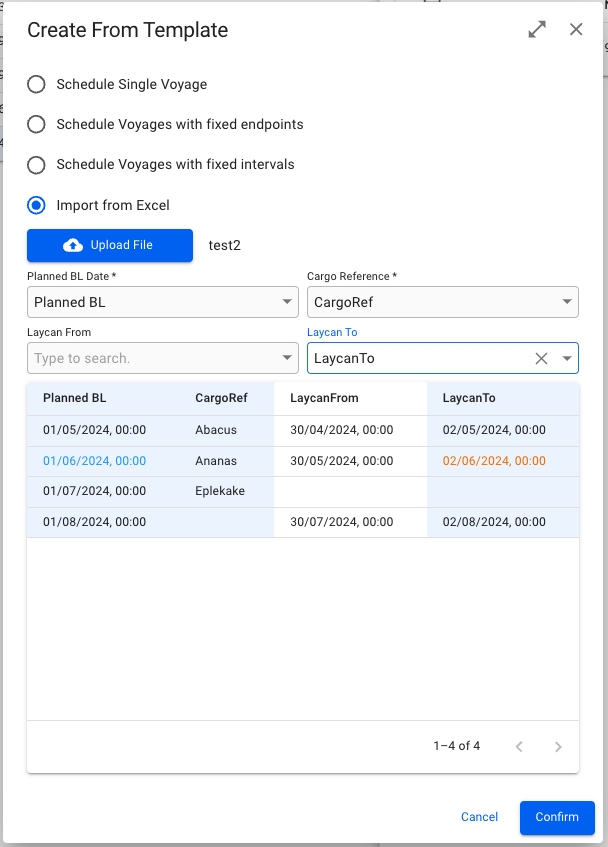
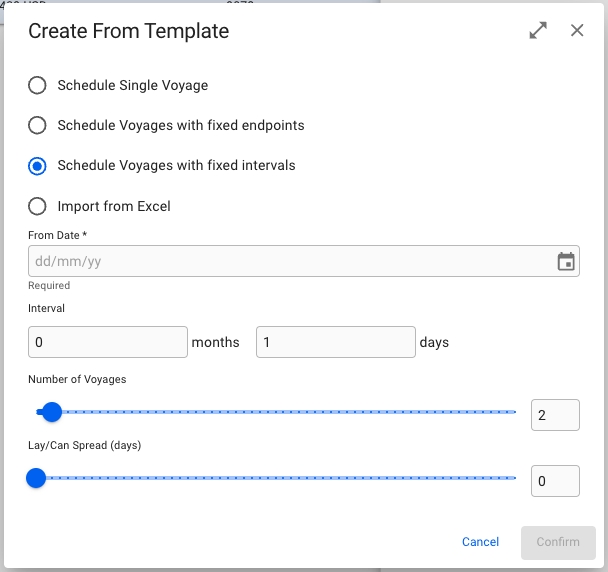
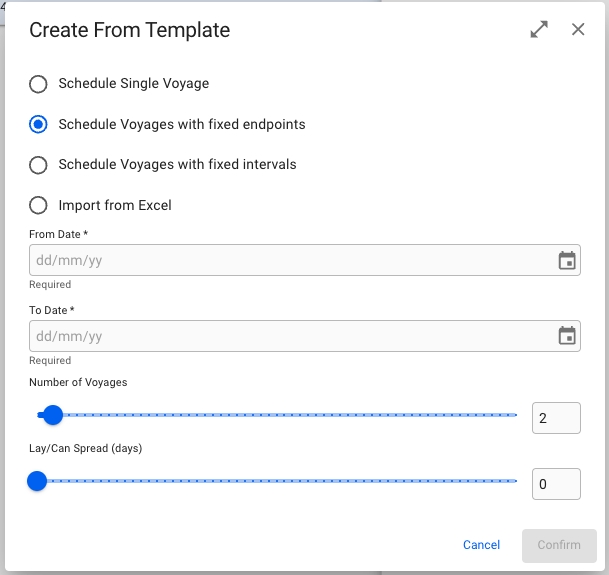
Template voyages have an additonal "Scheduled Voyages" tab. Voyages that are created from the selected template voyage are listed in this Scheduled Voyages tab. To create a new scheduled voyage click Add in the top right corner of the list. This will bring up a modal allowing you to choose between creating a single scheduled voyage, or multiple based on user input or import.
The "Schedule Voyages with fixed endpoints" option lets you define the number of voyages and an interval in which they will be evenly scheduled in.
When choosing "Schedule Voyages with fixed intervals", you instead define a start date, the number of voyages required, and then the number of days or months in between each voyage.
If using the "Import from Excel" option, the voyages are created in a slightly different manner. After uploading an .xlsx or .csv file, you choose which column to use for the planned B/L date and cargo reference. The laycan fields are optional, but if one is selected, both must be. The system will then create a number of voyages equal to the number of rows in the file, and set the planned B/L date and cargo reference on the performance cargo of the voyage. If laycan fields have been selected, those will also be set. Note however, that unlike the two other options for creating multiple voyages, the voyage start date is not set.
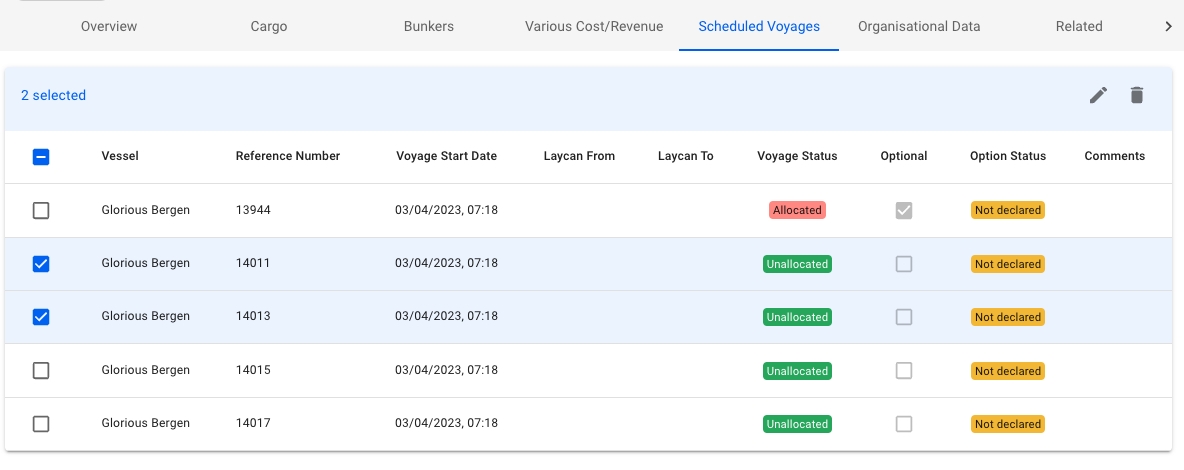
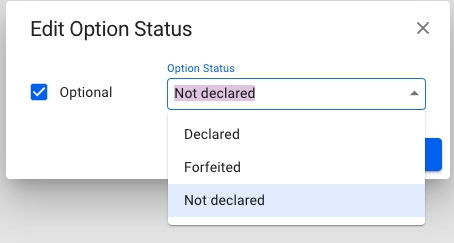
You can edit the option status of one or more scheduled voyages by clicking the checkboxes to the left, then clicking on the edit pencil-icon on the blue header that appears. Only voyages marked as Optional can have an option status different than "Not declared".
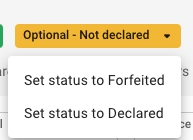
When opening one of the scheduled voyages from the list that has been marked as Optional, an additional option status chip is visible. Clicking it will allow you to set the option status from the voyage drawer.
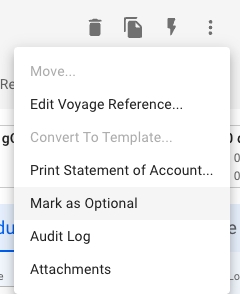
If the voyage has not been marked as Optional, you can set it in the secondary actions menu by clicking "Mark as Optional". To remove the Optional mark, open the menu again and click on the option.
The option status is also available in the tooltip of the Commitment voyages in the Scheduler Board in FAS.
Option Status field is mandatory on a cargo
Status chip dropdown is only visible when the optional field is checked on the performance cargo (or the voyage is marked as optional)
Mark as Optional/Remove Optional mark is not available and/or is disabled for Template voyages and for voyages with statuses: 'Nominated', 'Operational', 'Operationally Closed', 'Invoiced' and 'Closed'
Not possible to mark a voyage as optional if there are no cargoes present
Not possible to change the voyage status of an optional voyage with option status that is not 'Declared' to a status beyond 'Allocated' (i.e. 'Nominated', 'Operational', etc...)
Follow the link below for further information on the Voyage drawer:
Field
Description
Scenario Name
Unique Scenario Name
Budget Year
Defaults to current year