# Voyage Comparison

The comparison button ![](https://content.gitbook.com/content/W3oa0rI5VDyYPnwDBtD7/blobs/XgOuhcBxFPbc8JweLaBr/compare_24px.svg) can be found as a primary action in the Voyage drawer:

<figure><img src="https://content.gitbook.com/content/W3oa0rI5VDyYPnwDBtD7/blobs/TbUXlx7gywOmlKXdokvx/image.png" alt=""><figcaption><p>Comparison functionality in the Voyage drawer</p></figcaption></figure>

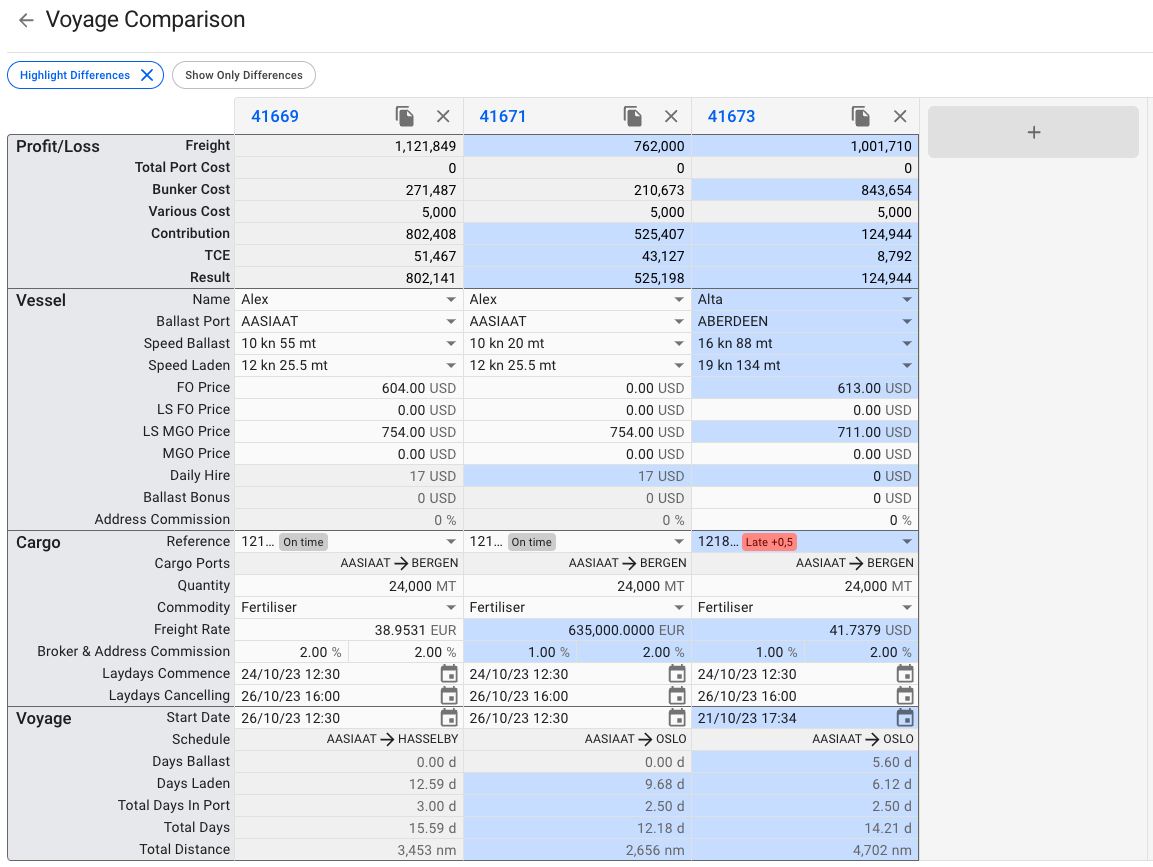
This will open a new page where you will be able to see a overview of the voyages to compare, copy the voyages you want to compare and/or open the Voyage drawer of the voyages:

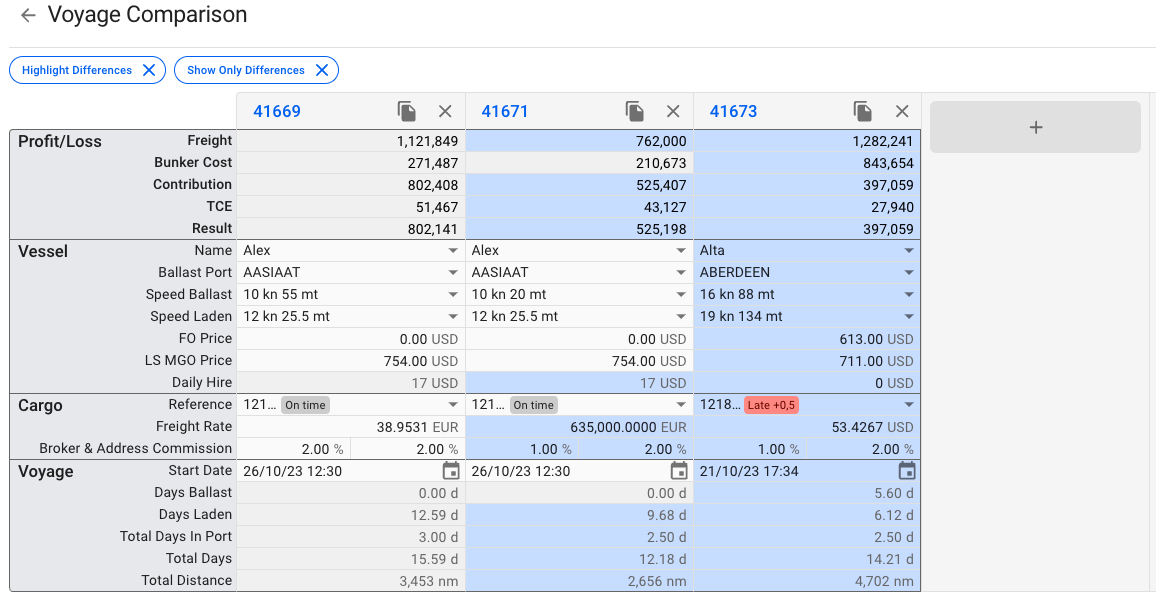
<div data-full-width="false"><figure><img src="https://content.gitbook.com/content/W3oa0rI5VDyYPnwDBtD7/blobs/bf6gTBRrFSmvys2TCKgj/VoyageComparisonOverview.png" alt=""><figcaption><p>Voyage Comparison view with highlighting of differences compared to the base voyage</p></figcaption></figure> <figure><img src="https://content.gitbook.com/content/W3oa0rI5VDyYPnwDBtD7/blobs/pWoQ1MRgdStwTsIqxgkr/VoyageComparisonHighlightAndOnlyDifferences.png" alt=""><figcaption><p>Voyage Comparison with only differences shown</p></figcaption></figure></div>

For the initial release version of this tool, you'll be able to see and modify details on your vessel, cargo and voyage. Some fields may be greyed out, for the same reasons you might not be able to modify them in the voyage or cargo drawer normally.

In the top left you will find two buttons; Highlight Differences and Show Only Differences, which will enable or disable the respective features. By default, Highlight Differences is turned on.

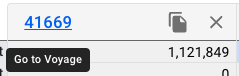
The top header shows the voyage reference number, and a button to copy and remove the voyage from the comparison. Clicking on the voyage reference will open the voyage drawer. From here, you can make all the changes you are used to, and the comparison will update accordingly.

<figure><img src="https://content.gitbook.com/content/W3oa0rI5VDyYPnwDBtD7/blobs/rfpG8WOXdJNaQNWSO0SY/VoyageComparisonTopHeader.png" alt=""><figcaption><p>Hovering the mouse over any of the buttons here will give you a tooltip</p></figcaption></figure>

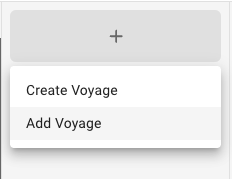
To the right of the rightmost voyage, you'll find a big grey button that when clicked, opens a dropdown menu. Here you can add an existing voyage to the comparison, or create a brand new one.

<figure><img src="https://content.gitbook.com/content/W3oa0rI5VDyYPnwDBtD7/blobs/MIucMpFgAdSPwtcD2Vn7/VoyageComparisonCreateAddVoyage.png" alt=""><figcaption><p>Choose between creating a new voyage, or adding an existing one</p></figcaption></figure>

#### The comparison sections

The Vessel section of the comparison allows you to choose and edit many values that can change your result. Want to see how another vessel would perform on a given voyage? How much difference will different speed orders or bunker prices make? Make a change, and see how it affects your result and TCE.

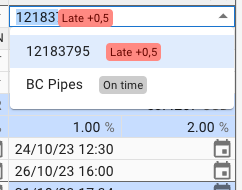
The Cargo section displays information about one cargo at a time. In the event your voyage has multiple cargos, click on the Reference dropdown to see and select another cargo.

<figure><img src="https://content.gitbook.com/content/W3oa0rI5VDyYPnwDBtD7/blobs/wojGMCpXUxAIuL2H8djN/VoyageComparisonCargoDropdown.png" alt=""><figcaption><p>The dropdown also shows the status chip telling you if the cargo is early, late, or on time.</p></figcaption></figure>

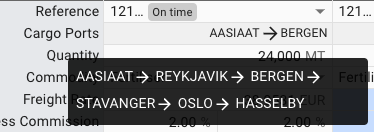
The Cargo Ports row shows you the first load and discharge port for the cargo. If you have a longer schedule, hover over the row to see the entire schedule as a tooltip.

<figure><img src="https://content.gitbook.com/content/W3oa0rI5VDyYPnwDBtD7/blobs/yYDZ1ibbgaLBgk5UFoIK/VoyageComparisonCargoPortScheduleHover.png" alt=""><figcaption><p>Long schedules are visible by hovering your mouse over the cargo ports row.</p></figcaption></figure>

Changing any of the fields here behaves as if they were changed from the Cargo drawer. For instance, setting a high freight rate will automatically update the rule to Lumpsum, and the calculations are being carried out as such.

In the Voyage section, you are only able to set the start date of the voyage. Like the Cargo Ports row in the Cargo section, the Schedule row only shows two ports. Hovering your mouse over the row will bring up a tooltip showing the entire voyage schedule.


---

# Agent Instructions: Querying This Documentation

If you need additional information that is not directly available in this page, you can query the documentation dynamically by asking a question.

Perform an HTTP GET request on the current page URL with the `ask` query parameter:

```
GET https://docs.dataloy.com/release-7.13/voyage-management-system/step-by-step-guides/voyages/maintain-voyages/voyage-functionalities/voyage-comparison.md?ask=<question>
```

The question should be specific, self-contained, and written in natural language.
The response will contain a direct answer to the question and relevant excerpts and sources from the documentation.

Use this mechanism when the answer is not explicitly present in the current page, you need clarification or additional context, or you want to retrieve related documentation sections.