Loading...
Loading...
Loading...
Loading...
Loading...
Loading...
Loading...
Loading...
Loading...
Loading...
Loading...
Loading...
Loading...
Loading...
Loading...
Loading...
Loading...
Loading...
Loading...
Loading...
Loading...
Loading...
Loading...
Loading...
Loading...
Loading...
Loading...
Loading...
Loading...
Loading...
Loading...
Loading...
Loading...
Loading...
Loading...
Loading...
Loading...
Loading...
Loading...
Loading...
Loading...
Loading...
Loading...
Loading...
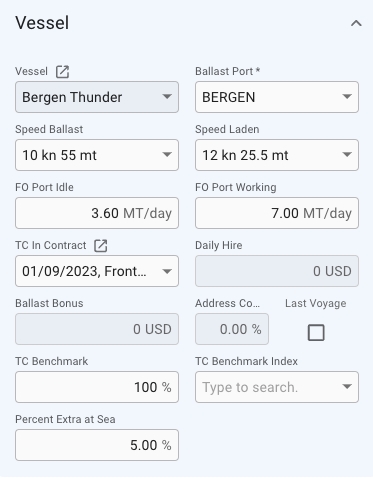
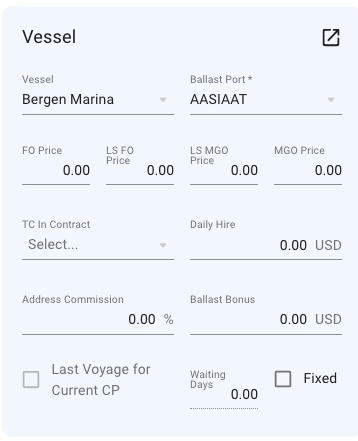
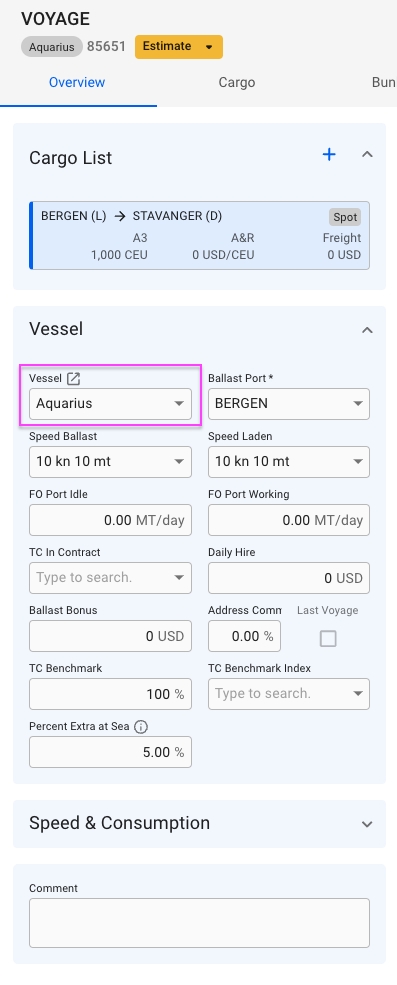
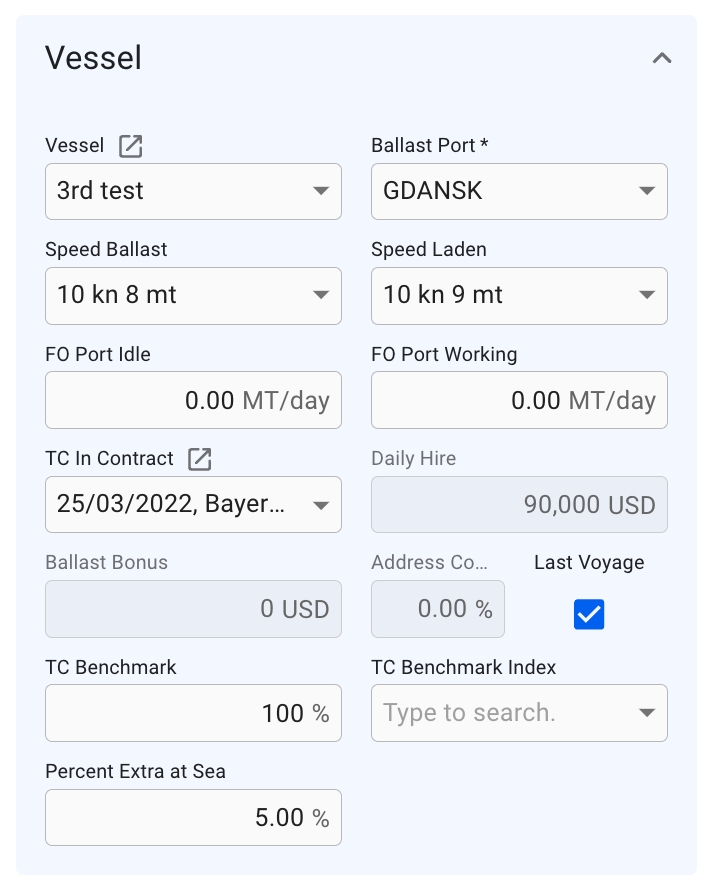
The Vessel section will display some useful information about the vessel that is currently connected to the voyage. You can click on the icon to open up the vessel drawer if you seek more information on the vessel.
Speed Laden: Showing the speed for laden port calls if all port calls have the same speed. If port calls has different speeds this field will be disabled and the text will be: Multiple. Changing this value will update speed for all laden port calls.
Speed Ballast: Showing the speed for ballast port calls if all port calls have the same speed. If port calls has different speeds this field will be disabled and the text will be: Multiple. Changing this value will update speed for all ballast port calls.
Changing vessel in this section will change the voyage's and the connected cargoes' company and business unit to the selected vessel's.
Layout:
The Voyages module contains of a large list of different types of voyages; unallocated, estimate, allocated, nominated, etc. In this list, you can filter the voyages based on several key endpoints to effectively view the required information on your screen. There is a sort icon to the far right, with different options for sorting the list as well. You can read more here: Sorting and Filtering Lists.
Below you can click to read how to create different types of voyages:
Create Voyage ChartererCreate Time Charter OutCreate Voyage From TemplateTo open the voyage drawer, go to the Voyages module.
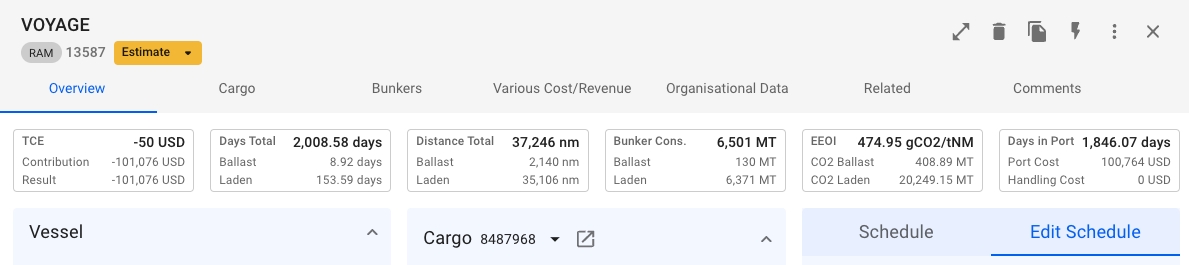
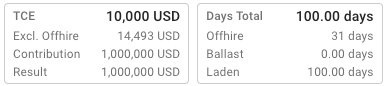
The top of the voyage drawer "Overview" tab has four summary cards for TCE, total days, hire costs, and bunker costs.
Note, If the status of the Voyage is closed, it is not possible to make any updates or changes to that particular Voyage.
Click expandto open detailed charts for the numbers in the summary.
The "result" chart is a waterfall chart for costs and revenue on the voyage. Hover the mouse over the bars to see further details behind the calculation.
The "days" chart has a timeline chart for the port calls on the voyage and a table of the total days on the voyage.
The port calls timeline shows the days at sea and days in port. It also shows the names of the ports above the bars. Hover the mouse over each bar to see more information.
Here you may add organisational data to your voyage.
Note, The Company and Business Unit fields depend on each other. If one of the details is set, you may see linked items that correlate to the former attribute when selecting the second field. Moreover, if you proceed with an element not linked to the former attribute, the first field will be cleared.
* For example, there is Company A, which has a link to Business Unit A. When creating Voyage's organisational data, after selecting Company A and expanding the Business Unit, you will get a list of options. The list will contain all the Business Units, but Business Unit A will be marked as linked to the selected Company. Next, if linked Business Unit A is chosen, you will end up with Company A and Business unit A. Otherwise, if the selected Business Unit is not linked to the preferred Company, the Company field will get cleared, and you may observe a list of Companies related to the selected Business Unit.
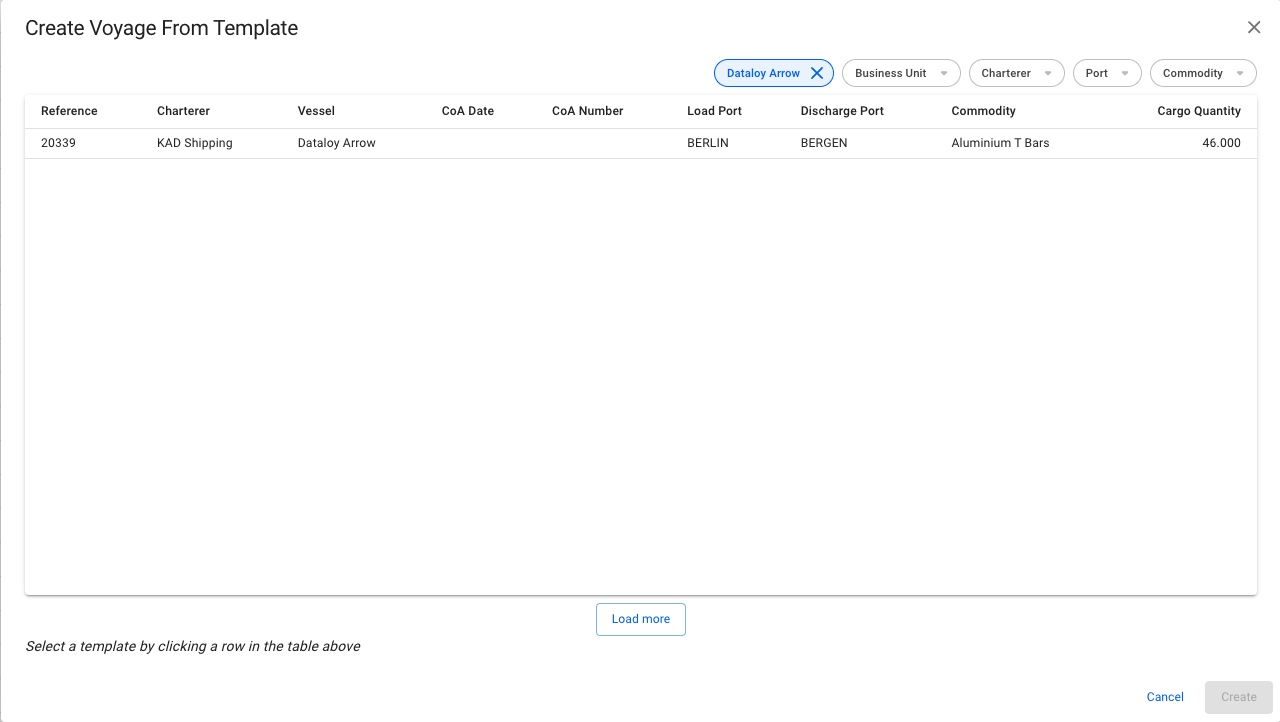
To efficiently create a voyage, and link them with CoAs, you can create voyage based on a CoA Template Voyages. The CoA Templates Voyage are the template voyages that are maintained in the Budgets module.
Open the Voyages module from the menu on the left.
In the top right corner, click Create .
Select Create Voyage From Template.
In the modal, you can apply various filters to narrow down the selection. Clicking a CoA template voyage selects it. The new voyage will inherit the values from the template displayed in the modal, as well as the Company and Business Unit of the template.
Click Create.
Open the Voyages module from the menu on the left.
On the top right corner, click the icon.
Select Create Time Charter Out.
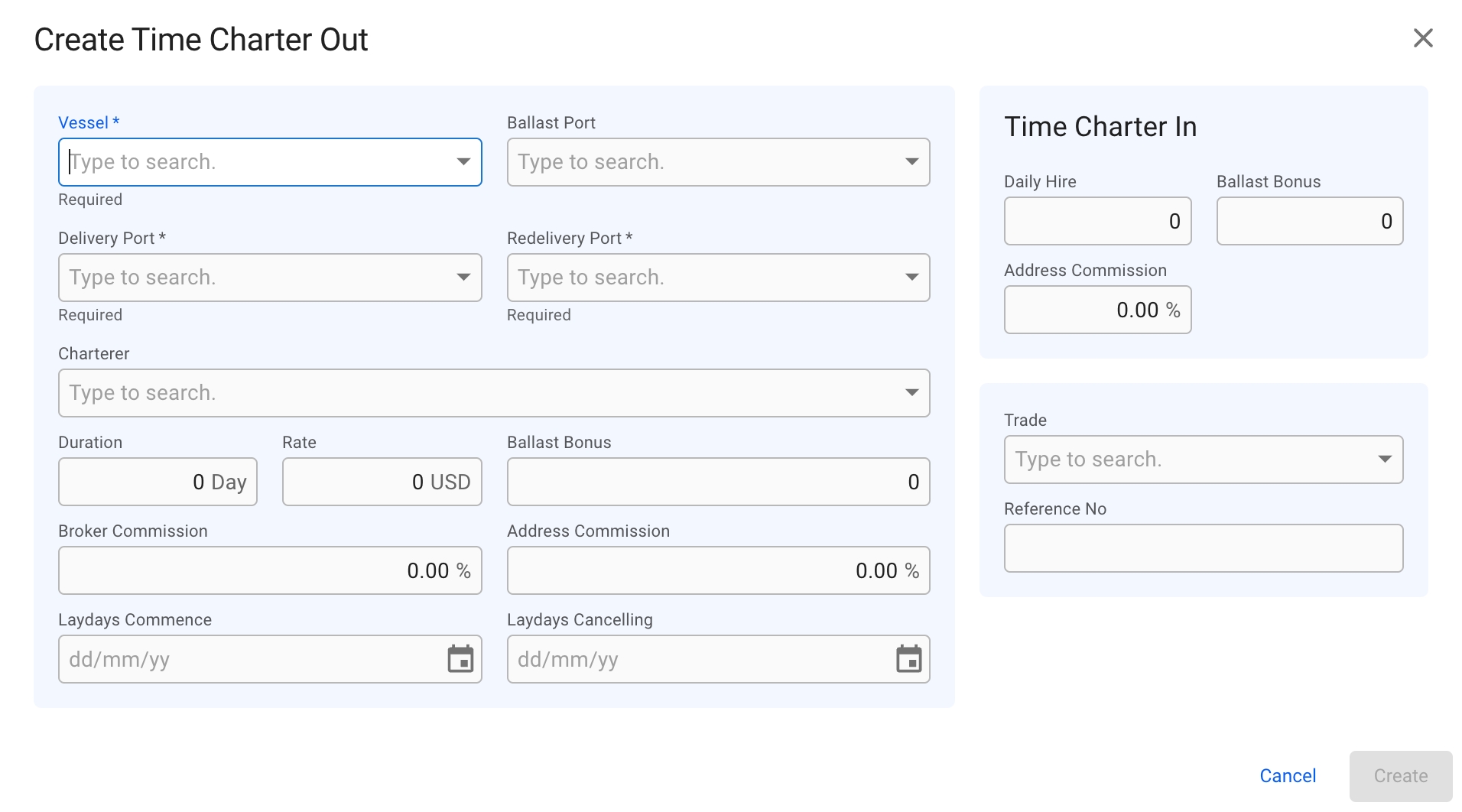
In the modal, you can fill in the required fields and add any additional information about the new TC voyage.
After you have filled in, you can click Create.
Vessel
Delivery Port
Redelivery Port
After choosing a vessel, you will now be able to choose a Ballast Port.
The modal is now draggable, making it easier to see the information "behind" the modal. Hover over the title or the top of the modal to activate it.
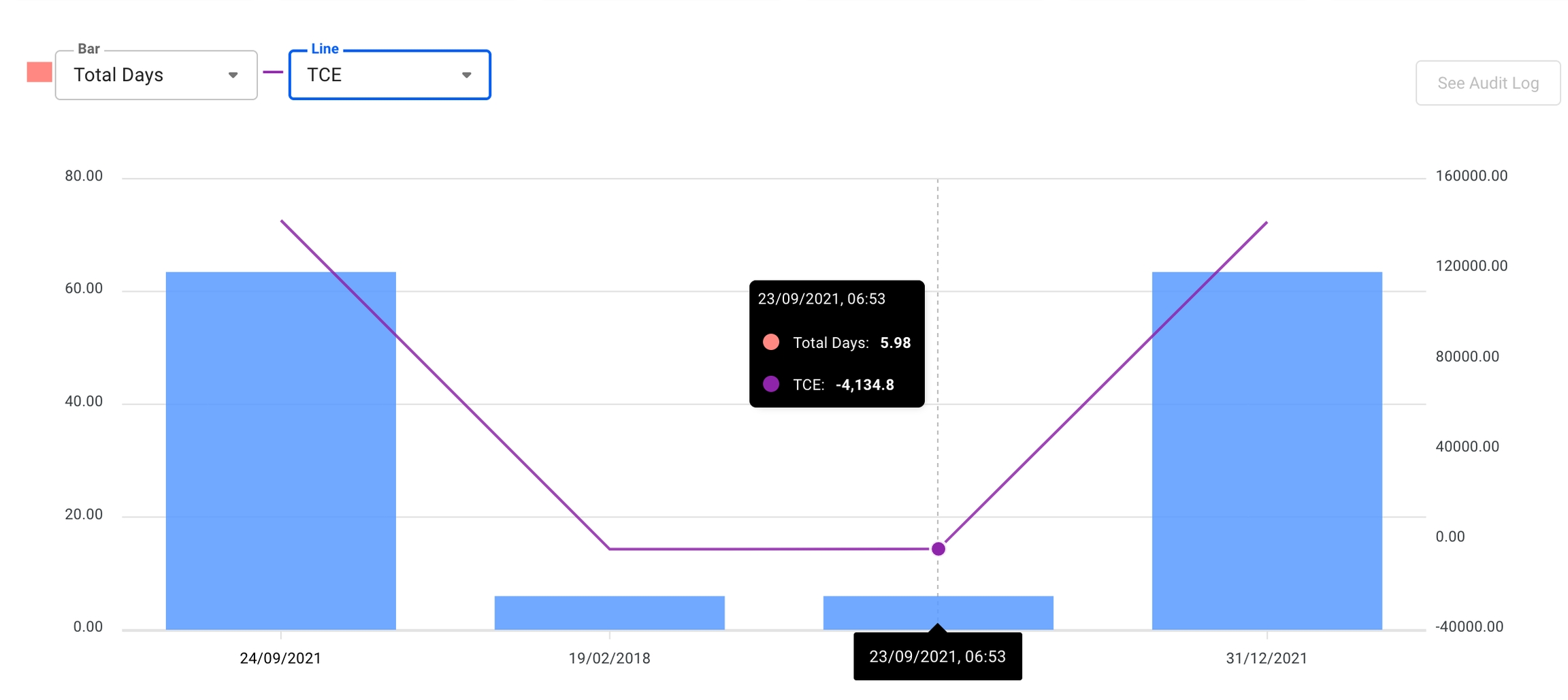
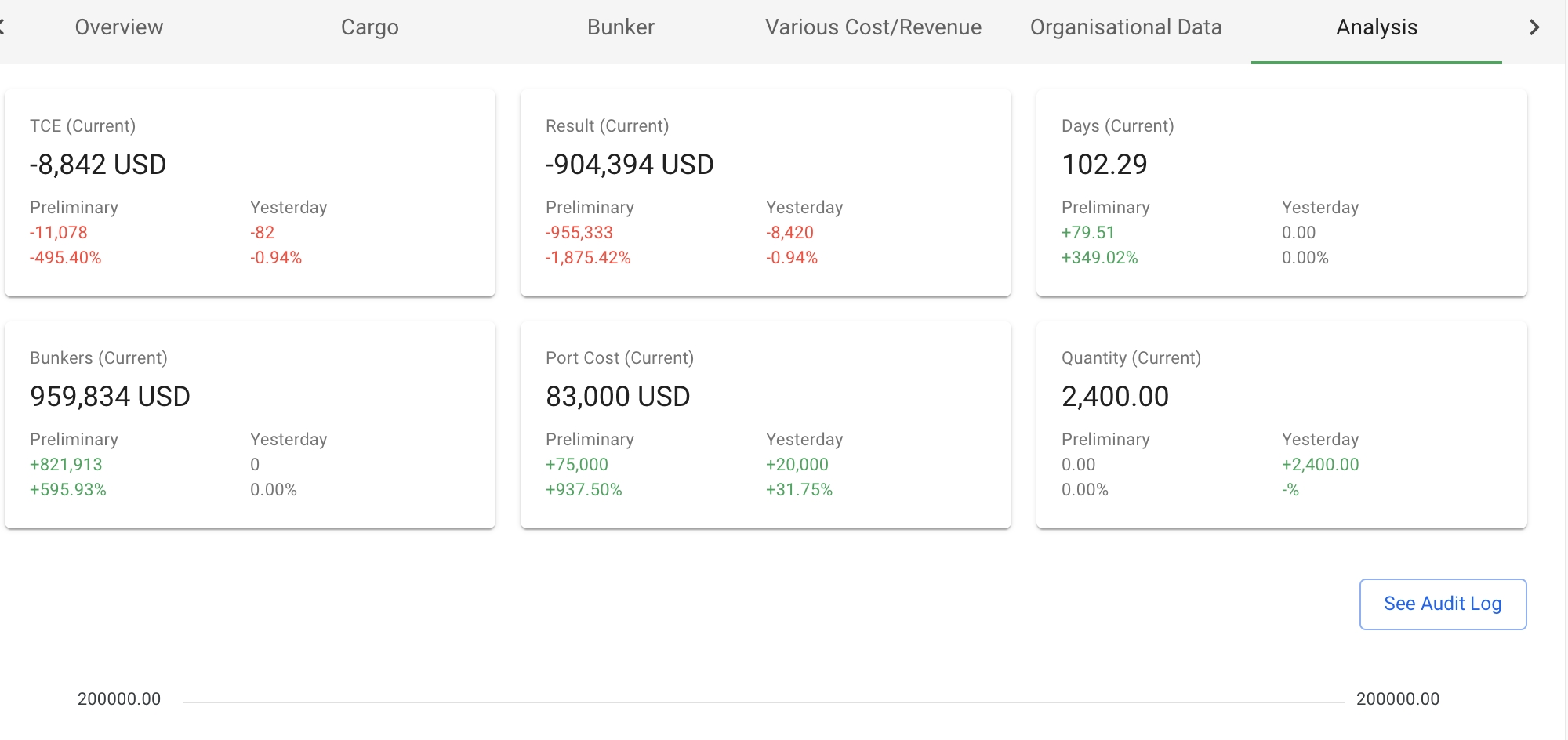
When in a voyage drawer the analysis tab is available in the tab section. In this tab you will be presented with a graph to give you a visual view of the development of key values in the selected voyage.
The graph that is displayed represents the total days for the columns, and the TCE for the line. These values can be changed in the dropdown fields on the top left. The timeline shown will be from the preliminary snapshot is taken to the current date. If the voyage is closed, the last value will be the last time the voyage was changed instead of todays date.
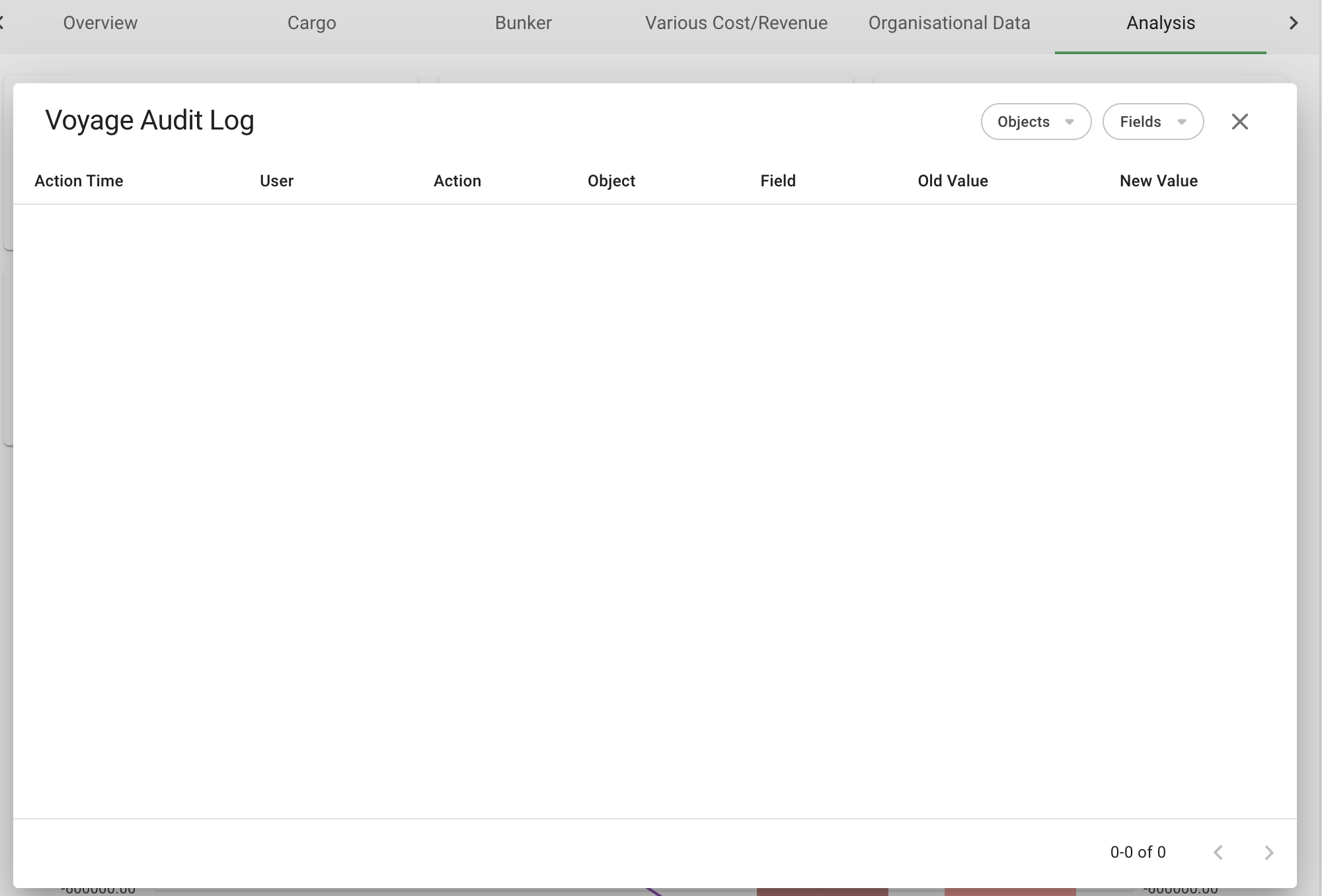
When you are in the analysis tab and you select a snapshot from the analysis chart the See Audit Log will be activated, and you may click this button to see the audit logs from the previous snapshot to the selected snapshot. This button is not activated for the first (Preliminary snapshot) as this has no previous snapshot to compare with.
The audit log in the analysis section will show audit logs between the selected Snapshot and the previous snapshot.
The voyage drawer is also split up in different sections; Vessel, Cargo List, Cargo (the Performance Cargo), Schedule, Profit/Loss Summary and Speed & Consumption.
For a TC voyage, the drawer has the Time Charter Contract section instead of the Cargo section.
On the left hand-side, we have the vessel name chip, which is clickable and will forward you to the linked . The number is the reference number of the voyage, and to the left we have the status. The statuses are within a dropdown menu which you can :
To the right hand-side, we have the button, copy button (to duplicate the selected voyage), the voyages button, print voyage button, the voyage button, the expand button, the secondary actions button and the close button. These are also called the primary actions:
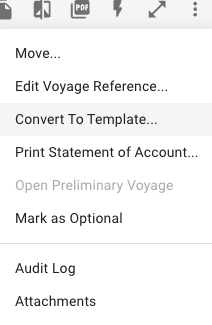
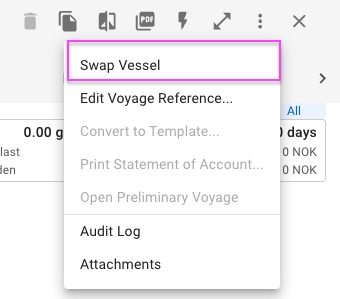
In this dropdown menu, you are able to do several actions:
Swap Vessel: you are able to swap the voyage onto another vessel. Read more .
Edit Voyage Reference: you are able to change the voyage reference number on the given voyage. Read more: .
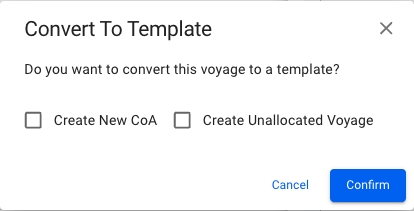
Convert To Template: you are able to convert the voyage to a template. Here you have two different options to choose between (unless they are disabled).
Print Statement of Account: you are able to print out the SoA report of the given voyage.
Open Preliminary Voyage: Opens a new tab and brings you to the special preliminary voyage that is created when the voyage is nominated.
Mark as Optional: you are able to mark the voyage as optional, meaning you can set the statuses 'Not declared', 'Declared' or 'Forfeited' on the performance cargo of the voyage. Read more .
Audit Log: you are able to track every action inside, and regarding, this given voyage.
Attachment: you are able to upload/download the voyage attachments.
From the "Related" tab in the voyage drawer, you can view, add and edit laytime calculations. Expand the collapsible section titled Laytime Calculation and click the Create button to add a laytime calculation for the opened voyage.
Long TC Voyages, Schedule, and the functionality.
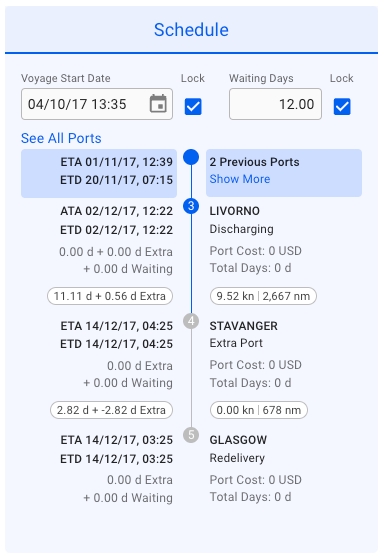
To recognize Long TC Voyages in the system, look for two key indicators: the Voyage Type labeled as (TC) and information in the schedule section. An example of a Long TC Voyage is shown in the screenshot below:
The blue rectangle represents Port Calls that occurred before the current Voyage.
"See All Port" is a link that, when clicked, opens a new browser tab displaying all Port Calls associated with the selected Voyage.
"Show More" is a link that allows you to add up to 5 additional Port Calls per click on the current Voyage's schedule. These added Port Calls will remain visible throughout the system unless the voyage is reopened.
This section is visible on TC voyages.
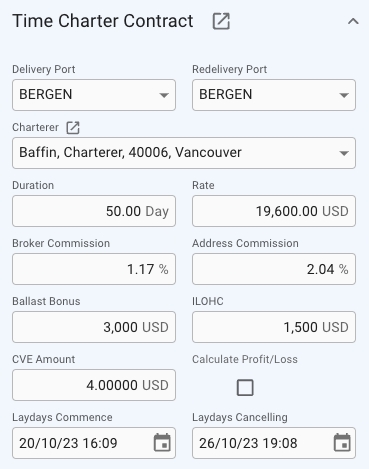
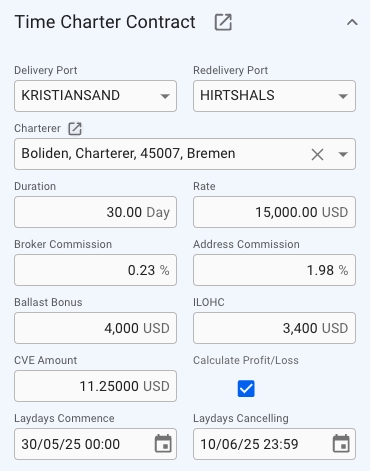
This small section gives you the most important details of the TC Out contract, as well as the option to change them. Click the icon to open the full TC contract drawer.
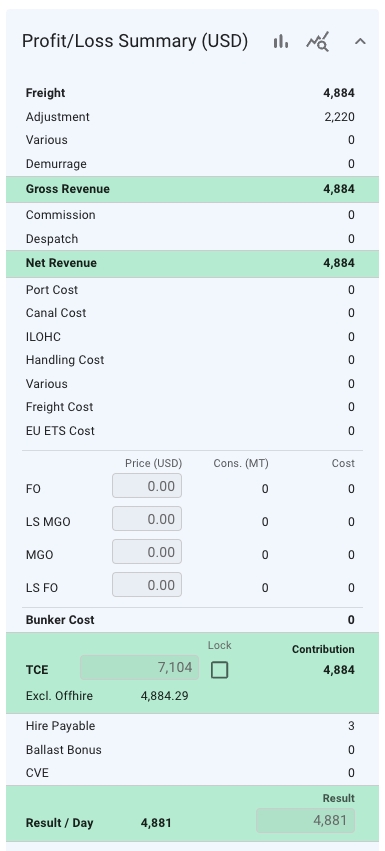
The summary section displays all cost/revenue items, including fuel consumption and price, related to either cargo, voyage, or port call. This breakdown displays different figures for Voyage Charter and Time Charter estimates.
When the voyage drawer is open, selecting Open Full Screenexpands the panel and shows an additional section/panel summarising the profit/loss for this voyage.
To show the , click Analysisat the top of the panel. To show an overview bar chart, click Result Chartat the top of the panel.
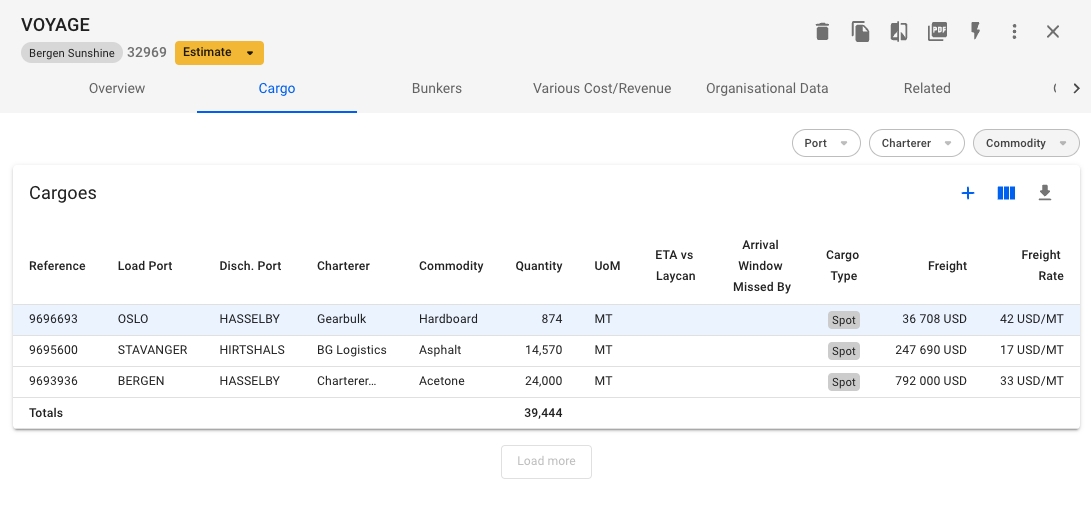
This tab shows a list of the cargoes connected to the voyage
The list can be filtered on Port (the list displays the first load and discharge CargoPort, but the filter works any load and discharge ports on the Cargo), Charterer and Commodity by using the quick-filters in the top right.
In a row at the bottom of the list, you can see the total amount of cargo quantity on this Voyage.
Clicking the icon will bring up a dropdown menu for choosing between creating a brand new Cargo, or a new Cargo from a CoA template.
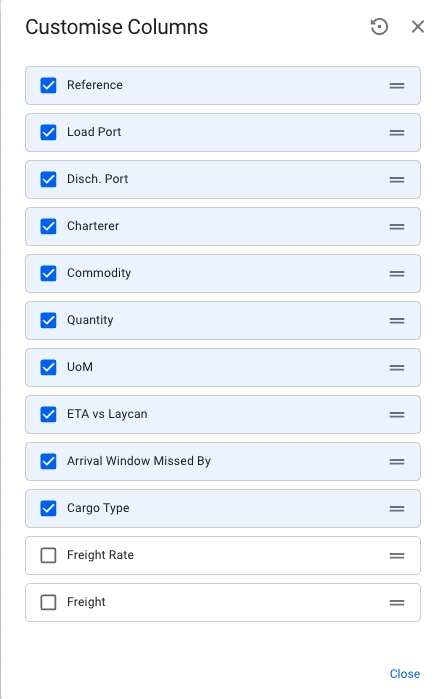
By clicking the icon you can edit the columns shown in the list, rearrange the columns and even enable showing of some columns that are unchecked by default.
A TC Voyage will not have a Cargo Section on the Overview Tab like normal Voyages, but instead have a Time Charter Contract Section displaying the Time Charter Contract. In this section you can edit the most important fields on a Time Charter directly through the Voyage Drawer or click the -icon to Open the Time Charter Contract Drawer
Both Duration and Rate fields will be disabled if there exists more than one Duration on the Tc contract, or a Duration has multiple Rates.
The Calculate Profit/Loss checkbox is only available while the Voyage still has status Estimate, and will toggle calculation of profit/loss based on bunkers.
Creating a voyage charter is fast and easy. The minimum amount of details required is a vessel and a port for loading and discharging.
Open the Voyages module from the menu on the left.
On the top right corner, click the icon.
Select Create Voyage Charterer
In the voyage drawer at the vessel section you will find a checkbox for setting "Last Voyage for Current CP". This checkbox is disabled when there is no TC In Contract registered.
Swap Vessel is a functionality that allows you to change the vessel of the voyage, regardless the status of the voyage. There are two ways to change the vessel; through the Vessel field under Voyage Overview, or through the secondary action 'Swap Vessel'.
For voyages with status Estimate or Unallocated, you can only swap the vessel of the voyage through the Vessel field found under Voyage Overview section:
This works as a normal dropdown menu, that views all available vessels for you to click and swap to.
A section in a Voyage drawer that visualizes the schedule and port-call-related information.
The Voyage schedule visualization may be found on the right-hand side of a voyage drawer.
This section is highly customizable: e.g., you may change the voyage start date, lock it, edit the Voyage's speed, update the port call sequence, and much more!
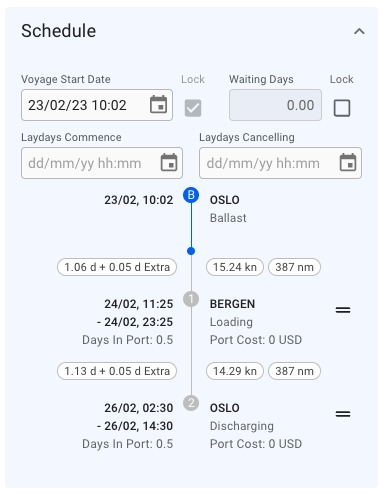
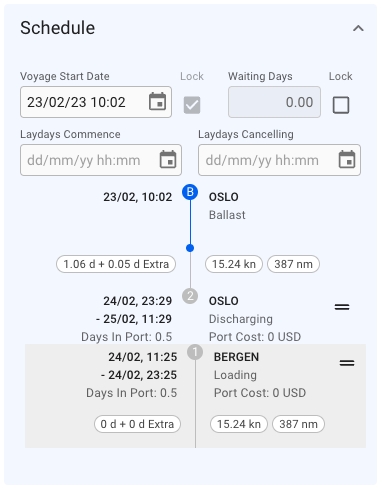
The Schedule Timeline is a fully interactive module. Each port represents a draggable block - if you reorder the blocks, you will update the port call sequence on the opened voyage correspondingly:
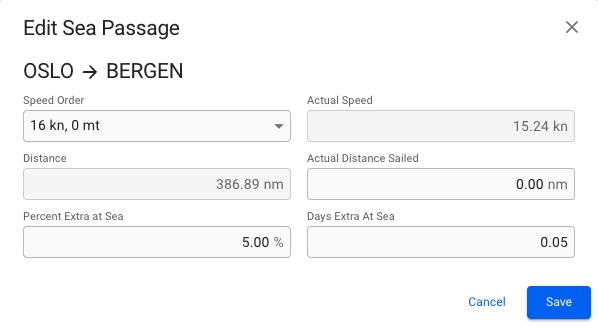
Next, each Port Call block is clickable, and it brings up a drawer.
The small ovals inside of each Port Call block includes a piece of related information: Days at Sea + Extra Days at Sea
A voyage can be converted to voyage template if certain requirements are met, these are listed below:
Can be converted to template:
Estimate Voyages
Unallocated Voyages
Cannot be converted to template:
From the "Related" tab in the voyage drawer, you can view the voyage related information Offhire, Laytime Calculation, and Bunker Transaction. Expand a section by clicking the arrow on the top right of each section to view a list of information. Click on an item in the list to go to the the corresponding drawer and view more information about the specific item.
Expand the section and click the pluss-sign to the top right of the list to create new item for the voyage.
More details about creating Offhires: .
More details about creating
A section in a Voyage drawer found in the third tab of the Schedule module
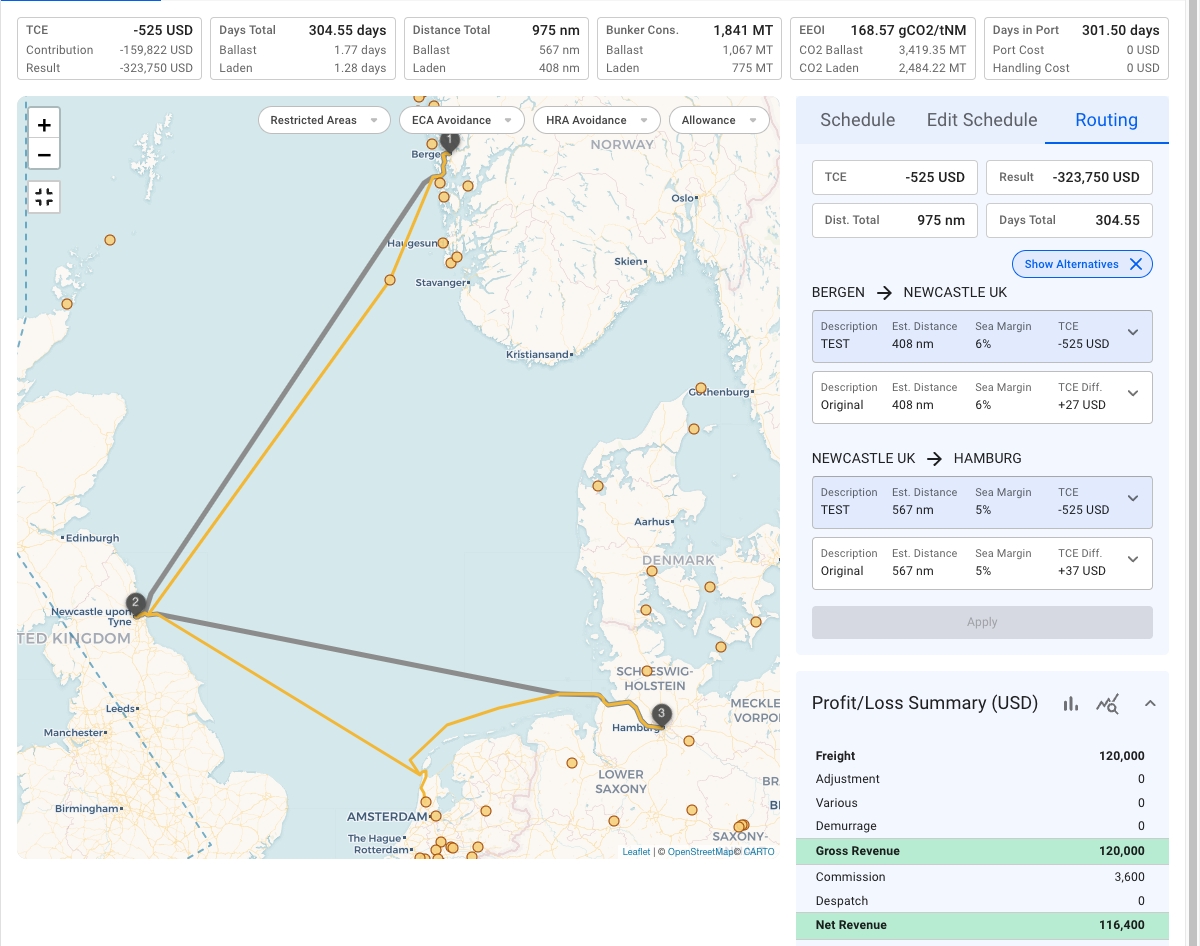
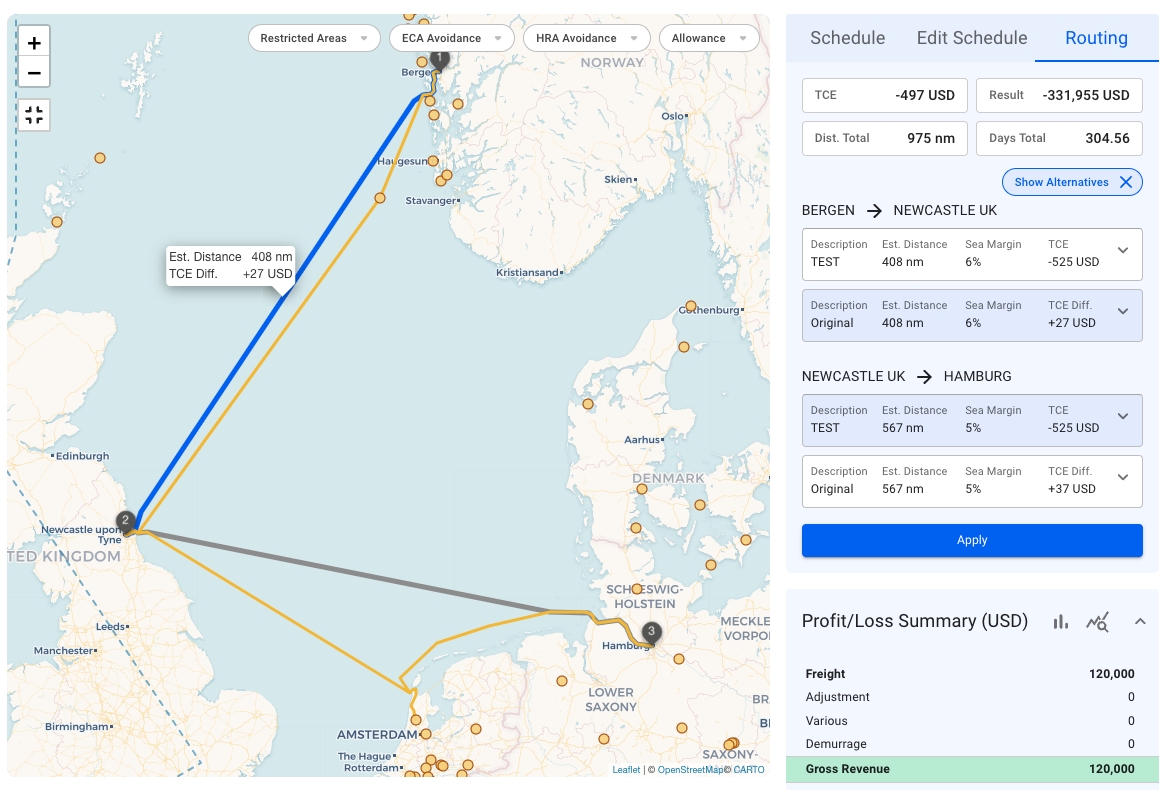
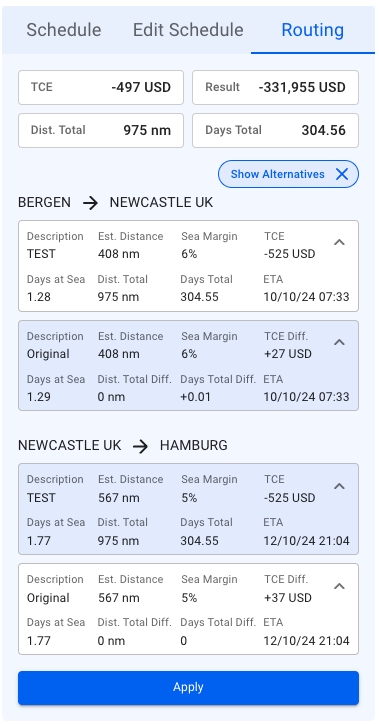
The 'Routing' tab allows comparing different routes regarding essential information such as Voyage TCE, Voyage Result, total distance, total days, etc.
See the screenshot below (Image 1) for an example:
A voyage going from Bergen to Hamburg through Newcastle is displayed. The routing tab illustrates an alternative route for each leg on the mentioned voyage. As presented in the screenshot, there is a key difference between the routes:
TCE Difference: the TCE difference indicator shows the difference between the alternative route TCE and the currently selected route TCE. So, for the leg, Bergen -> Newcastle, the current TCE is -525 USD. On the other hand, selecting the alternative route will result in +27 USD, which is -497 USD of TCE total (See Image 2).
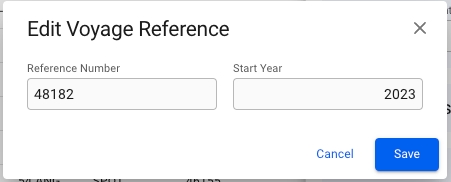
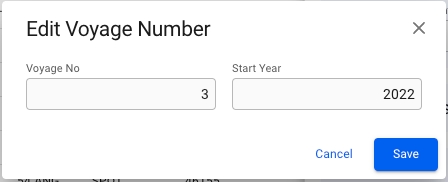
From the voyage drawer actions it is possible to change the Voyage Reference Number or Voyage Number, depending on the voyage status.
When voyage status is Estimate, Unallocated or Allocated, it is possible to change the Voyage Reference Number.
When voyage status is Nominated, Operational, Operationally Closed, Invoiced or Closed, it is possible to change the Voyage Number.
Clicking Edit Voyage Reference... or Edit Voyage Number... in the options meny opens a dialog box where the current values can be modified. In addition, the dialog box contains a field for changing the Voyage Start Year.
Only voyages of status "Estimate" and "Unallocated" can be deleted. Otherwise you must change the status before you can delete.
Find a voyage (i.e through the Voyages page).
Click to open the voyage you want to delete.
At the upper right corner of the panel, click Delete.
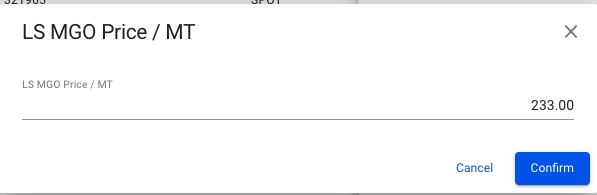
Bunker prices can be changed from the Overview/Bunker tabs.
Click a row to edit bunker price
Voyage drawer
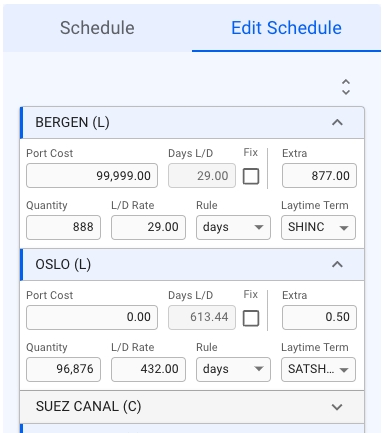
The Voyage Edit Schedule segment may be found on the right-hand side of the Overview tab in a Voyage Drawer.
The edit schedule tab includes a complete list of for all the Voyage's cargo.
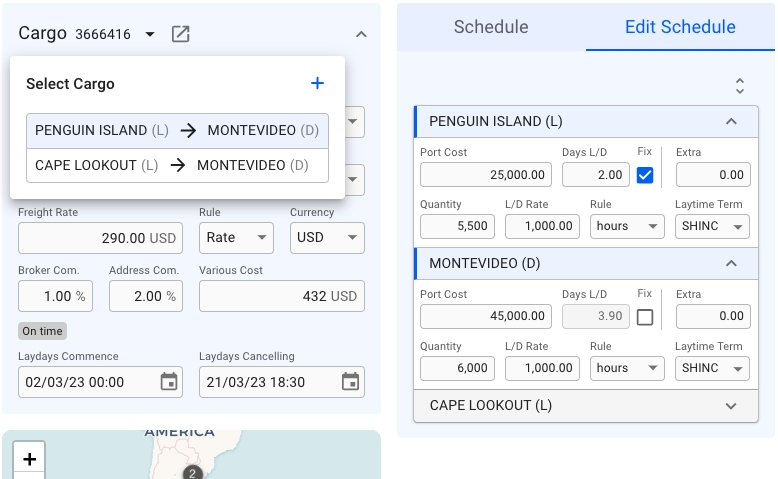
There are three core elements involved: Selected Port Calls, Selected Cargo, and the rest.
Selected Port Calls: these objects are highlighted by the blue background and a small blue line on the left of the Port Call port (see figure 2). The selected port calls display data for the respective selected Cargo.
Time Charter Contracts and its subpages
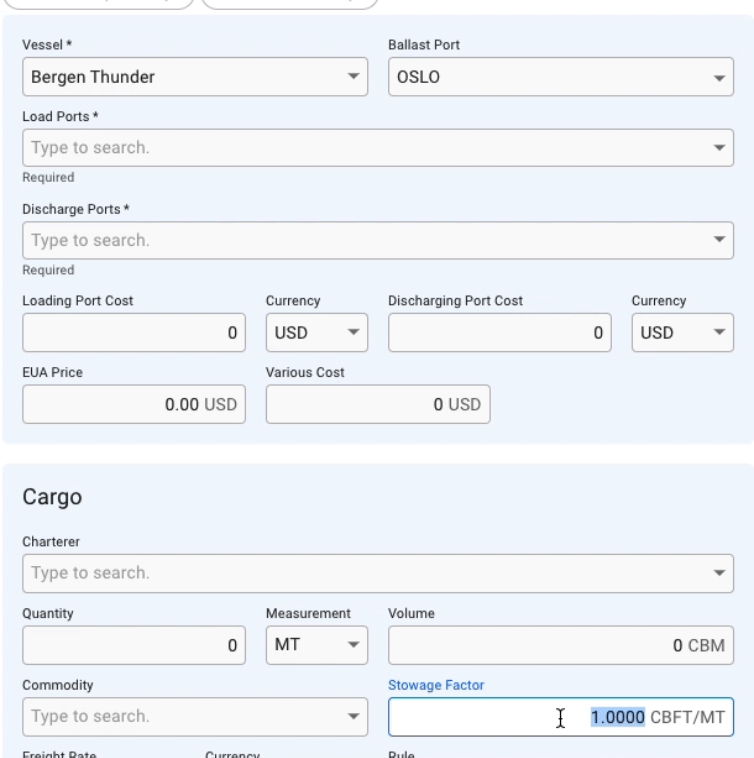
Fill in the details manually, or choose between using a CoA Template Cargo or an existing unallocated cargo as basis for the voyage.
Click the Create-button.
After choosing a vessel, the previous Port on the Vessel will be set as Ballast Port. This can be overridden by entering another Port, if no Ballast Port is set then the first Load Port will be used.
To create the voyage using a CoA template as a basis, click the Use CoA Template Cargo button in the top of the modal. This will bring up another window, allowing you to select a template from a list of CoA templates. More details can be found here: Create Cargo From CoA Template.
Using a CoA template will give the voyage and cargo the same Company and Business Unit as the CoA.
It is possible to create a new voyage and allocate an unallocated cargo by using the Use Unallocated Cargo button in the top of the modal. Clicking it will bring up another window with a list of unallocated cargos. Filter and search as needed, and select a cargo from the list.
After choosing a cargo, the create voyage modal will be automatically filled in with all the details from the cargo. Only the fields that are not coming from the cargo will remain editable.
When entering Quantity, Volume or Stowage Factor, the modal will automatically calculate the corresponding value. Updating Quantity or Stowage Factor will update Volume, and updating Volume will update the Stowage Factor. Selecting a Commodity will default the Stowage Factor to that of the commodity.
For voyages with status Allocated or above, you can only swap the vessel of the voyage through the secondary action called 'Swap Vessel':
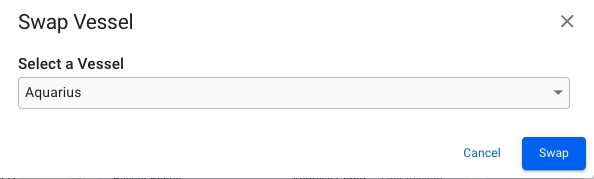
Followed by clicking the action, this modal will pop up:
In this modal, a vessel must be selected to be able to swap. By default, the vessel you are currently on is selected. Meaning, you are always able to actually click on the Swap button (for now). After the swap, you are able to see the new vessel either as the above mentioned Vessel field under Voyage Overview, or at the top of the Voyage drawer, left-most (clickable) chip:
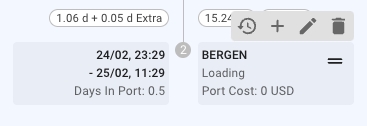
Moreover, the Port Call blocks include a small functions tooltip that provides the following actions on the voyage schedule sequence: show Port Cost history overview, create new Port Call to the current schedule, edit the selected Port Call, or delete the Port Call.
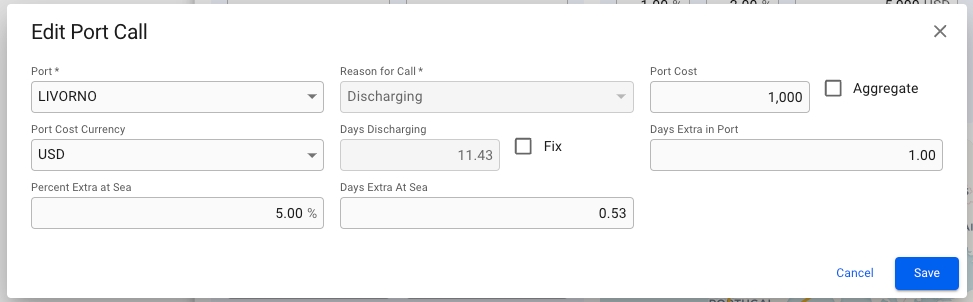
To edit a port call in the schedule, click the pencil icon in the functions tooltip. A popup modal then shows where main details of the port call can be changed.
Note that the port can only be changed if the Arrival-, Berthed-, and Departure Date are unfixed. If any of these dates are fixed, the port selector will only show available terminals on the currently selected port.
Template Voyages
Allocated Voyages
Nominated Voyages
Operational Voyages
Operationally Closed Voyages
Closed Voyages
Invoiced Voyages
The voyage's type (TC, SPOT, COA) does not matter in regards to whether you're allowed to convert or not.
In order to convert a voyage to a template voyage one must open a voyage's drawer and click the secondary action menu in the top-right and select the "Convert to Template...' action.
After selecting the action you will get a confirmation popup modal which allows you to select to 'Create New CoA' and 'Create Unallocated Voyage' when converting to template. When clicking the 'Confirm' button, you will be brought to the template voyage's drawer.
Both optional buttons will be available.
None of the optional buttons will be available.
Both optional buttons will be available and the 'Create New CoA' button will be selected by default. If un-selecting this button, the template voyage will continue to use the old CoA instead of creating a new.
Estimated Distance: illustrates the estimated distance for each leg, original and alternative.
Sea Margin: shows the sea margin.
The map is also interactive and helps to visualize the alternative route, providing crucial data.
It is also possible to compare the routes in more detail! For instance, take a look at the screenshot below:
Clicking the top-right arrow in each container expands the detailed information.
The apply button proceeds with the changes and saves the selected route for the current voyage.
Note: The alternative routes may be created manually or must be coming from a third party, such as weather-based routes, etc.
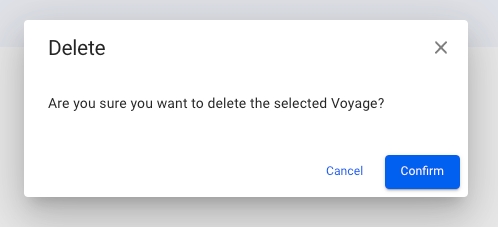
Click Confirm to delete the voyage.
Voyages can be connected to Cargoes and/or Offhires, as well as scheduled voyages if the voyage is a template.
When attempting to delete a template voyage that has scheduled voyages either at the Nominated or later stages, an error message will show instead.
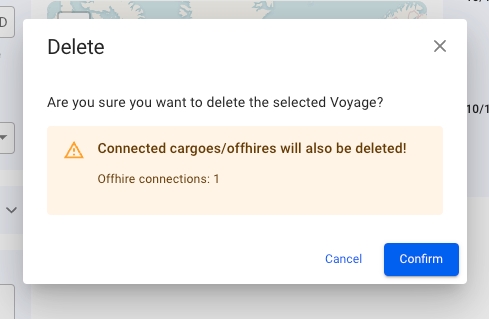
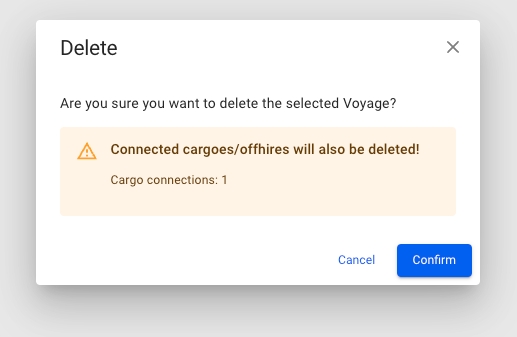
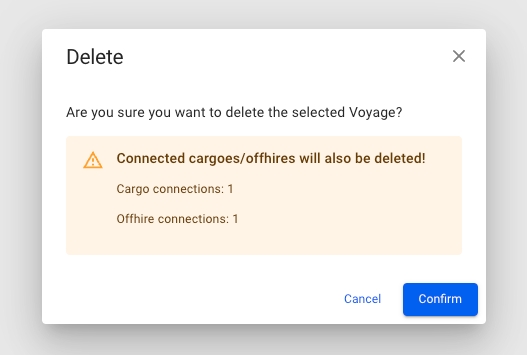
The delete-voyage modal will look differently depending on whether it has connected entities:
No connections:
Only Offhire connection:
Only Cargo connection:
Offhires and Cargoes:
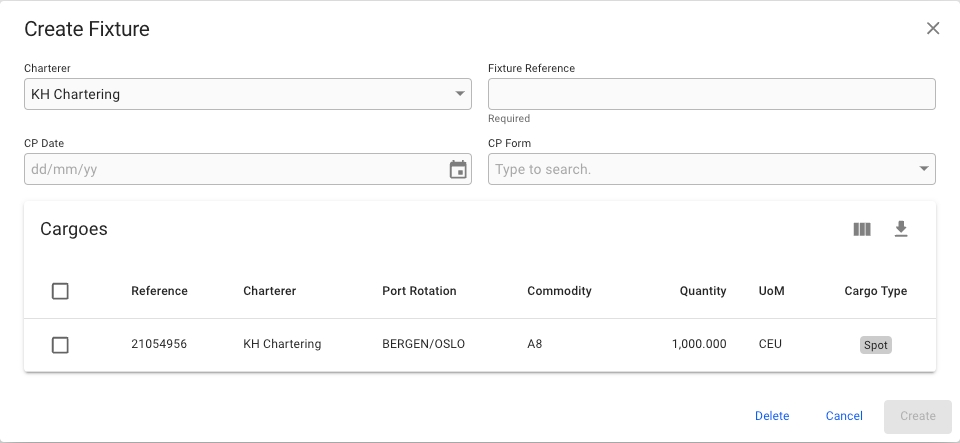
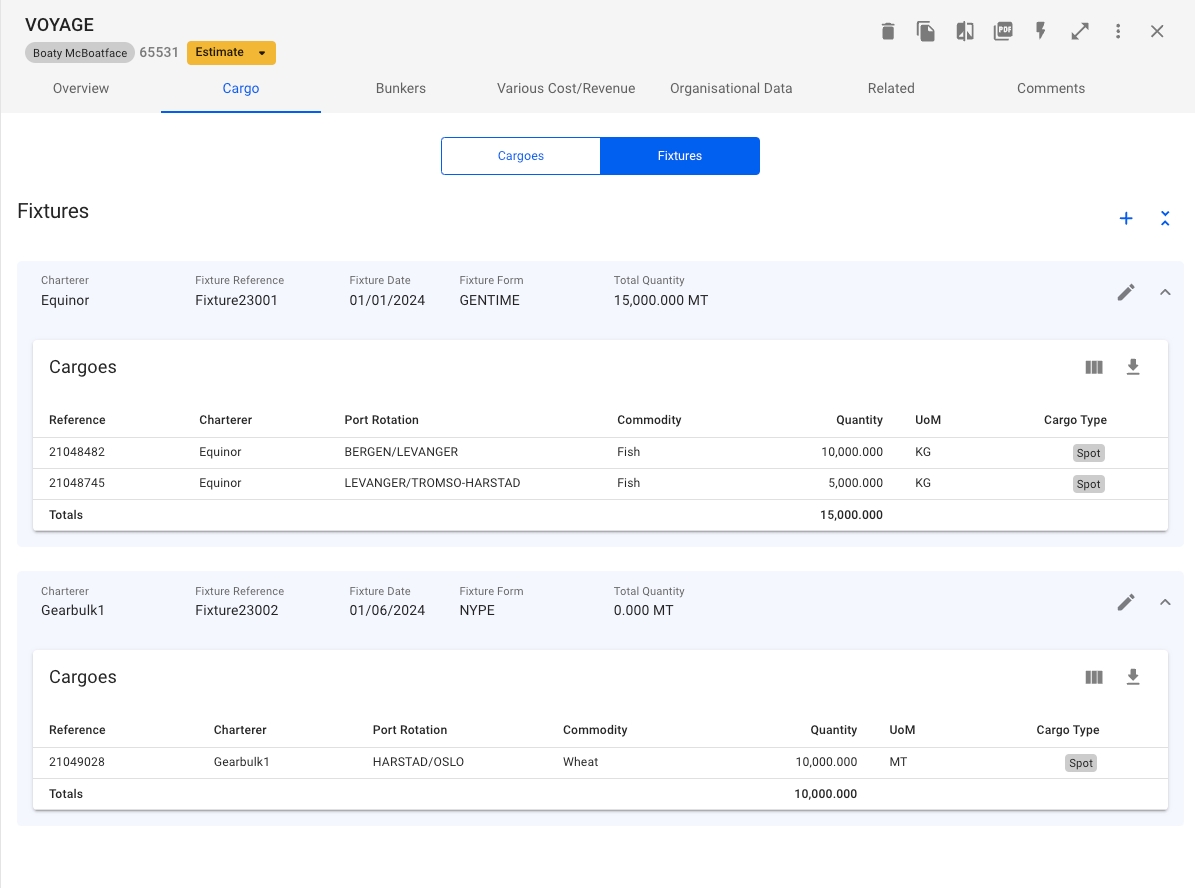
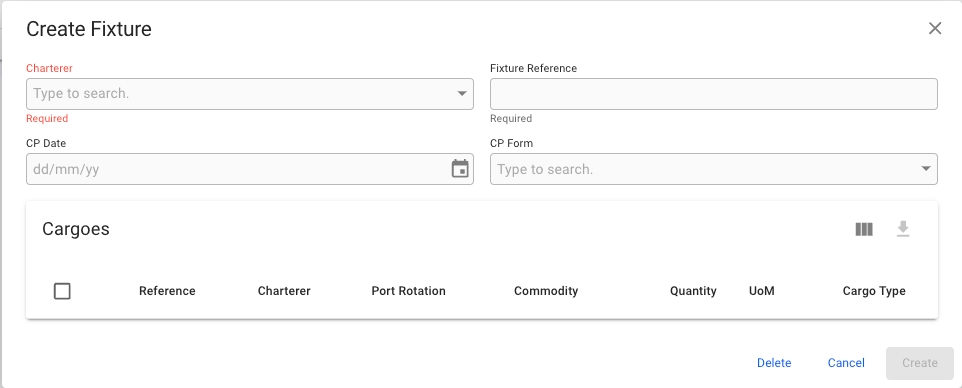
Fixture Reference
CP Date
CP Form
The Cargoes list is empty at first until you have chosen a Charterer. Selecting a Charterer will show all cargoes connected to the Charterer in the list below, allowing you to select the ones you want in the fixture.
Clicking the edit-pen icon will open up the Edit Fixture modal where you can change fields and select more or de-select cargoes.
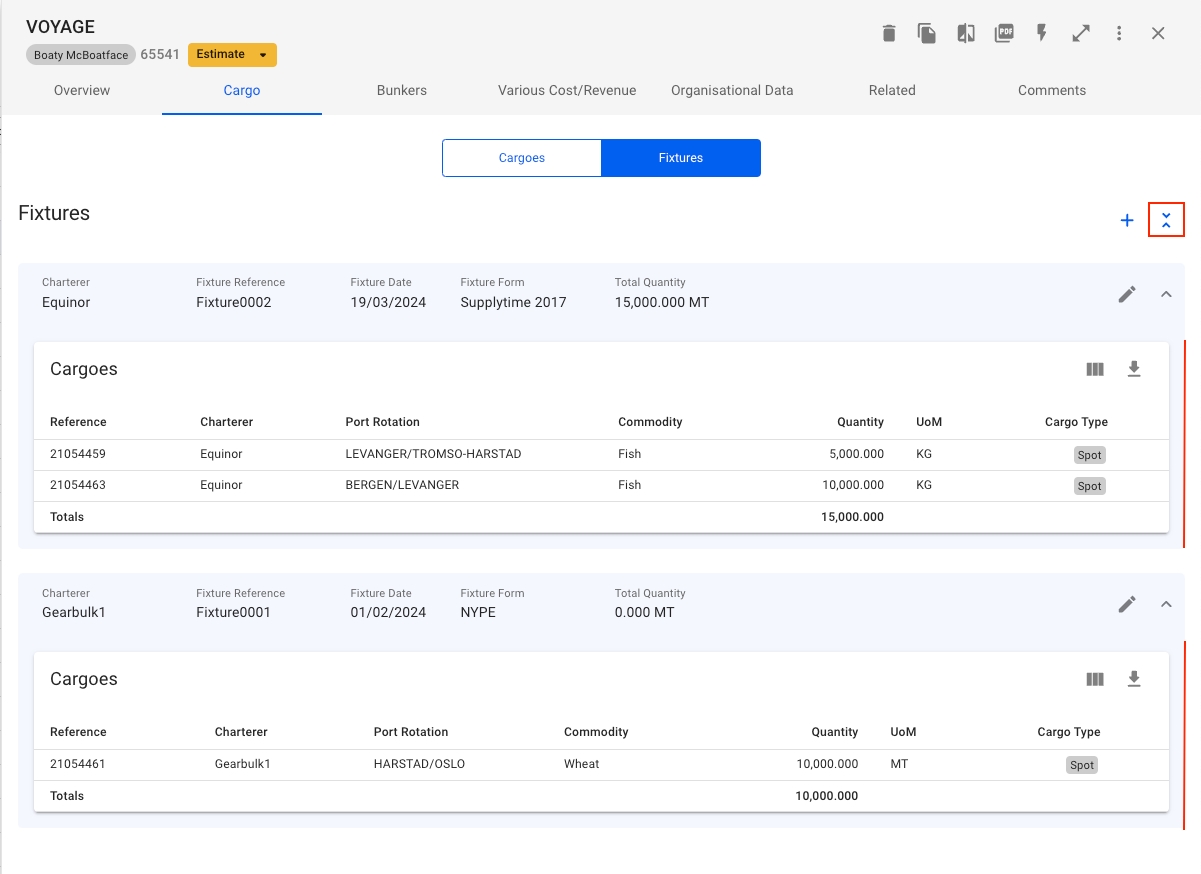
The fixtures list has a separate button to collapse/expand the cargo list of all the fixtures with one click as shown below:
Selected Cargo: the currently selected cargo can be chosen inside the select cargo modal, which can be invoked by clicking the expand cargo button (triangle facing down inside the left section, see figure 3). The selected cargo will be the subject of the Edit Schedule list. The Port Calls contained in the list correspond to the selected cargo, and the related values change dynamically if another cargo is chosen.
The rest: the rest can be considered all the grey options inside the list. These options are also expandable and can be edited, but they don't belong to the selected cargo and, thus, are not the focused elements (e.g., SUEZ CANAL Port call in Figure 2).
Each list item is interactive and can be collapsed or expanded. When the selected cargo is changed, the corresponding cargo ports expand and get visually highlighted, the corresponding values are updated.
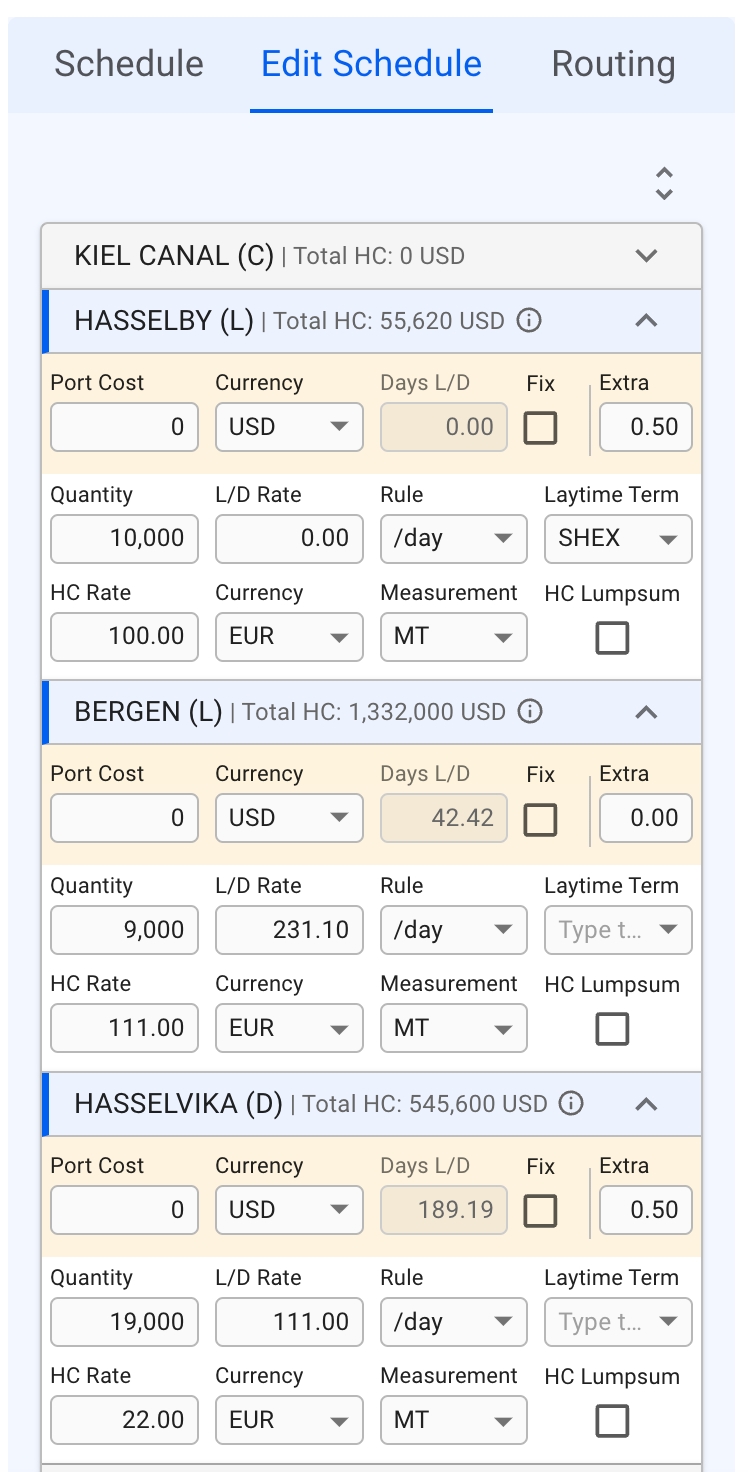
Moreover, the collapse button can expand Port Calls related to the selected Cargo, Expand all Port Calls, or Collapse all. The button may be found on the right over the first PortCall (see figure 3).
Next to the Port Call port name, there is a Reason For Call specified inside of parentheses - L means Loading, D - discharging, and C - canal passage.


This section is visible on Spot and CoA voyages.
The cargo section allows you to directly change some of the fields of the performance cargo from the Voyage drawer without having to open the Cargo drawer. If you are looking for more fields however, you will need to open the up Cargo drawer (clicking the icon will open the drawer):
The Various Revenue- and Cost fields are not editable from this section anymore, but you can view the values from the bottom of this section (as seen above). These values comes from the performance cargo of the voyage.
Note: Various field is still editable from the Profit/Loss Summary section.
The Measurement field is now editable directly from the Cargo section, and the change you do will reflect on all the places we use the Cargo/Freight Measurement, e.g. in the Cargo List, Cargo drawer, etc. This change also makes it possible to view more details of the Commodity-, Nominated Quantity (B/L Quantity)- and Measurement fields.
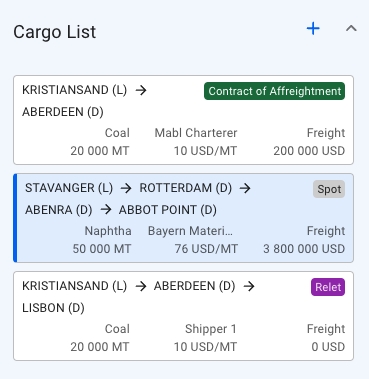
To the left, a scrollable list of cargoes are presented as small, blue cards, showing you some select details about the cargo. This is meant to be a quick overview, to be able to differentiate between the different cargos. Clicking on a cargo will select it, and the Cargo-section to the right will update. The currently selected cargo is marked by a blue line on the left side of the card. Hovering over a cargo card will bring up the option to copy it, or open the cargo drawer. While a cargo drawer is open, you may click on any part of the card to open the cargo drawer for that cargo:
Clicking the button in the top right to create a new cargo on the voyage, either from an existing CoA template, or as a brand new cargo.
Depending on your access permissions the list of voyages might not be visible.
The "Voyages" module can be located from the left side menu.
There are several options available for you to narrow down what you see in the list view, as well as the ability to toggle which columns are displayed (with the setup).
For sorting, look for the arrow to the right of the column headers. For filtering, you can use the quick filters provided above the Voyage List, or look for the -icon, also to the right of the column headers.
You should also be able to search the whole list, by using the Search Bar functionality provided at the top of the list:
In this particular list, you are able to search for a voyage's reference no., a vessel, a port name or a cargo reference. The list will update accordingly.
The details of a voyage can be edited in the Voyages module.
When you have located the voyage, click it and the details will show in a drawer or panel on the right hand side. Field values can be edited directly.
Vessel and ballast port can only be changed when the voyage status is "estimate" or "unallocated".
Tiles show the key values like TCE, Days Total, Distance Total, Bunker Consumption, EEOI, Days In Port, of the voyage.
Conditional information:
TCE Excluding Offhire (only shown when there is at least one offhire day)
Offhire days (only shown when there is at least one offhire day)
TCE is calculated as: Contribution divided by Total Days of the Voyage
TCE Excl. Offhire is: Contribution divided by (Total Days of the Voyage - Total Days Offhire)
'TCE Excluding Offhire' will display the TC Equivalent using the remaining total days after excluding/subtracting the days offhire. As a result of dividing by a smaller number, it will always be a higher number than regular TCE.
Sections are used to show the most important information about a sub-item of the voyage. Some sections have an Openbutton to open the section's item in a new drawer.
Voyages on a time charter will have a "TC contract" section, while all other voyages will have a "Performance Cargo" section instead.
The voyage map shows the voyage schedule, including alternative routing pointsthat can be added to the schedule between port calls. More routing points will be revealed as you zoom in on the map.
Click on a routing pointto show information about the point in a popup, including name, position, and GMT offset. When a routing point is clicked it will also be possible to add the routing point to the voyage route. When clicking 'Add to route', a pop-up will appear where you have to choose between which port calls the routing point shall be added.
Routing points that are on the voyage can be removed. When clicked, a button will become available 'Remove from voyage route'. When this is clicked, a confirmation box will appear. When confirmed, the routing point will be removed from the voyage.
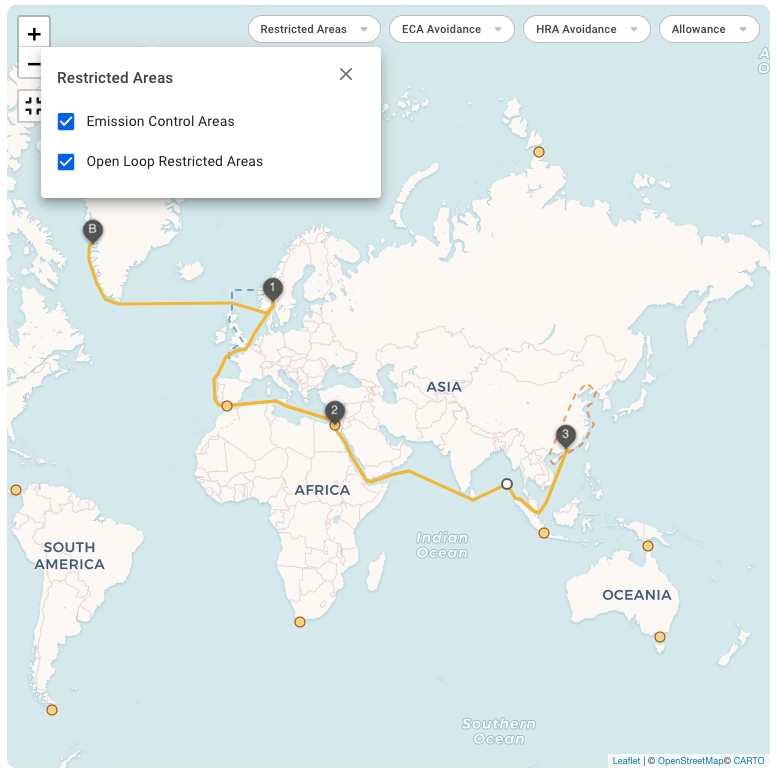
The interactive Voyage Map features several restricted areas:
Emission Control Areas
Open Loop Restricted Areas
Restricted Areas are visible on the map and depicted by Blue or Red dashed lines (See Figure 1).
The leftmost dropdown filter allows changing the settings to include the particular group of Restricted Areas in the map or not.
The VMS provides powerful voyage tools for risk assessment and estimations on cargo capacity on port calls.
These tools are available from Voyages or PlanningFleet Plans
Click on a voyage in the voyages list or board to open it in the drawer.
At the top right, click on Functions.
This page gives an entail into the tab 'Bunkers' inside the Voyage module.
The Bunker module is split into three parts: 1. Bunker Indices; 2. Bunker Stock Summary; 3. Bunker Stock Details.
Yet, the Print EUA Statement button is always visible. This function generated a descriptive report of EU ETS consumed per port, specifying the percentage used in calculations, and associated consumption per leg.
Bunker Indices: this section helps to have a better overview of bunker indices even when the fuel types FO and LS MGO are not consumed by a vessel. By default, the section is collapsed, providing information regarding the bunker indices. Once expanded, the indices can be altered. Refer to Figure 1 for example:
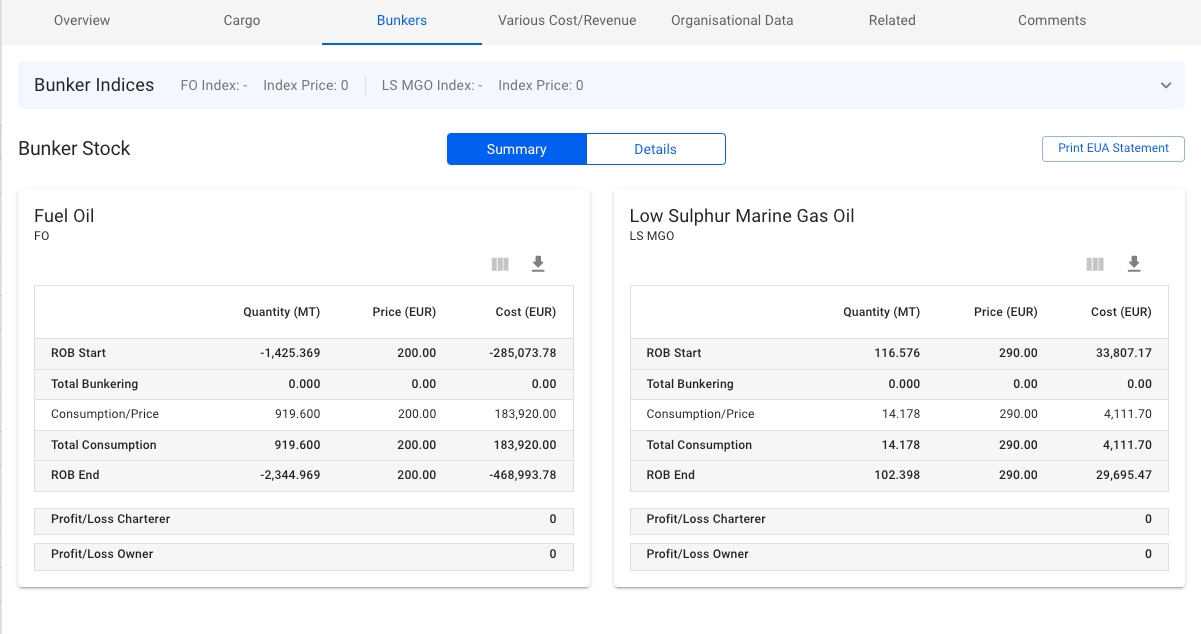
The Bunker Stock Summary contains cards associated with the respective consumed fuel type. The core idea is to provide a brief overview of consumed bunkers and derived costs (Ref. Figure 2).
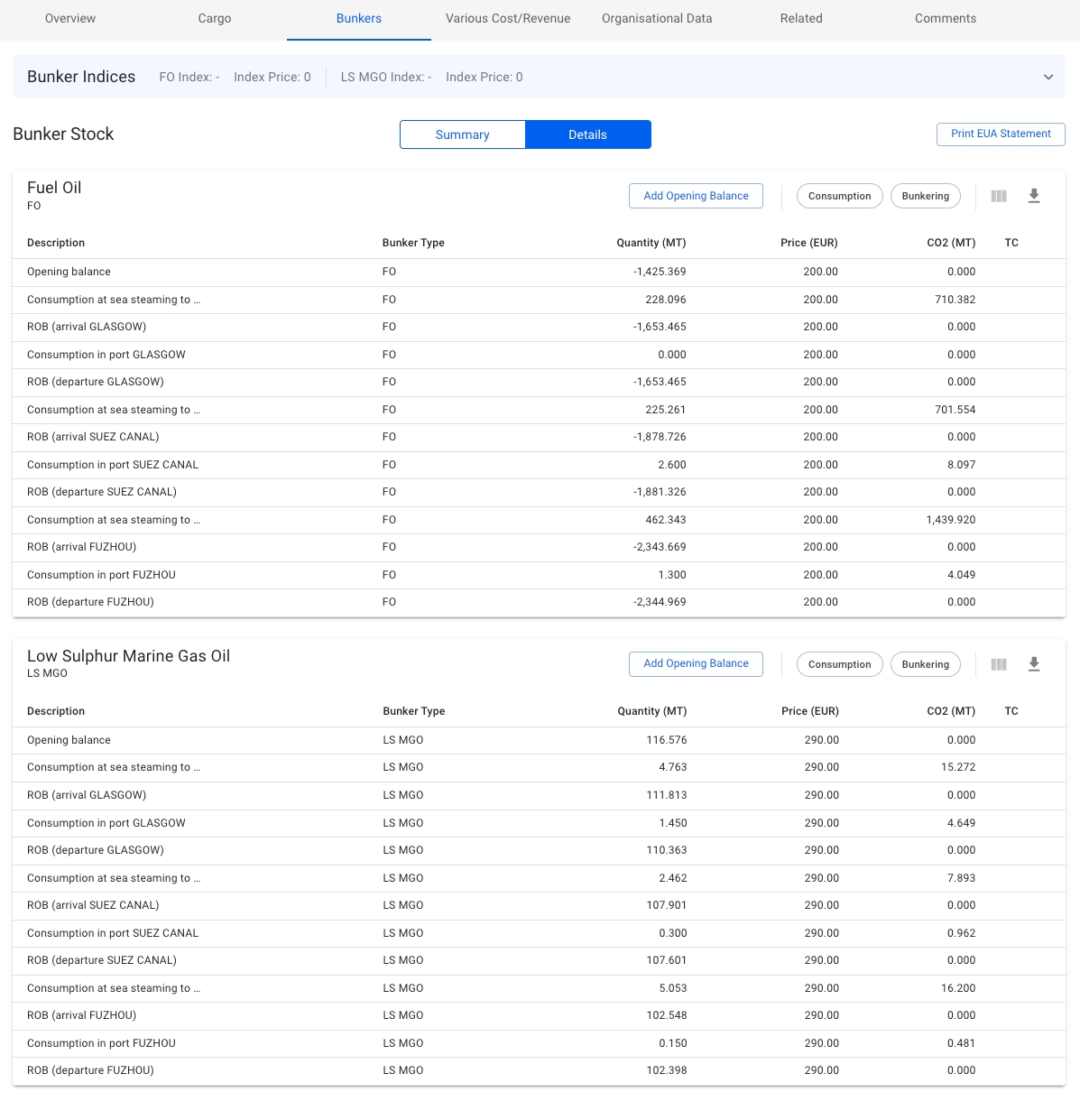
Bunker Details serves the same idea as Bunker Stocks Summary but provides more detailed and specific information. The table items can be filtered to show only the Consumption or Bunkering rows (ⓘ interact with the filter options in the top right of each table card).
With the Sensitivity Analysis tool you can run calculations on a chosen parameter to evaluate risk.
Click on a voyage in the list or board to open it in the drawer.
At the top right, click on Functions.
Select Voyage Sensitivity Analysis.
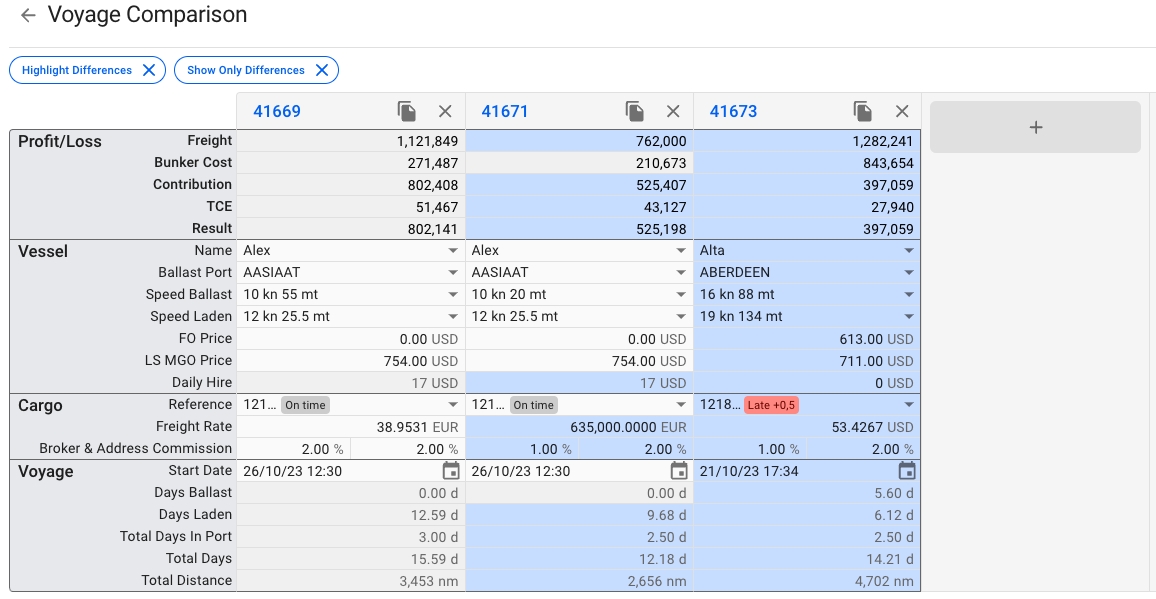
A functionality to compare voyages' values to each other to get the best overview.
The comparison button can be found as a primary action in the Voyage drawer:
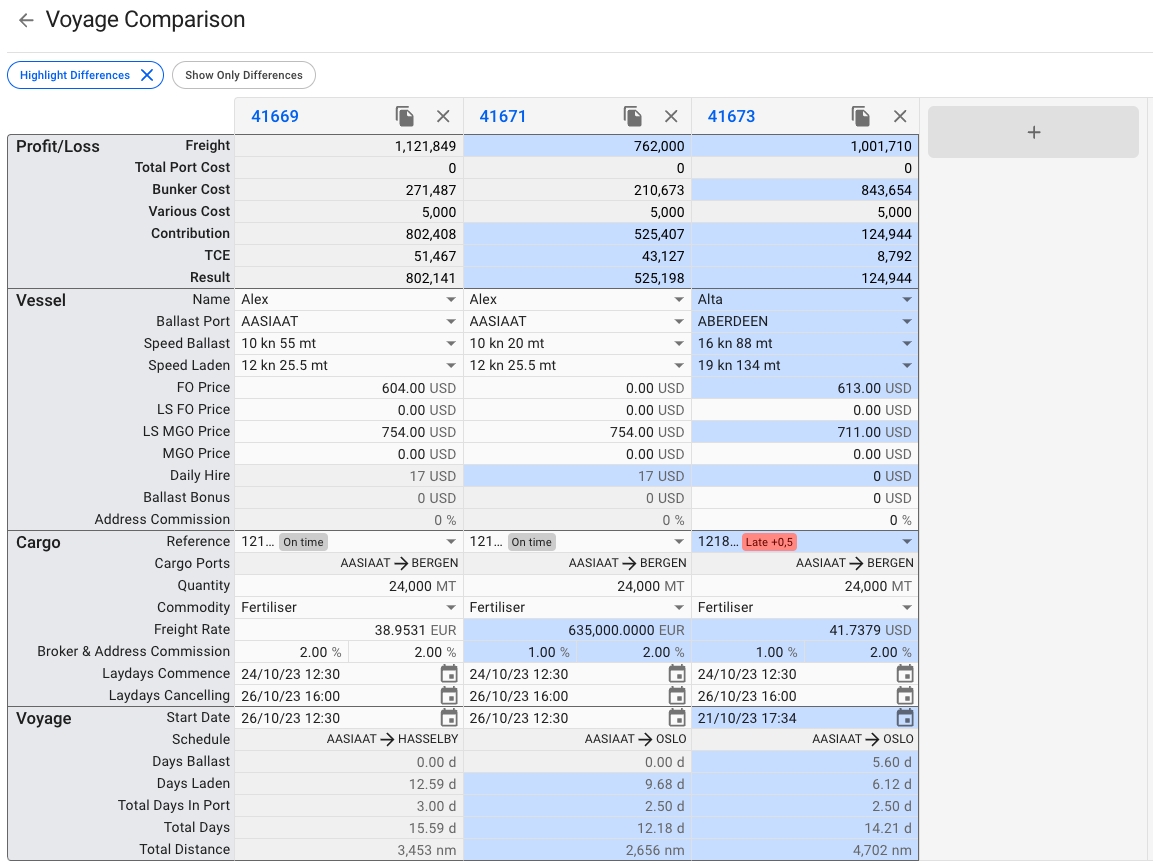
This will open a new page where you will be able to see a overview of the voyages to compare, copy the voyages you want to compare and/or open the Voyage drawer of the voyages:
For the initial release version of this tool, you'll be able to see and modify details on your vessel, cargo and voyage. Some fields may be greyed out, for the same reasons you might not be able to modify them in the voyage or cargo drawer normally.
In the top left you will find two buttons; Highlight Differences and Show Only Differences, which will enable or disable the respective features. By default, Highlight Differences is turned on.
The top header shows the voyage reference number, and a button to copy and remove the voyage from the comparison. Clicking on the voyage reference will open the voyage drawer. From here, you can make all the changes you are used to, and the comparison will update accordingly.

From the "Various Cost/Revenue" tab in the voyage drawer, you can view various cost/revenue from the voyage, cargoes on the voyage and Offhires on the voyage.
If there are either existing various cost/revenue on the Voyage's Cargoes or Offhires there will appear a filter on the top-right of the list where you can select which other types of various cost/revenue you want to be displayed in the list.
Variouses can also be filtered by the Currency filter on the top-right of the list .
The Searchbar can be used to search for Variouses in the list containing the entered search-text in the Description or/and Various Text.


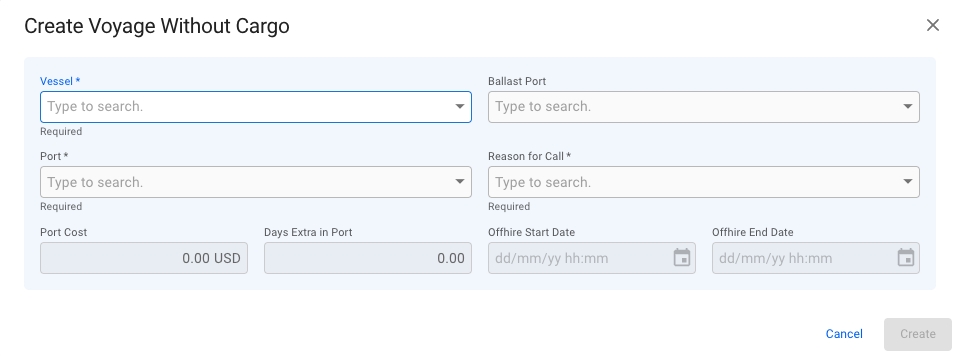
On the top right corner, click the icon.
Select Create Voyage Without Cargo.
After you have filled in the required information, you can click Create.
Vessel
Yes
Ballast Port
No
If none is selected the selected Port will be used.
Port
Yes
Select a voyage parameter which is then adjusted by the numerical variance for each calculation.
Parameter
Calculated value
Freight Rate
TCE
Bunker Price / MT (DO, LS DO, FO, LS FO)
TCE
TCE
Freight Rate
The chart shows all the calculated values for the voyage. There are 15 data points, with the current voyage displayed in the middle, with negative variance on the left side, and positive variance on the right side.
The value of the selected Voyage is specified with a blue vertical line. The figures you find in a small box above each point reflect the X-axis values for each point.
Hover the mouse over the chart to inspect the values of each calculation data point.
Moreover, you may find a table on the right from the Sensitivity Analysis chart. The table consists of the calculated values, placed in ascending order. The table may ease navigation among calculations.
Press the menu iconto download the chart as an image (SVG or PNG), or a text file (CSV) that can be imported into spreadsheet software.
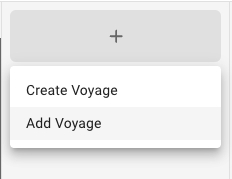
To the right of the rightmost voyage, you'll find a big grey button that when clicked, opens a dropdown menu. Here you can add an existing voyage to the comparison, or create a brand new one.
The Vessel section of the comparison allows you to choose and edit many values that can change your result. Want to see how another vessel would perform on a given voyage? How much difference will different speed orders or bunker prices make? Make a change, and see how it affects your result and TCE.
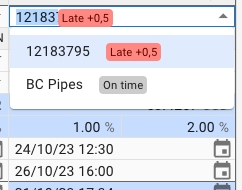
The Cargo section displays information about one cargo at a time. In the event your voyage has multiple cargos, click on the Reference dropdown to see and select another cargo.
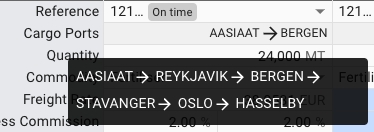
The Cargo Ports row shows you the first load and discharge port for the cargo. If you have a longer schedule, hover over the row to see the entire schedule as a tooltip.
Changing any of the fields here behaves as if they were changed from the Cargo drawer. For instance, setting a high freight rate will automatically update the rule to Lumpsum, and the calculations are being carried out as such.
In the Voyage section, you are only able to set the start date of the voyage. Like the Cargo Ports row in the Cargo section, the Schedule row only shows two ports. Hovering your mouse over the row will bring up a tooltip showing the entire voyage schedule.
Charterer
Shows the Charterer of the Performance Cargo or TC
Vessel
-
Route
Shows first and last Port Call ports
TCE
-
Type
-
Reference Number
The Voyage's Reference No.
Trade
-
CP Date
Shows the CP date of the Performance Cargo or TC
Status
Commodity
Shows the Commodity of the Performance Cargo
Responsible Charterer
-
Comments
-
Cargo Operator
Shows the Cargo Operator of the Performance Cargo.
Hidden by default.
Freight Rate
Shows the Freight Rate of the Performance Cargo.
Hidden by default.
Cargo Quantity
Shows the Cargo Quantity of the Performance Cargo.
Hidden by default.
Creator
Hidden by default.
Created Date
Hidden by default.
Planned BL Date
Shows the Planned BL date of the Performance Cargo. Hidden by default.
Cargo Reference
Shows the Cargo Reference of the Performance Cargo. Hidden by default.
Laycan From
Shows the Laycan From date of the Performance Cargo. Hidden by default.
Laycan To
Shows the Laycan To date of the Performance Cargo. Hidden by default.


The "Schedule" section in the Voyage drawer shows three different sub-sections; Schedule, Edit Schedule and Routing.
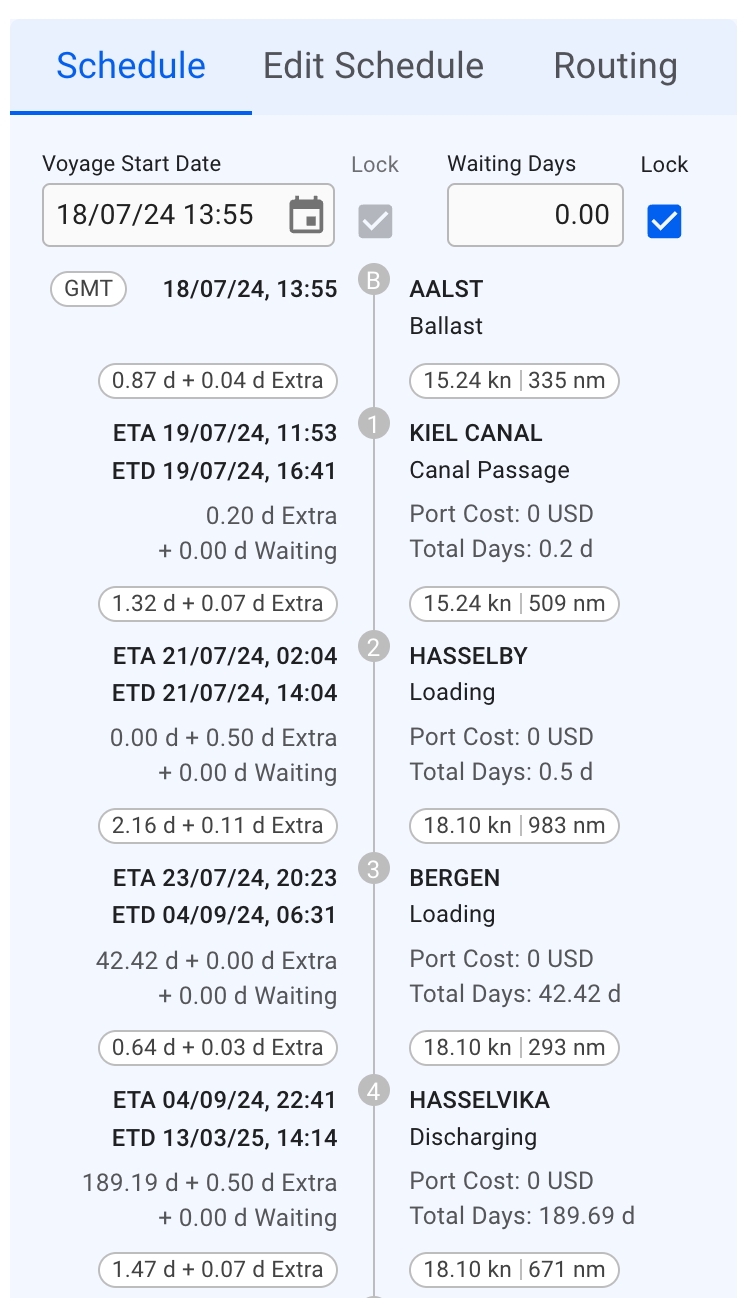
This is a timeline of port calls on a voyage, in which the left side displays the ETA and ETD time- and dates, as well as Days Extra and Waiting Days, with the last two also having a hover/tooltip. On the right side displays the port calls, their reason for calls, Port Costs and Total Days, with also a tooltip on the last two here.
You can create, rearrange, delete and edit port calls directly from this section (click on the picture for better view):
When hovering the mouse over a port call in the schedule, a toolbar in the upper right will appear.
To insert a port call before or after the port call you are editing, click the Create button and select Before or After. A window to create a new port call then pops up.
To edit a port call, click the Edit button.
To delete a port call, click the Delete button.
Within the Schedule section, you will find a checkbox for locking the update of voyage start date and Waiting Days. This checkbox is not visible while the voyage has status Estimate or Unallocated:
This list displays a more detailed view of all the port calls in the schedule (click on the picture for better view):
With this icon , you can either expand or collapse all of the port call items in the list (the list is expanded by default). You can also open and close the collapsable items, independent of each other, to view the detailed information.
The first row, in yellow highlight, you can find the Port Call's Port Cost, Currency, Days L/D, Fix checkbox and Extra (days in port).
The next two rows, you can find the Cargo Port's Quantity, L/D Rate, Rule, Laytime Term, HC Rate, (HC) Currency, (HC) Measurement and HC Lumpsum checkbox.
All of these fields are editable. The cargo highlighted in blue in the Cargo List section will also have its port calls highlighted correspondingly in the Edit Schedule section, meaning, you are viewing the selected cargo's information.
Additional Hover Information:
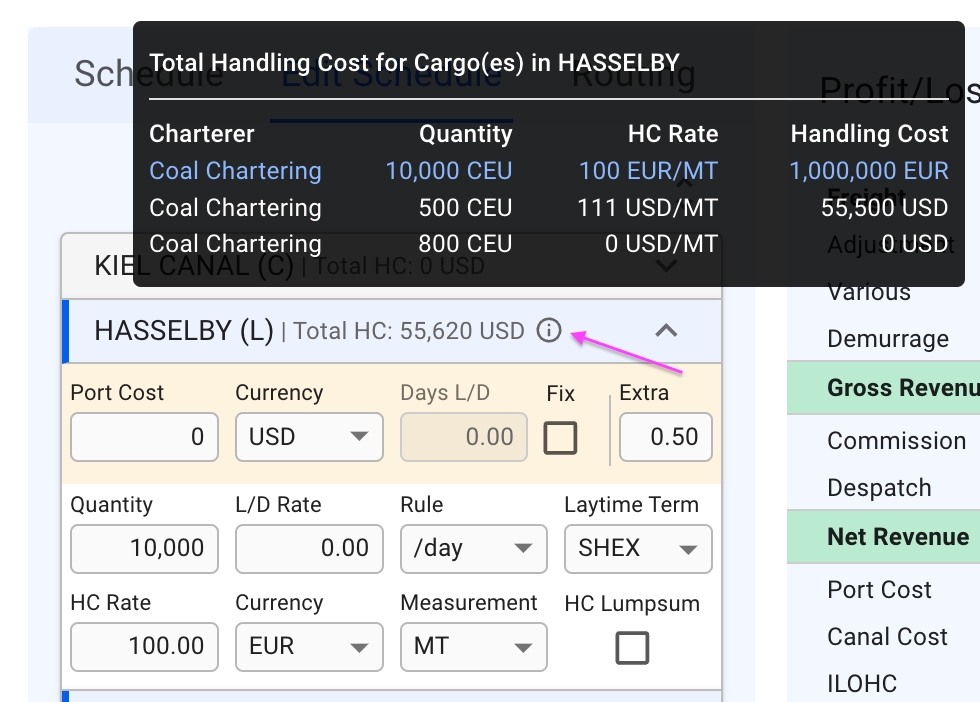
All of the collapsible headers are displaying the Port Call Name, Reason for Call and Total Handling Cost (HC). Next to the last mentioned, there is an icon, which you can hover on to display additional information inside a tooltip:
This tooltip displays, per Port Call, the Charterer, Quantity, HC Rate and Handling Cost for each of it's Cargo Ports. Again, with the selected cargo from the Cargo List section highlighted in blue.
TBA.

In the "Invoices" tab in the voyage drawer, you can efficiently see and manage the Pending Receivable/Payable document lines, as well as the Invoices connected to the voyage. The tab is only visible to voyages that do not have status "Estimate".
In the top right, you will find two buttons for printing the Owner and Charterer Statement. Below them, in the middle of the drawer, you will find a two or three-way toggle-button that allows you to switch between the receivable, payable and hire payable invoices (only if the vessel is on a TC In). Switching between these options will change both which pending document lines are displayed and the assembled invoices.
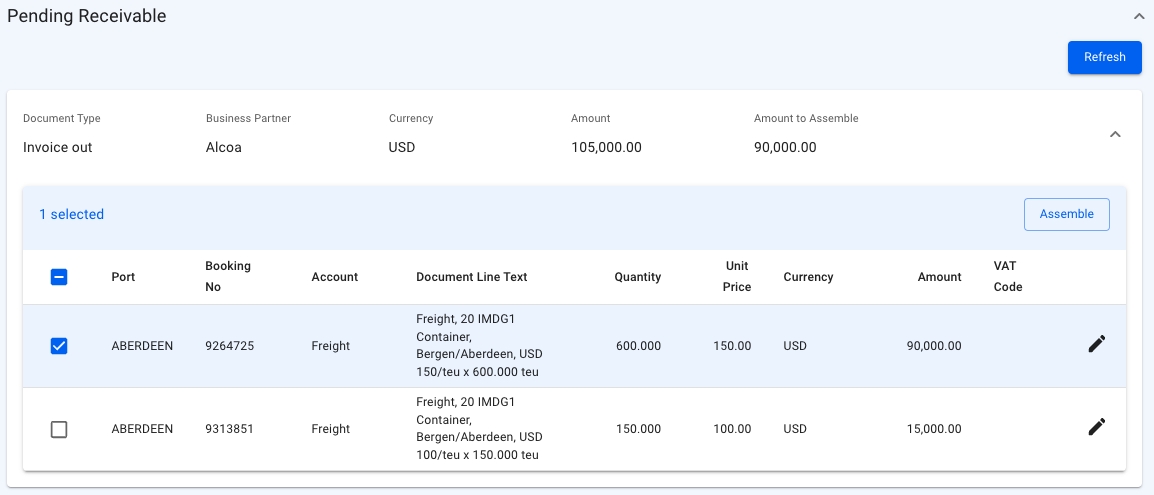
This section show you a list of all document lines that have not yet been assembled. Clicking on any of them allows you to edit some of the fields. Selecting one or more document lines will allow you to assemble them into a Document.
Information about the tab "Organisational data"
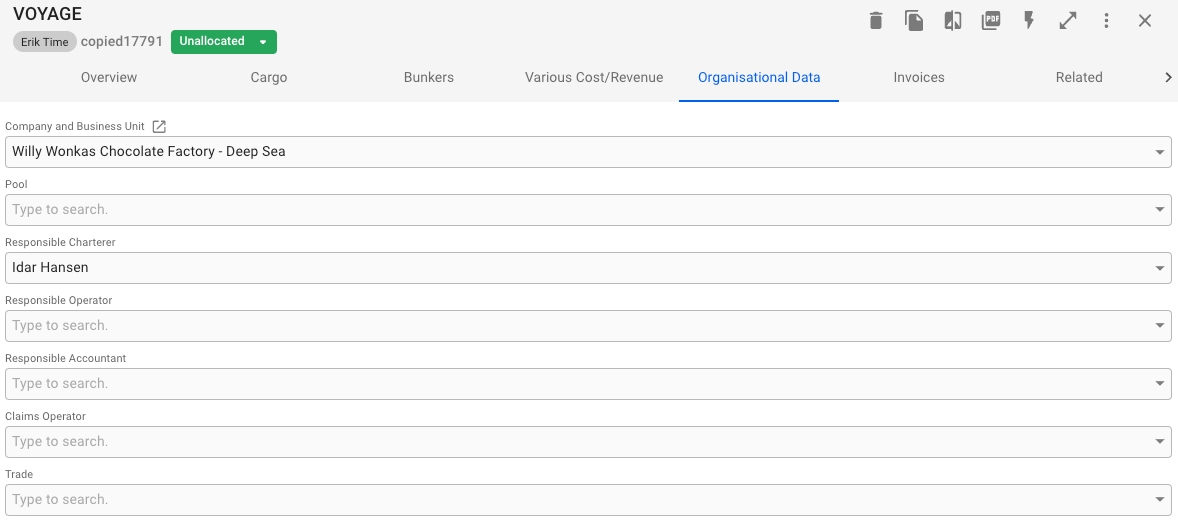
In the Organisational data tab in the voyage drawer you can edit the following information:
Company and Business Unit
Pool
Responsible Charterer
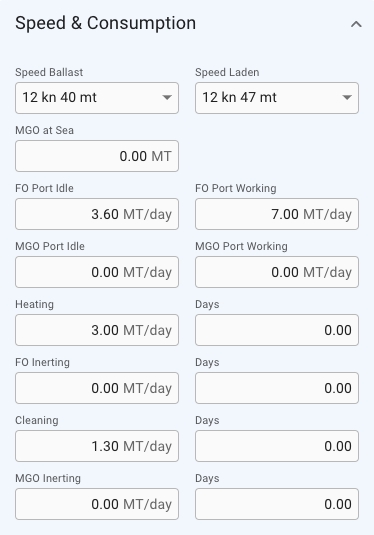
In the Speed and Consumption section in the voyage drawer you can update the various fields for consumption for a voyage. This section can be found in the Overview-tab in the voyage drawer.
In order to expand the section to see and edit the fields, click expandon the far right of the top right summary cards.
Once the expand icon is clicked the fields will be displayed like this example:
Note that if the field for Speed Laden or Speed Ballast is changed in the vessel section it will also affect the corresponding field in this section as well, and vice versa.
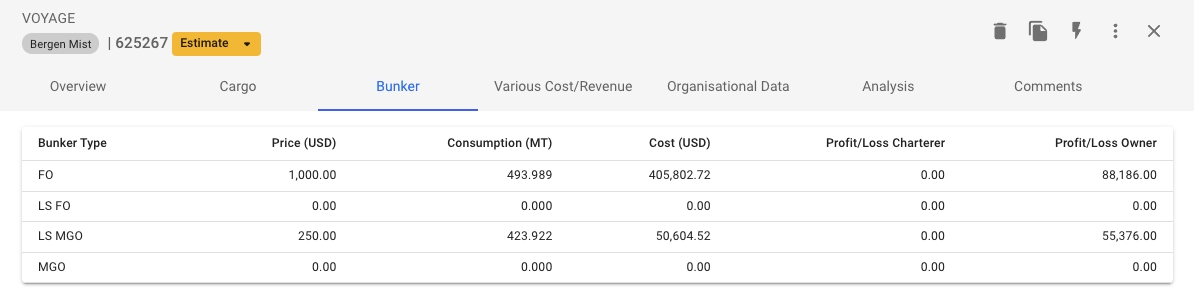
Bunker stocks is a detailed representation of bunkers usage for each voyage. In this list you will find consumption, purchases and sells of bunkers on board for each port call.
The Bunker Stock list can be found in the Voyage drawer under the tab called Bunkers.
Each list starts with the opening balance of the stock. The opening balances displays the balance of the bunker stocks at the beginning of the voyage and are generated based on the previous fixed voyage. When creating voyage estimates the opening balances are generated based on the last fixed voyage on the vessel.
Opening balances can be updated on voyages with status Estimate or Unallocated to be able to do quick calculations. Once a voyage i fixed the opening balance will be recalculated based on the previous fixed voyage and will no longer be editable.
Opening balances are also editable on voyages where the voyage start date is fixed.
To edit an opening balance on voyages where this is enabled,
click on the opening balance row and a modal with the editable values will appear
edit the values
click Confirm to save your changes
It is possible to add additional opening balances for each bunker category on voyages that have the status Estimate or Unallocated and for voyages where the start date of the voyage is fixed.
To add an opening balance:
in bunker stocks list click on the Add Opening Balance button located above the bunker stock list for a given bunker category
enter the values
click Confirm to save the opening balance
The new opening balance will be added after the last existing opening balance in the list.

To change the order of port calls, simply hover over a port call to move it into place.
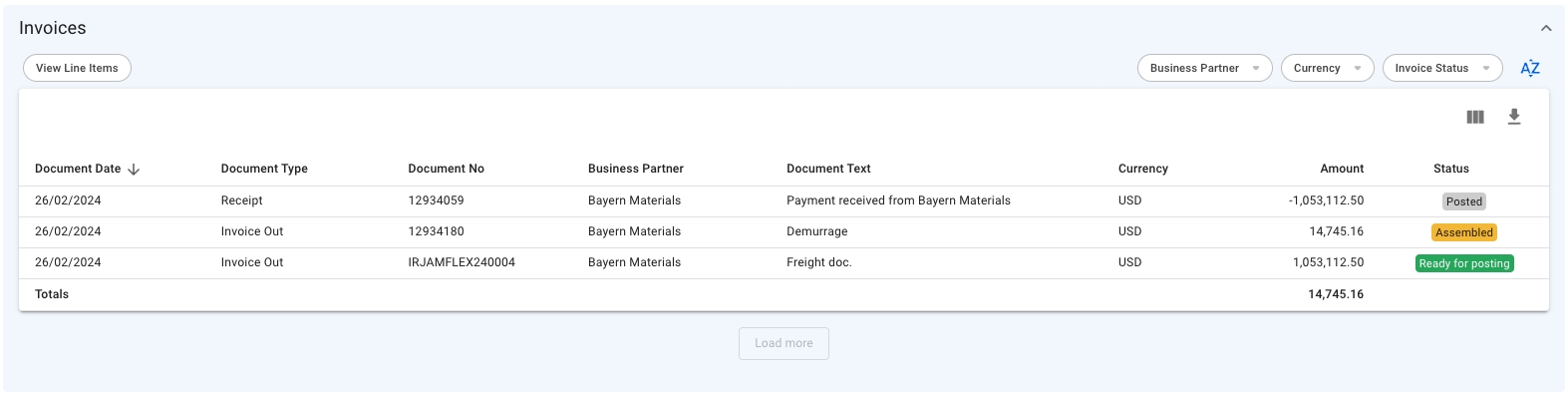
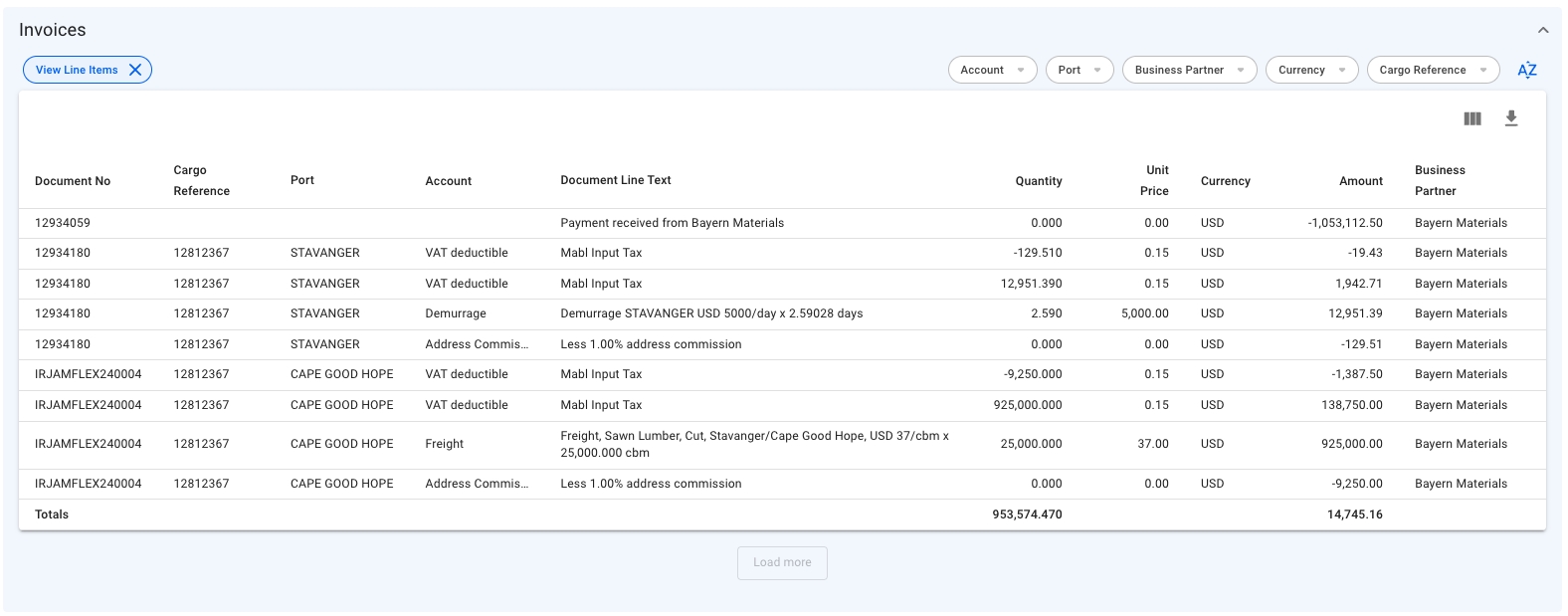
The invoice-section shows a list of all assembled invoices, or their line items. When in the toggle-button is set to Receivable or Payable, only the invoices connected to the voyage are shown. However, when set to Hire Payable, all invoices associated with the TC In contract are displayed, and an additional column for Voyage Reference is added that indicates the voyage(s) billed within each invoice.
Clicking on an invoice will open a Document drawer, showing more details and allowing you to print them.
In the top left corner of the section, you will find a "View Line Items" button. Clicking it will change between displaying the assembled documents and their data, and displaying each individual document line. This may be useful if you are looking for a specific item, but don't know in which document it was assembled. The line items list has filters specific to this mode. Clicking one of the document lines will open the Document it belongs to in a new drawer.
Use the filters to quickly narrow down your selection. Depending on whether you are in Receivable, Payable or Pending Payable mode, as well as Document or Line Items view, the available filters change.
Business Partner
Account
Currency
Currency
Voyage Reference (Hire Payable Only)
Cargo/Voyage Reference
Invoice Status
Port
Business Partner
Responsible Operator
Responsible Accountant
Claims Operator
Trade
To edit any field in the tab, click into the field and start typing. Then select the desired option. Field will automatically save when you click outside or use tab key to exit the field.
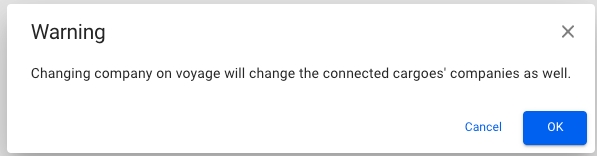
Company and Business Unit field is mandatory if the voyage status is NOT Estimate or Unallocated. When editing company and/or business unit, you will get a warning that alerts the user that the connected cargoes will also have their companies and business units changed.
When clicking the OK button, the company and/or business unit will be changed for the voyage and all the connected cargoes.
Reason For Call
Yes
If Dry Dock is selected, an Offhire record will be created.
Port Cost
No
Only available if Reason For Call is set to Bunkering or Extra Port.
Days Extra In Port
No
Only available if Reason For Call is set to Bunkering or Extra Port.
Offhire Start Date
Yes (If enabled)
Only available if Reason For Call is set to Dry Dock.
Voyage Start Date will automatically be locked and set to the selected Offhire Start date.
Offhire End Date
Yes (If enabled)
Only available if Reason For Call is set to Dry Dock.
Must be after Offhire Start Date.





With the Intake Calculation function you can change parameters of a voyage to get an overview of quantities available for cargo at the port calls.
Click on a voyage in the list or board to open it in the drawer.
At the top right, click on Functions.
Select








At the top, below the vessel-chip and voyage reference, fields for changing the stowage and bunker properties for the entire voyage are displayed.
FO ROB Voyage Start
Fuel oil at voyage start
LS MGO ROB Voyage Start
Low-sulphur marine gas oil at voyage start
MGO ROB Voyage Start
Marine gas oil at voyage start
LS FO ROB Voyage Start
Low-sulphur fuel oil at voyage start
A table of all the port calls on this voyage is shown in this section. To change the intake reduction properties per port call, click a row to open a window where you can make adjustments. Some columns are hidden by default, and can be toggled on/off by using the "Customize Columns"-button in the top right corner of the table.
Port
Name of the port
Reason for call
Tells you the reason for the port call.
Arrival
Shows you date and time for arrival at the port.
Departure
Hidden by default. Shows you date and time for departure from the port.
Draft
Intake draft reduction of the vessel. Lower value increases intake.
Zone
Sets the vessel DWT that is used in the calculation.
A mixed chart of the calculation results is generated at the bottom. Each port call has multiple graphs to show the reductions, cargo quantity and quantity available for cargo. The charts gets updated automatically when there are changes to the voyage header, port call, or vessel parameters.
Click on the legends at the top of the chart to toggle the display of a graph. Hover the mouse over the chart to inspect the values of each calculation data point.
The loadline information table shows data on the voyage vessel that might affect the intake. To change these values, you need to edit the vessel in the Vessels module in master data.


From the Voyage drawer it is possible to change the status of the voyage by using the status chip next to the reference no at the top of the drawer.
When changing status from estimate to Allocate, no modal will show. The same also happens from Estimate to Unallocated. You can check out the different requirements and validations below.
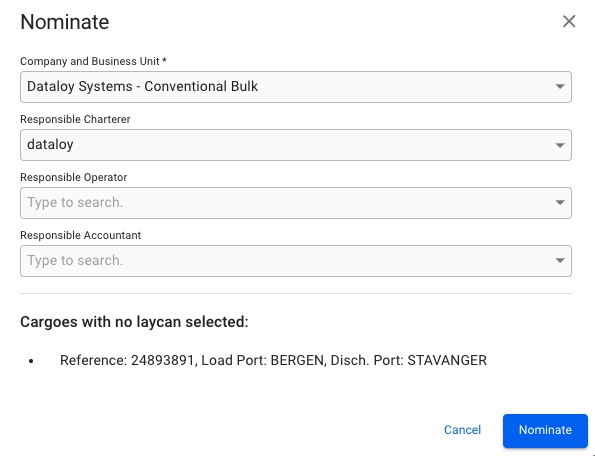
When changing status from Estimate to Nominated, the following modal will show:
If it's a TC voyage with missing Laycan on the TC, you will have to fill in the Laycan as well. Otherwise, you will get information at the bottom of the modal saying which cargoes does not have Laycans added, but you will be able to nominate.
As you can see, Company and Business Unit field is required. By default, what is selected on the voyage will display here, but you are free to change it. You can also add Responsible Charterer, Responsible Operator and Responsible Accountant, but these are not required.
The same also happens when changing from Allocated to Nominated.
You can check out the different requirements and validations below.
There are also other "forward" status transitions, like:
Nominated -> Operational
Operational -> Operationally Closed
Operationally Closed -> Invoiced
Operationally Closed -> Closed
When changing to these statuses, no modal will show.
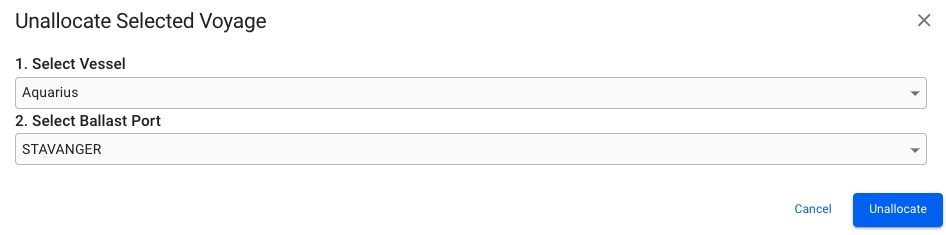
When changing status from Allocated to Unallocated, the following modal will show:
You will be given the option to select a new Vessel and/or Ballast Port to change to, but not required for unallocating.
The same also happens when changing from Nominated to Estimate.
When changing to these statuses, no modal will show.
There are also other "backward" status transitions, like:
Operational -> Nominated
Operationally Closed -> Operational
Invoiced -> Operationally Closed
Closed -> Invoiced
Required Values Must Be Set:
For each cargo: charterer
For each cargo: commodity
-> This can be seen for most "forward" status transitions.
Vessel code must be changed from its default assigned value. Open Vessel "Internal Data" to set a new code.
-> This can be seen for most "forward" status transitions.
Warning
The ballast port on this voyage does not match the open position of this vessel. Do you want to <status> the voyage with the start date locked?
-> This can be seen for most "forward" status transitions.


Water Salinity
One of Saltwater/Brackish Water/Fresh Water. Affects the water density.
Water Density
Hidden by default. Density of the water at port. Higher value increases intake.
Bunker reduction (Arriving)
Amount of bunker reduction on arrival in metric tonnes.
Bunker reduction (Departing)
Amount of bunker reduction on departure in metric tonnes.
Quantity on board (Arriving)
Amount of cargo on board on arrival in metric tonnes.
Quantity on board (Departing)
Amount of cargo on board on departure in metric tonnes.
Safety Margin
Hidden by default. Safety margin for the draft. Default value is 20%. Lower value increases intake.
Constant Reduction
Hidden by default. Intake constant reduction of the vessel. Lower value increases intake.
Fresh Water Reduction
Hidden by default. Intake fresh water reduction of the vessel. Lower value increases intake.