> For the complete documentation index, see [llms.txt](https://docs.dataloy.com/llms.txt). Markdown versions of documentation pages are available by appending `.md` to page URLs; this page is available as [Markdown](https://docs.dataloy.com/release-6.46/voyage-management-system/step-by-step-guides/voyages/voyage-schedule.md).
# Voyage Schedule
A section in a Voyage drawer that visualizes the schedule and port-call-related information.
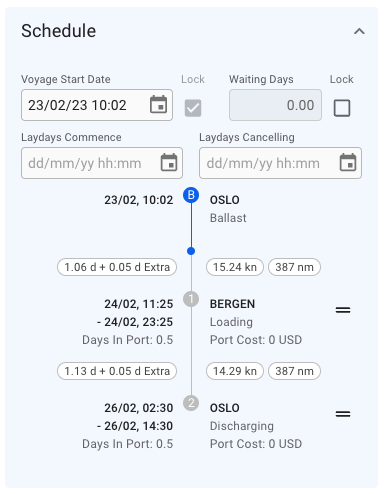
The *Voyage schedule* visualization may be found on the right-hand side of a voyage drawer.
This section is highly customizable: e.g., you may change the voyage start date, lock it, edit the *Voyage's speed*, update the port call sequence, and much more!
Voyage Schedule section
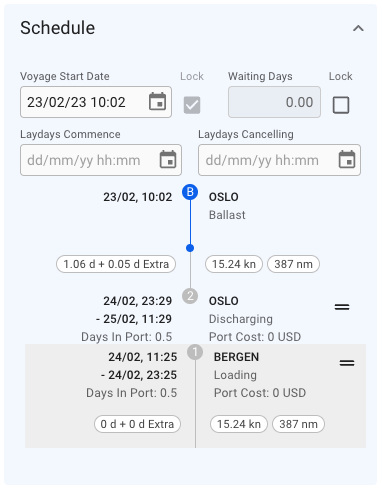
The *Schedule Timeline* is a fully interactive module. Each port represents a draggable block - if you reorder the blocks, you will update the port call sequence on the opened voyage correspondingly:
Voyage Schedule - reordering the Port Calls sequence
Next, each *Port Call* block is clickable, and it brings up a [Port Call](/release-6.46/voyage-management-system/step-by-step-guides/port-calls.md) drawer.
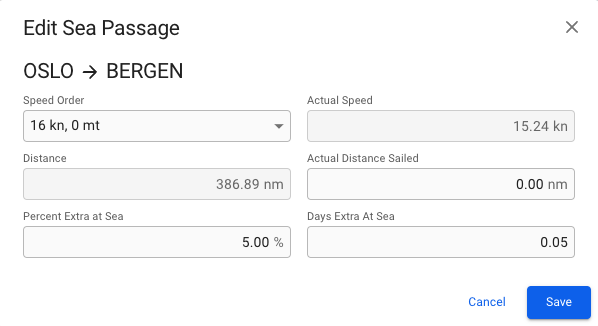
The small ovals inside of each *Port Call* block includes a piece of related information: *Days at Sea + Extra Days at Sea*, *Actual Speed*, and *Distance between Ports*. Every oval is clickable and allows editing corresponding sea passages.
Edit Sea Passage module
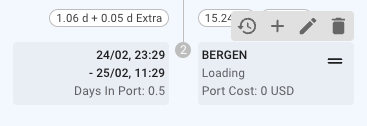
Moreover, the Port Call blocks include a small functions tooltip that provides the following actions on the voyage schedule sequence: show Port Cost history overview, create new Port Call to the current schedule, edit the selected Port Call, or delete the Port Call.
Port Call block - functional bar
### Edit Port Call
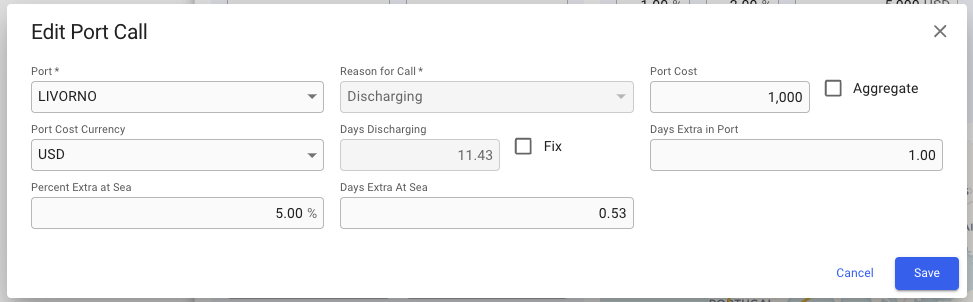
To edit a port call in the schedule, click the pencil icon in the functions tooltip. A popup modal then shows where main details of the port call can be changed.
Edit port call modal
Note that the port can only be changed if the Arrival-, Berthed-, and Departure Date are unfixed. If any of these dates are fixed, the port selector will only show available terminals on the currently selected port.
---
# Agent Instructions
This documentation is published with GitBook. GitBook is the documentation platform designed so that both humans and AI agents can read, navigate, and reason over technical content effectively. Learn more at gitbook.com.
## Querying This Documentation
If you need additional information that is not directly available in this page, you can query the documentation by asking a question.
Perform an HTTP GET request on the following URL with the `ask` and `goal` query parameters:
```
GET https://docs.dataloy.com/release-6.46/voyage-management-system/step-by-step-guides/voyages/voyage-schedule.md?ask=&goal=
```
`ask` is the immediate question: it should be specific, self-contained, and written in natural language.
`goal` is what the user is ultimately trying to achieve, the reason they need the answer. Sharing it helps GitBook give you a better, more relevant answer. A goal is most helpful when it describes the outcome the user wants rather than restating the question. For example, with `ask=how do I create an API token`, a goal like `automate deployments from our CI pipeline` lets GitBook tailor the answer to that use case.
The response will contain a direct answer to the question and relevant excerpts and sources from the documentation.
Use this mechanism when the answer is not explicitly present in the current page, you need clarification or additional context, or you want to retrieve related documentation sections.