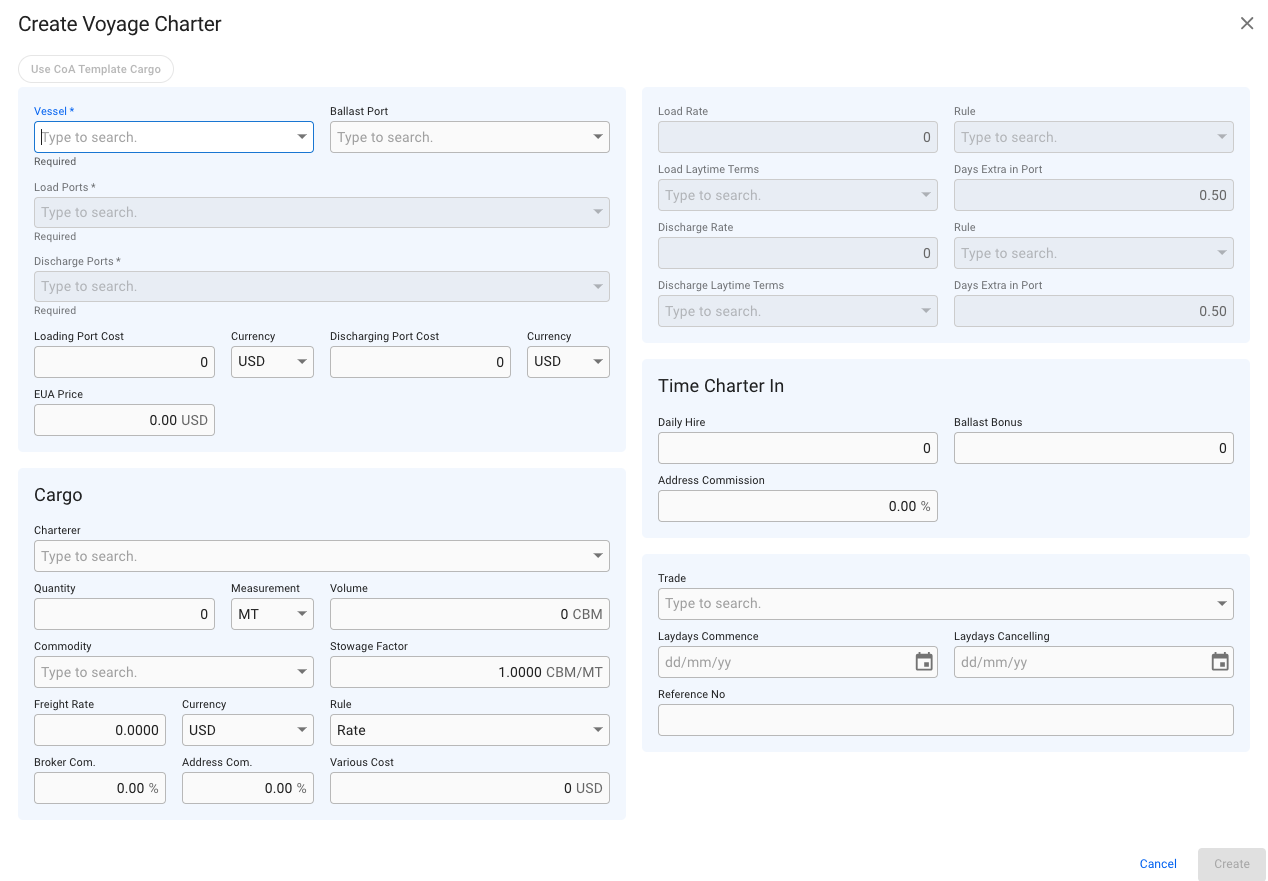
Create Voyage Charter Modal
 icon.
3. Select **Create Voyage Charterer**.
4. In this modal, you can have *two* options:
a. you can **fill in** the required fields and **add** any additional information about the new voyage
b. you can choose a vessel, and afterwards click the **Use CoA Template Cargo** button, which will link to the same modal as described here: [Create Cargo From CoA Template](/release-6.46/voyage-management-system/step-by-step-guides/cargoes/create-cargoes/create-cargoes-from-templates.md). Using a CoA Template will give the voyage and the cargo the same Company and Business Unit as the CoA.
5. After you have filled in or chosen a CoA Template for the cargo information, you can click **Create**.
#### **Required fields:**
* Vessel
* Load Ports
* Discharge Ports
### The modal:
icon.
3. Select **Create Voyage Charterer**.
4. In this modal, you can have *two* options:
a. you can **fill in** the required fields and **add** any additional information about the new voyage
b. you can choose a vessel, and afterwards click the **Use CoA Template Cargo** button, which will link to the same modal as described here: [Create Cargo From CoA Template](/release-6.46/voyage-management-system/step-by-step-guides/cargoes/create-cargoes/create-cargoes-from-templates.md). Using a CoA Template will give the voyage and the cargo the same Company and Business Unit as the CoA.
5. After you have filled in or chosen a CoA Template for the cargo information, you can click **Create**.
#### **Required fields:**
* Vessel
* Load Ports
* Discharge Ports
### The modal:
Create Voyage Charter Modal