It is possible to access the cargo drawer by clicking on any allocated voyage in any of the boards/lists in FAS (or outside), and then opening the 'Cargo' tab. Also, in the Cargo Management Board, you can access the cargo drawer by clicking on a commitment to the left, or directly on an allocated cargo on the right (on the allocated voyages).
Inside a chosen , you will be able to create new cargoes in based on allocated or unallocated voyages.
In the , next to the 'Commitment' title, there is a icon. Here, you can find all the different types of cargoes to create, and their modals. Follow the same steps as to create a new cargo. The new cargo will be placed in the commitments column based on the given Laydays. If not given, then they will be placed at the bottom of the list.
On any allocated voyage in FAS (or ), you can find the 'Cargo' tab at the top of the voyage drawer. Above the cargo list, there is a icon there. Also here, you can of cargoes, and display their modals. But- there is a new design here as well:
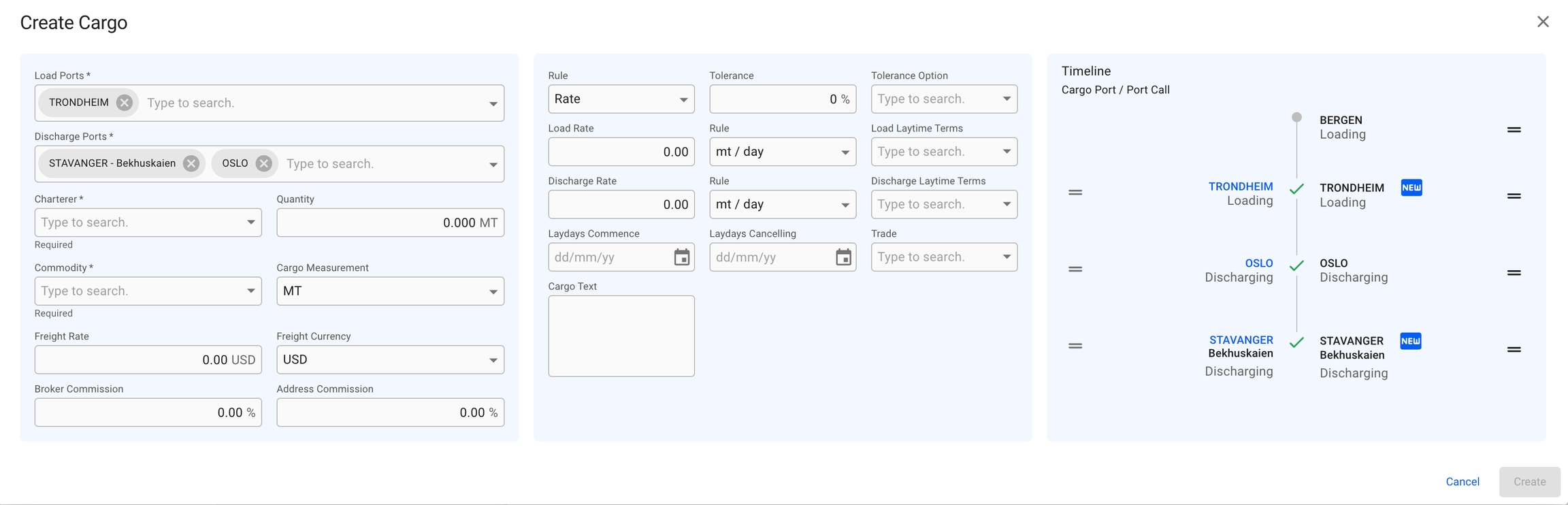
Please click on the picture to get better view of the details. The key details are the same as earlier described , but as you can see- there is some difference in the Timeline component this time. On a voyage, we have port calls. These will be matched with the new cargo ports of the cargo you want to create. The CP/PC row marked with 'NEW' contains the new cargo ports that are added from the fields on the left-most section, meaning port calls 'Trondheim' and 'Stavanger' didn't exist before, but are now added. At the same time, we know that 'Bergen' and 'Oslo' port calls existed from before, so if you want to add a cargo port 'Oslo', it will now be directly linked to the port call (and the 'NEW' icon is not displayed). Read more about the drag and drop features and the new Create Cargo Port modal down below.
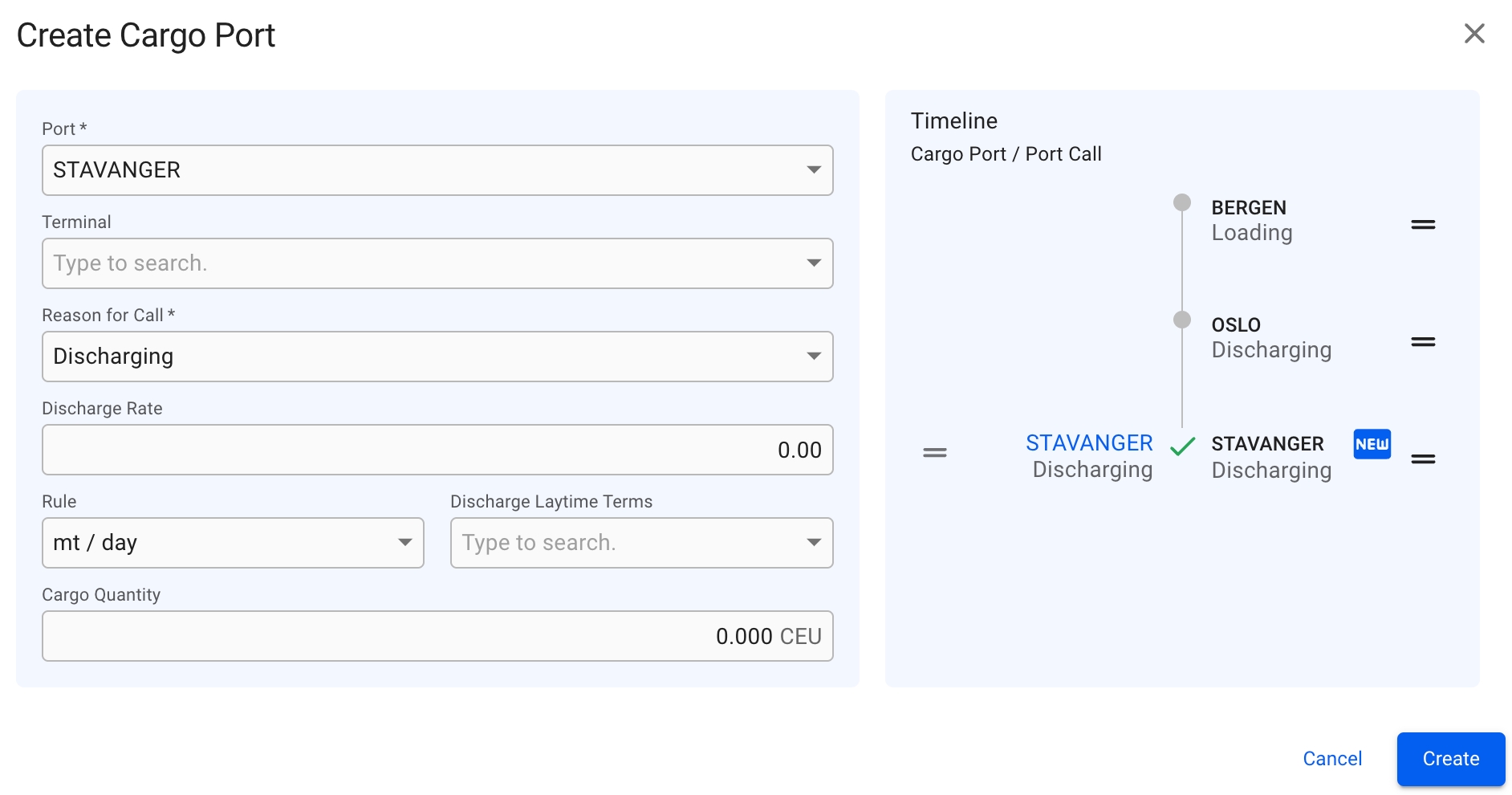
On the allocated cargoes mentioned above, you will have drag and drop options on both sides of time timeline. On the left side, you will be able to drag a cargo port to match with a corresponding port call, but they both have to have the same reason for call. On the right side, you will be able to drag the whole CP/PC row to change the order in these ports on the voyage. The same features are implemented in the new Create Cargo Port modal:
Read about the new Create Cargo Port modal for unallocated cargoes .
In Open Positions Board: to allocate or unallocate a voyage, you can drag and drop the different voyage cards between the Commitments column (the unallocated voyages) and the different vessels displayed.
In Scheduler Board: to allocate or unallocate a voyage, you can drag and drop the different voyage bars between the COA and SPOT rows (the unallocated voyages) and the different rows of vessels displayed.
In the secondary actions menu (3 dots), it's possible:
To unallocate a cargo (unless it's already unallocated)
To allocate a cargo
To delete a cargo
To relet a cargo
In Cargo Management board: to allocate or unallocate a cargo, you can drag and drop the different cargo cards between Commitments column (the unallocated cargoes) and the different allocated voyages displayed.
To tranship a cargo
To preship a cargo
To transfer a cargo
To edit Cargo Reference
To connect to CoA
To view the Audit Log
To access or upload voyage Attachments