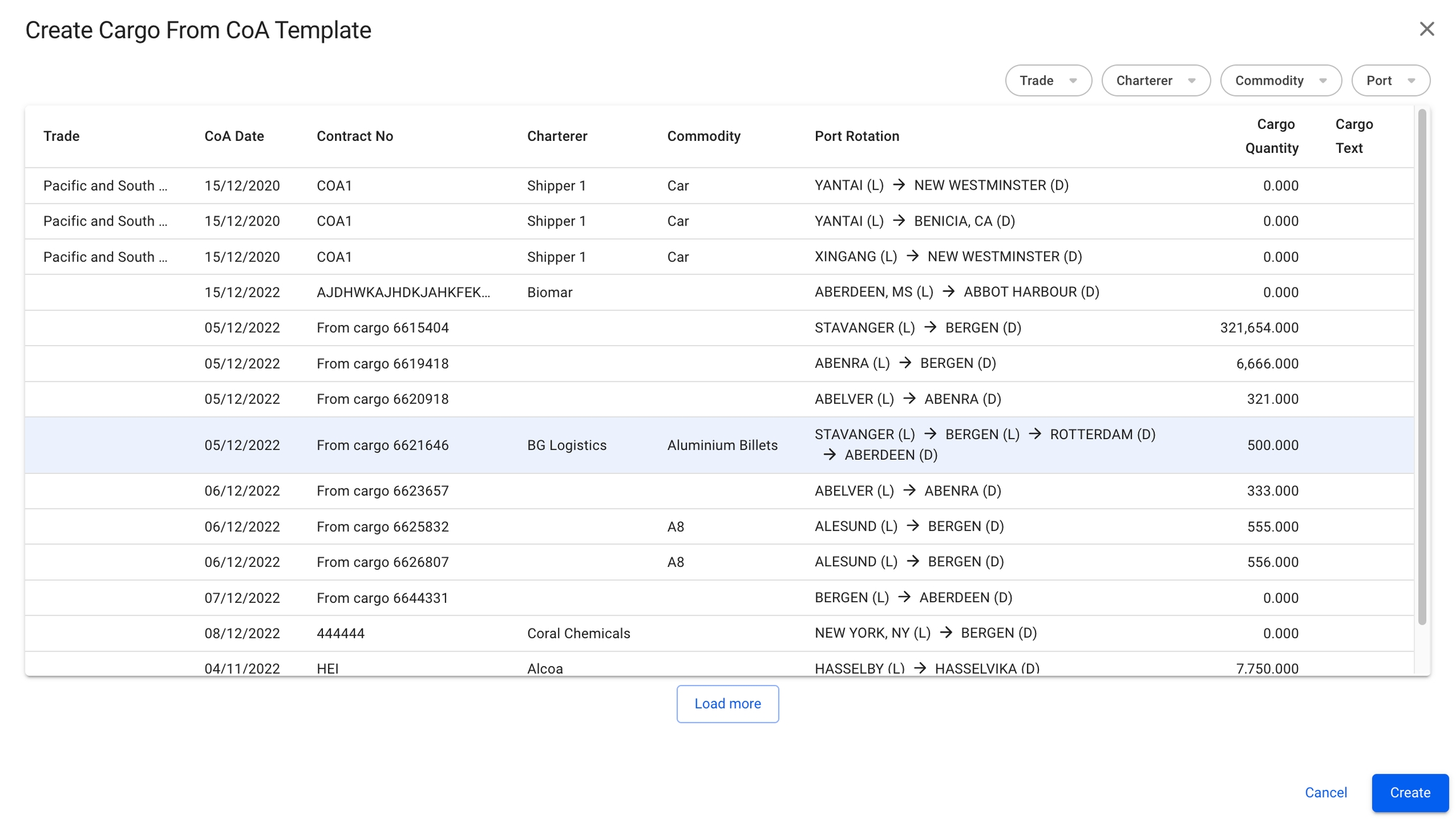
To efficiently create a cargo, and link them with CoAs, you can create a cargo based on a CoA Template. The CoA Templates are the template cargoes that are maintained in the CoA module.
Open the Cargoes module from the menu on the left.
In the top right corner, click Create .
Select Create New Cargo From CoA Template.
In the modal, select a CoA template to create the new cargo. The fields that are pre-filled are the ones that were filled in when creating the CoA itself, which the new cargo will inherit.
Click Create.
The modal is now draggable, making it easier to see the information "behind" the modal. Hover over the title or the top of the modal to activate it.
Looks and works quite similar to .
Select Create New Cargo.
In the modal, you can fill in the required fields and add any additional information about the new cargo.
Click Create.
Load Port
Discharge Port
Charterer
Commodity
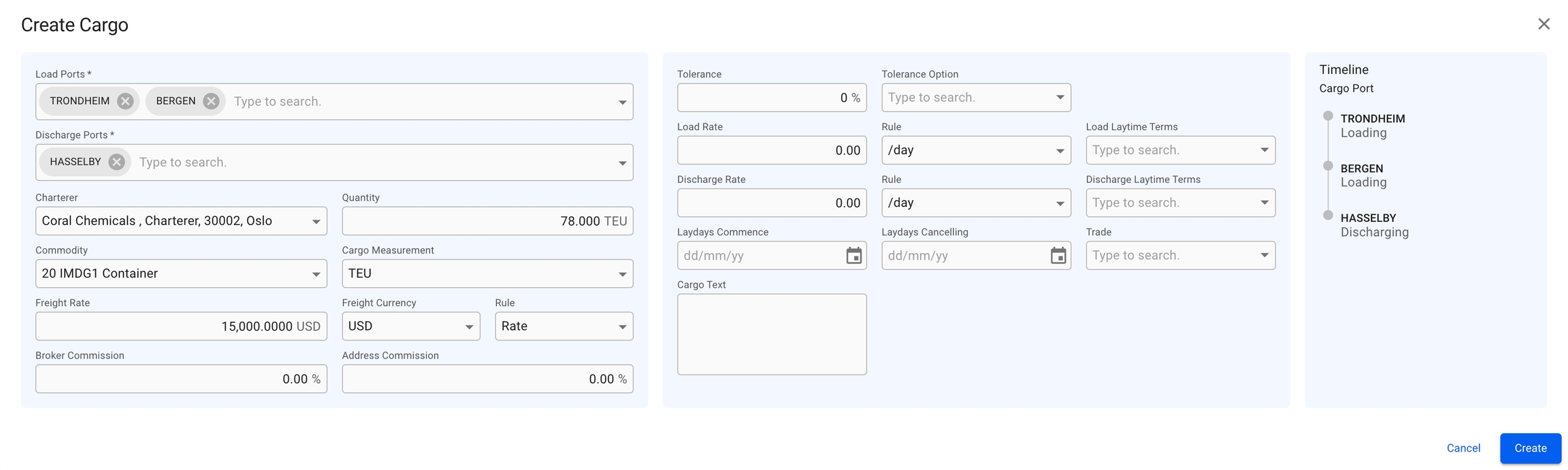
The new Create Cargo modal has a new design to increase the productivity while creating a cargo, is more user-friendly and has more useful features altogether. Click on the picture below to get a better view of the details:
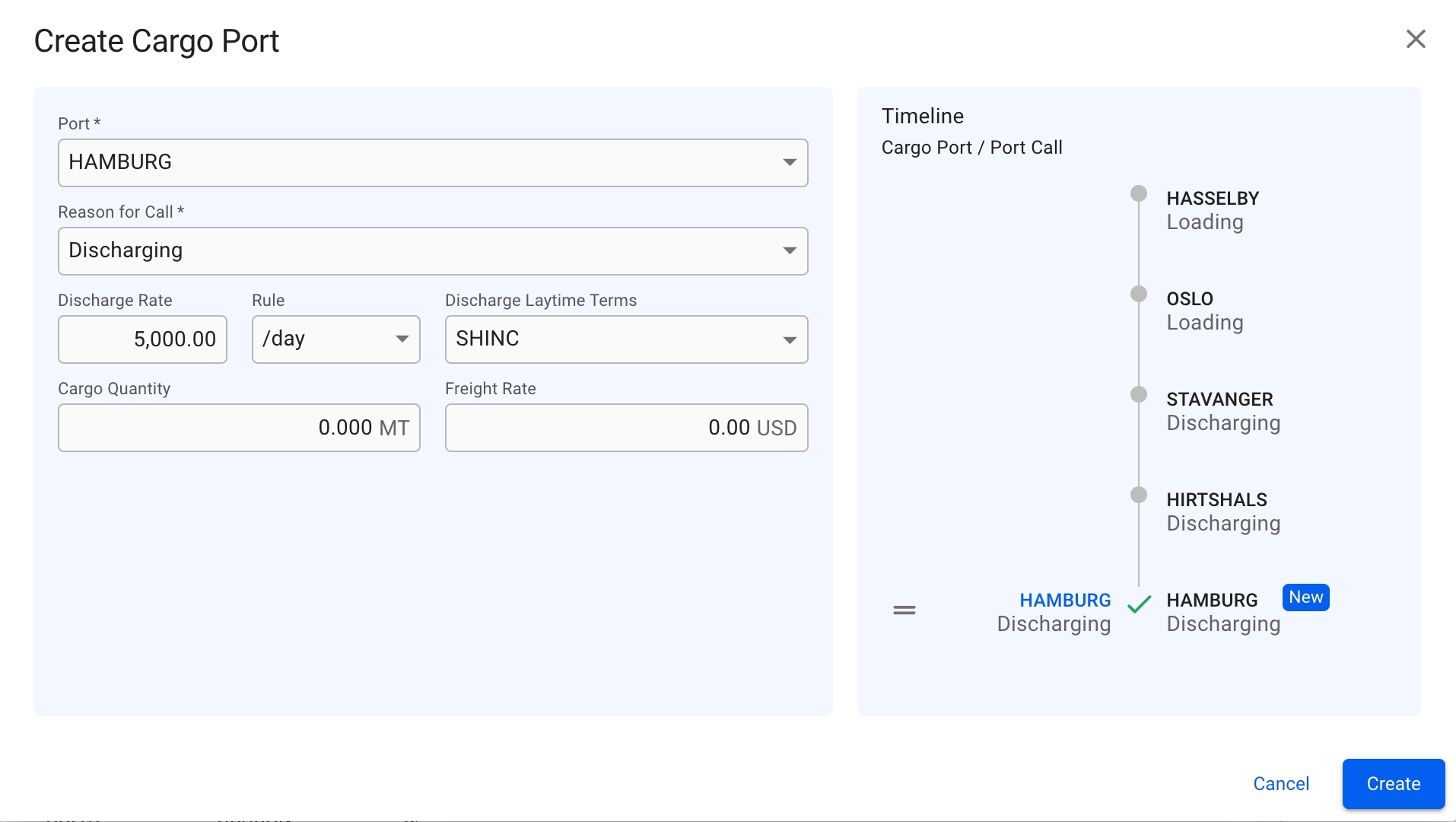
Similar to the design above, we now have a new Create Cargo Port modal:
This modal has the same features as the Create Cargo modal, listed below. To create a new cargo port on a cargo, there is now a simple icon at the top of the Cargo Port Timeline section of the cargo drawer. However unlike the Create Cargo modal, Reason for Call is set to 'Loading' by default and is limited to only 'Loading' and 'Discharging' for cargo ports.To change the order of ports, you can use the drag and drop features inside the modal. To edit or delete an existing cargo port you can, in the Cargo Port Timeline section, look for the grey icons on each of the cargo port rows, to specifically focus on a cargo port of choice to make the changes. Read more about the features below.
With the new multiple value component in the Create Cargo modal, you are now able to add multiple Load- and Discharge- cargo ports to the new cargo.
The fields are divided into 2 sections, while the 3rd section displays the Timeline component of the cargo ports that are added. In the Create Cargo Port modal, there are 2 sections, in which the 2nd one contains the Timeline.
It is possible to drag and drop the ports in the Timeline component to change the order of the cargo port rows, in both of the modals.
Layout:
The Cargoes module is divided into the Allocated cargoes and the Unallocated cargoes. In each tab, you can filter the cargoes based on several key endpoints to effectively view the required information on your screen. There is a sort icon to the far right, with different options for sorting the list as well. You can read more here: .
Below you can click to read how to create different types of cargoes:
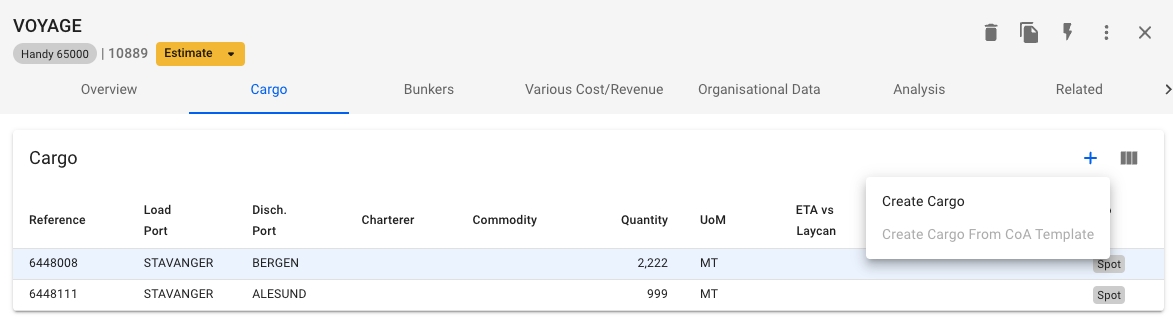
Within a TC voyage drawer, the Cargo tab is enabled for you to create new cargoes on the voyage:
You cannot create a cargo from CoA templates
You cannot create a cargo if there are no load- or discharge port calls on the voyage
Even when we have the delivery/redelivery port calls
You need to create at least one loading- and discharging port calls on the voyage schedule (unique values)
You can only create cargoes with cargo ports based on the port calls in the voyage schedule
The port selectors on the upper-left side of the modal are restricted to only display these cargo ports (also with its attached terminals)
The following actions are disabled from the secondary actions:
Unallocate Cargo
Allocoate Cargo
Relet
Transship
In the FAS board, these following actions are disabled:
Dragging an unallocated cargo to a TC voyage
Dragging an allocated cargo on a TC voyage to Commitments
Dragging an allocated cargo from one TC voyage to another voyage (TC or not)
Preship
Transfer