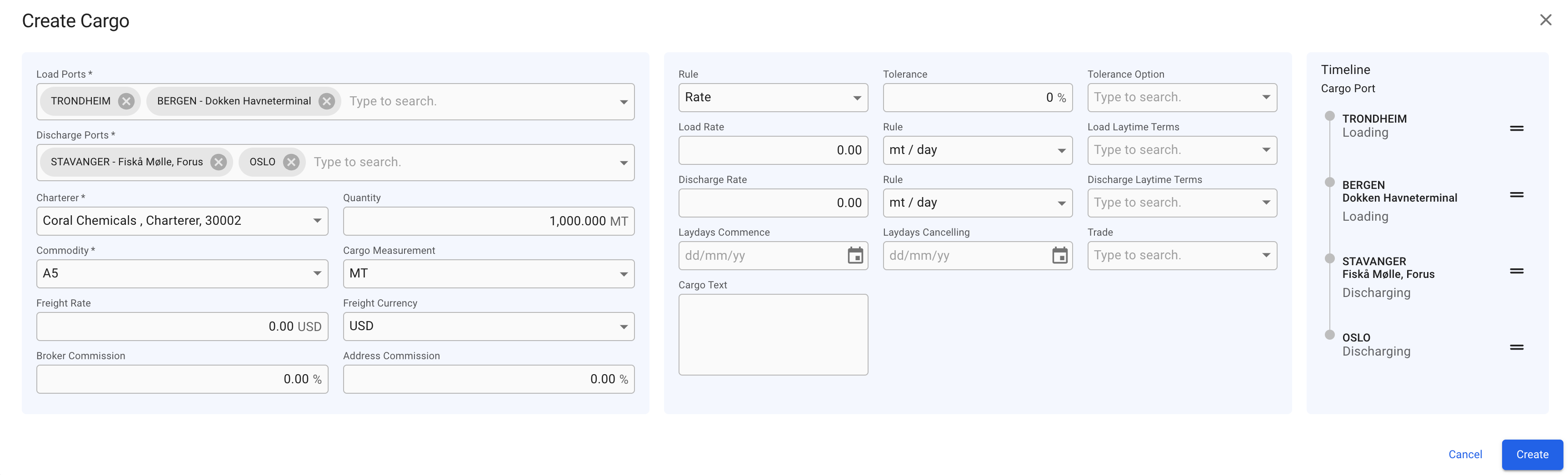
New Create Cargo Modal fro Unallocated Cargoes
 .
3. Select **Create New Cargo**.
4. In the modal, you can **fill in** the required fields and **add** any additional information about the new cargo.
5. Click **Create**.
#### **Required fields:**
* Load Port
* Discharge Port
* Charterer
* Commodity
### **New design:**
The new ***Create Cargo modal*** has a new design to increase the productivity while creating a cargo, is more user-friendly and has more useful features altogether**.** Click on the picture below to get a better view of the details:
.
3. Select **Create New Cargo**.
4. In the modal, you can **fill in** the required fields and **add** any additional information about the new cargo.
5. Click **Create**.
#### **Required fields:**
* Load Port
* Discharge Port
* Charterer
* Commodity
### **New design:**
The new ***Create Cargo modal*** has a new design to increase the productivity while creating a cargo, is more user-friendly and has more useful features altogether**.** Click on the picture below to get a better view of the details:
New Create Cargo Modal fro Unallocated Cargoes
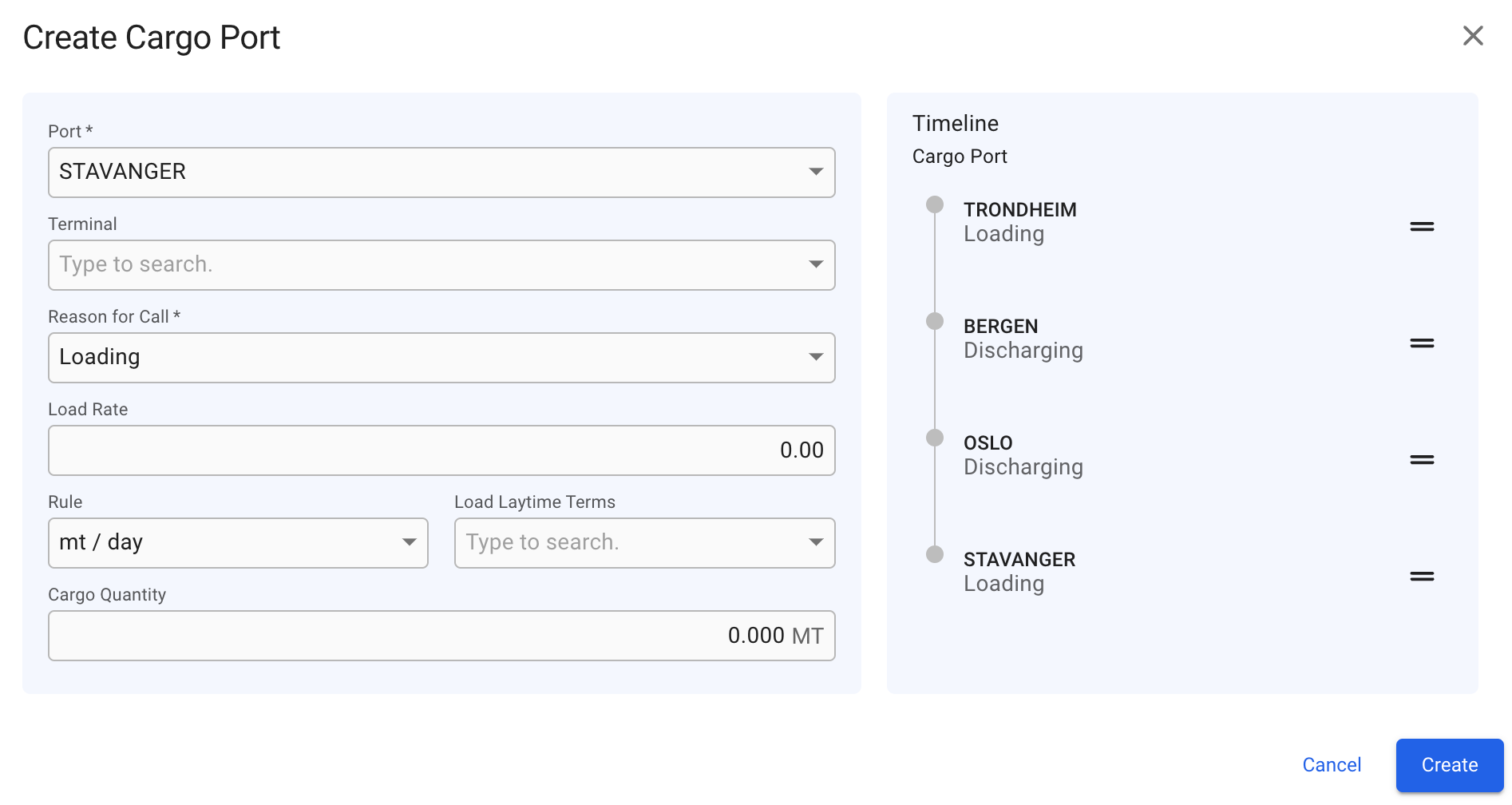
New Create Cargo Port Modal For Unallocated Cargoes
icon at the top of the *Cargo Port Timeline* section of the [cargo drawer](/release-6.13/voyage-management-system/step-by-step-guides/cargoes/maintain-cargoes/cargo-drawer.md). To change the order of ports, you can use the *drag and drop features* inside the modal. To *edit* or *delete* an existing cargo port you can, in the Cargo Port Timeline section, look for the grey icons on each of the *cargo port rows*, to specifically focus on a cargo port of choice to make the changes. Read more about the features below.
### Features:
* With the new *multiple value* component in the Create Cargo modal, you are now able to add **multiple** Load- and Discharge- *cargo ports* to the new cargo.
* The fields are divided into 2 sections, while the 3rd section displays the Timeline component of the cargo ports that are added. In the Create Cargo Port modal, there are 2 sections, in which the 2nd one contains the Timeline.
* It is possible to *drag and drop* the ports in the Timeline component to change the order of the cargo port rows, in both of the modals.
{% hint style="info" %}
To see the new *Create Cargo* and *Create Cargo Port* modals for *allocated* cargoes, click here: [Cargo Actions](/release-6.13/fleet-allocation-and-scheduling/getting-started/fleet-plans/cargo-management-board/cargo-actions.md)!
{% endhint %}
---
# Agent Instructions
This documentation is published with GitBook. GitBook is the documentation platform designed so that both humans and AI agents can read, navigate, and reason over technical content effectively. Learn more at gitbook.com.
## Querying This Documentation
If you need additional information that is not directly available in this page, you can query the documentation dynamically by asking a question.
Perform an HTTP GET request on the current page URL with the `ask` query parameter, and the optional `goal` query parameter:
```
GET https://docs.dataloy.com/release-6.13/voyage-management-system/step-by-step-guides/cargoes/create-cargoes/create-new-cargoes.md?ask=