| Reference | Fields | |
|---|---|---|
| 1 | Voyage Reference | |
| 2 | Voyage Status | |
| 3 | Charterer | |
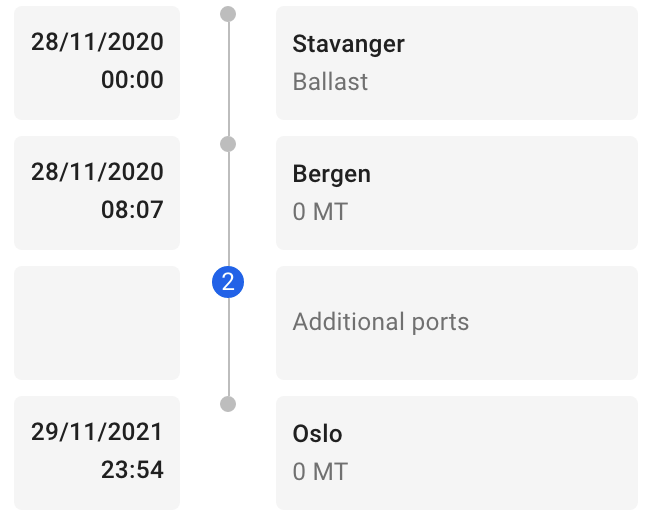
| 4 | Port calls | |
| 5 | Commodity | |
| 6 | Laydays Start to End Dates | |
| 7 | Quantity and Measurement Unit |
| Reference | Fields | |
|---|---|---|
| null | Voyage: | |
| 1 | Vessel | |
| 2 | Voyage Reference | |
| 3 | Trade Code | |
| 4 | Voyage Status | |
| 5 | TCE and Currency | |
| null | Performance Cargo: | |
| 6 | Charterer | |
| 7 | Quantity and Measurement Unit | |
| 8 | Laydays Start to End Dates | |
| 9 | Days out of Laycan (Early/Late Indicator) | |
| 10 | Arrival Window Start to End Dates | |
| 11 | Days out of Arrival Window (Early/Late Indicator) | |
| 12 | Commodity |
| Reference | Fields | ||
|---|---|---|---|
| 1 | Vessel | ||
| 2 | Last port call's ETD | ||
| 3 | Port |
 to open the settings window.
#### Number of Columns
You can select the number of columns to show in the board either by moving the slider or by typing in a number.
#### Number of Displayed Ports
You can select the number of ports to show in the port call timeline either by moving the slider or by typing in a number. The ballast, first loading and last discharging ports are always visible.
#### Column Grouping
The column grouping decides which column a card should go into. The default setting is to group by vessel, but you can also select load area or discharge area. The area groupings depends on the selected area report under account preferences.
#### Row Grouping
The row grouping setting decides how the cards are grouped vertically. By default there is no row grouping. You can also select to group by month or week.
---
# Agent Instructions
This documentation is published with GitBook. GitBook is the documentation platform designed so that both humans and AI agents can read, navigate, and reason over technical content effectively. Learn more at gitbook.com.
## Querying This Documentation
If you need additional information that is not directly available in this page, you can query the documentation dynamically by asking a question.
Perform an HTTP GET request on the current page URL with the `ask` query parameter, and the optional `goal` query parameter:
```
GET https://docs.dataloy.com/release-6.13/fleet-allocation-and-scheduling/getting-started/fleet-plans/open-positions-board.md?ask=
to open the settings window.
#### Number of Columns
You can select the number of columns to show in the board either by moving the slider or by typing in a number.
#### Number of Displayed Ports
You can select the number of ports to show in the port call timeline either by moving the slider or by typing in a number. The ballast, first loading and last discharging ports are always visible.
#### Column Grouping
The column grouping decides which column a card should go into. The default setting is to group by vessel, but you can also select load area or discharge area. The area groupings depends on the selected area report under account preferences.
#### Row Grouping
The row grouping setting decides how the cards are grouped vertically. By default there is no row grouping. You can also select to group by month or week.
---
# Agent Instructions
This documentation is published with GitBook. GitBook is the documentation platform designed so that both humans and AI agents can read, navigate, and reason over technical content effectively. Learn more at gitbook.com.
## Querying This Documentation
If you need additional information that is not directly available in this page, you can query the documentation dynamically by asking a question.
Perform an HTTP GET request on the current page URL with the `ask` query parameter, and the optional `goal` query parameter:
```
GET https://docs.dataloy.com/release-6.13/fleet-allocation-and-scheduling/getting-started/fleet-plans/open-positions-board.md?ask=